Essential Assessment is a web-based teaching and assessment platform developed for Australian schools. It helps educators assess student learning in Mathematics and English using curriculum-aligned assessments from Foundation (Prep) to Year 10. By combining assessment, reporting, and personalised learning in one platform, it enables teachers to better understand student performance and plan targeted instruction.
Instead of relying on manual marking and paper-based tests, Essential Assessment automatically evaluates student responses. Teachers receive detailed reports that highlight strengths, identify learning gaps, and measure progress against curriculum outcomes. The platform supports diagnostic, formative, and summative assessment, allowing schools to monitor achievement throughout the school year.

Who Can Use Essential Assessment?
Different users have access to specific tools and features depending on their role within the school.
Teachers
Teachers use the platform to simplify assessment and classroom planning. They can:
School Administrators
Administrators have access to school-wide management features, including:
Students
Students use Essential Assessment to complete learning activities assigned by their teachers. They can:
Official Essential Assessment Website
For the safest experience, always sign in through the official Essential Assessment website provided by your school.
Available login portals include:
Using the official platform ensures access to the latest features, security improvements, and official support resources.
Key Features of Essential Assessment
Essential Assessment provides a wide range of tools that support effective teaching, accurate assessment, and ongoing student development.
Curriculum-Aligned Assessments
Every assessment is carefully mapped to recognised Australian curriculum standards, helping teachers evaluate student achievement against required learning outcomes.
Diagnostic Assessments
Diagnostic tools help teachers identify where students need additional support before new learning begins. These assessments highlight:
Formative Assessment
Regular formative assessments allow teachers to monitor student understanding throughout a learning unit. Immediate feedback helps guide classroom instruction before final assessments are completed.
Summative Assessment
Teachers can compare assessment results over time to measure learning growth and evaluate student achievement across different curriculum strands.
Instant Reporting
Results are automatically processed once assessments are completed, giving teachers fast access to detailed reports without spending hours marking student work.
Personalised Learning Activities
Based on assessment performance, students receive learning activities tailored to their individual needs. This targeted approach allows them to practise skills requiring additional attention while reinforcing concepts they already understand.
Benefits of Essential Assessment
Many Australian schools rely on Essential Assessment because it simplifies assessment while providing valuable insights into student learning.
Some of the major benefits include:
Teacher Login Guide
Teachers and administrators can access their accounts by following these simple steps.
Step 1: Open the Official Login Page
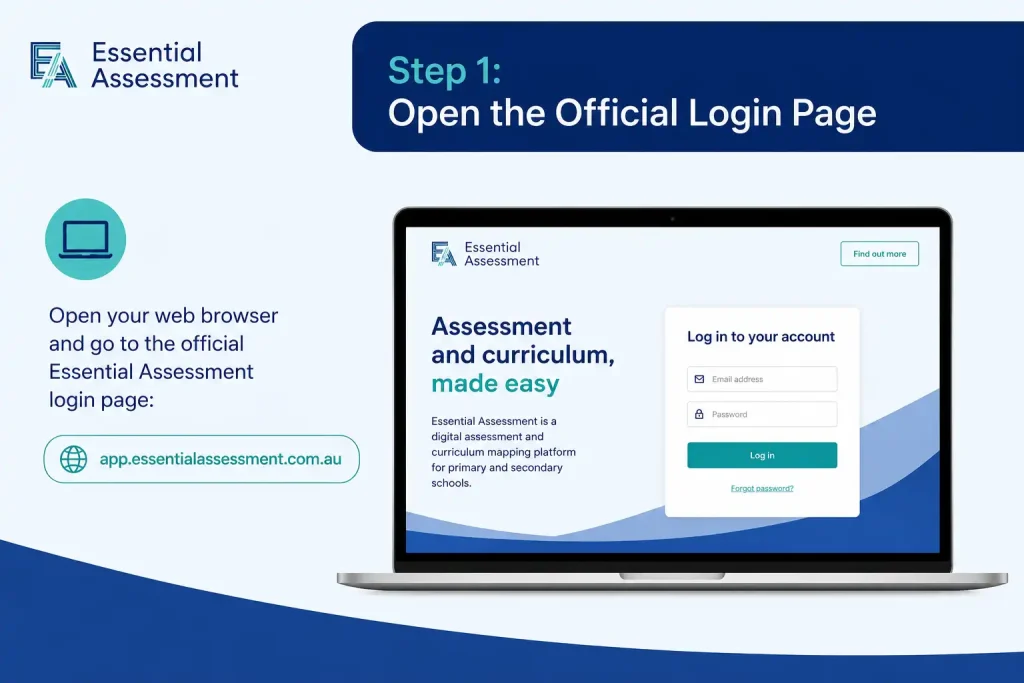
Visit the official Essential Assessment website and select the Teacher Login option.
Step 2: Enter Your Login Credentials

Sign in using your registered school email address and password.
If your school uses Google or Microsoft Single Sign-On (SSO), simply choose the appropriate sign-in option.
Step 3: Access the Dashboard
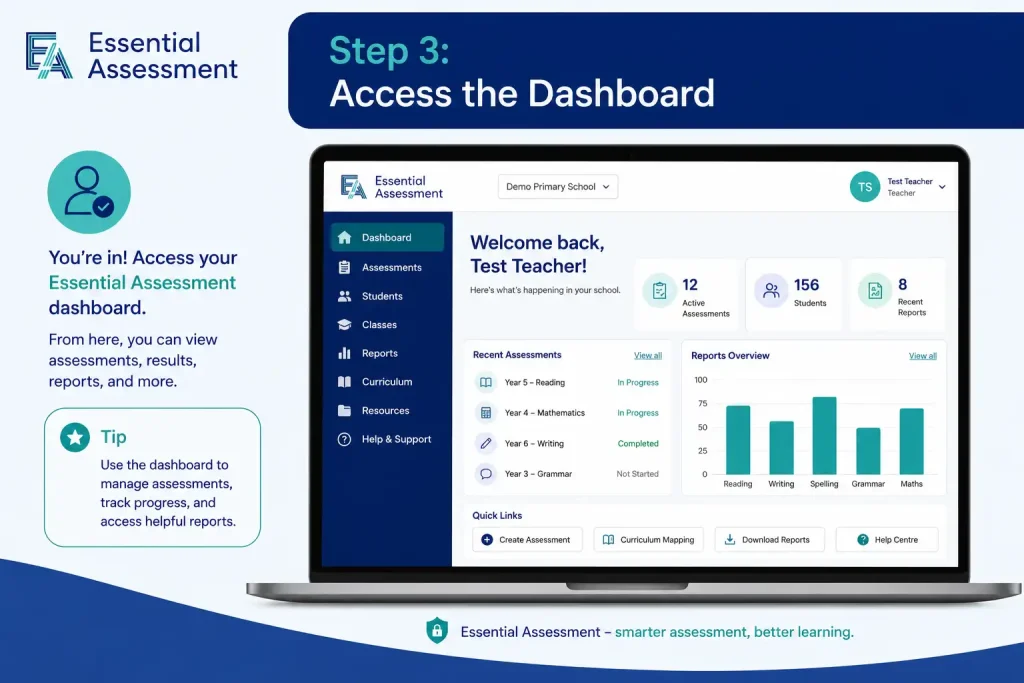
After successful authentication, you’ll be taken to your teacher dashboard where you can:
Student Login Guide
Students receive their login details directly from their teacher or school.
Step 1: Open the Student Portal
Navigate to the official Essential Assessment Student Portal.
Step 2: Enter Your School Code
Type the school code supplied by your teacher to continue.
Step 3: Choose Your Class
Select the correct class or learning group from the available list.
Step 4: Sign In
Depending on your school’s setup, enter:
Some schools may also support QR code login or Single Sign-On (SSO).
Step 5: Begin Your Assessment
Once logged in, your assigned assessments and learning activities will appear on the dashboard. Simply select an available task and click Start to begin.
Using the Essential Assessment Teacher Dashboard
Explore the Teacher Dashboard
After signing in through the official Teacher/Admin Portal, educators are taken directly to the Teacher Dashboard. This is the main workspace where teachers manage classes, assign assessments, review student performance, and access reporting tools from a single location.Visit Homegage
The dashboard is designed to reduce administrative work by placing the platform’s most frequently used features within easy reach. Rather than moving between different systems, teachers can complete most classroom management tasks from one interface.
Common dashboard functions include:
Whether you’re preparing lessons or reviewing assessment data, the dashboard provides quick access to the tools needed throughout the school year.
Managing Classes in Essential Assessment
Before assigning assessments, teachers should ensure that all classes and student records are correctly organised. Accurate class information helps produce reliable reports and simplifies assessment management.
Create or Open a Class
To begin managing a class:
Keeping class information up to date makes it much easier to assign work, monitor progress, and generate reports later.
Adding Students to Your Class
Essential Assessment offers two convenient ways to enrol students depending on class size.
Method 1: Add Students Individually
Manual entry is suitable when enrolling only a few students or making occasional additions during the school year.
To add a student manually:
The student will then appear in the class list and can receive future assessment assignments.
Method 2: Import an Entire Class with CSV
Schools managing larger numbers of students often prefer importing records in bulk.
The process involves:
Bulk importing saves time, reduces repetitive data entry, and helps maintain consistent student information across the school.
Printing Student Login Cards
Once students have been added successfully, teachers can generate login cards for classroom use.
These printable cards generally contain:
Teachers can download the cards as a PDF and distribute them before assessments begin, allowing students to sign in quickly during class.
Creating Assessments in Essential Assessment
One of the platform’s strongest features is its ability to create assessments that align directly with curriculum outcomes. Teachers can assess learning before instruction, during a teaching unit, or after a topic has been completed.
Assessment Types Available
Essential Assessment supports several assessment formats, including:
Each assessment is linked to curriculum standards, making it easier to measure student achievement and identify learning needs.
Assigning an Assessment
Publishing an assessment is a straightforward process that only takes a few steps.
Step 1: Open the Assessments Section
From the Teacher Dashboard, select Assessments to begin creating or assigning a task.
Step 2: Choose the Subject
Select the learning area that matches your lesson.
Mathematics options include:
English options include:
Step 3: Select Students
Assessments can be assigned to:
This flexibility allows teachers to support different learning groups without creating separate assessments.
Step 4: Configure Assessment Settings
Before publishing, customise the assessment by selecting the appropriate options, such as:
Checking these settings before publishing helps ensure the assessment is delivered to the correct students at the right time.
Step 5: Publish the Assessment
Once everything has been reviewed, select Assign or Publish.
Students will automatically see the assessment in their dashboard when it becomes available.
What Students Experience During an Assessment
The student interface has been designed to keep the assessment process clear and distraction-free.
My Tasks Dashboard
After signing in, students are presented with a list of assessments assigned by their teacher. Selecting a task opens the assessment when it is available.
Starting an Assessment
Choosing Start Test launches the assessment.
Depending on teacher settings, students may encounter:
Some assessments may also include a countdown timer.
Answering Questions
Students usually progress through questions at their own pace unless time restrictions have been enabled.
Many assessments also allow students to:
Submitting Completed Work
After answering every question, students submit the assessment for marking.
The platform processes responses automatically, allowing teachers to access assessment results soon after submission without manual marking.
Personalised Learning Recommendations
Following diagnostic assessments, Essential Assessment creates personalised learning pathways based on each student’s results.
Rather than assigning identical activities to every learner, the platform recommends targeted practice that focuses on areas requiring additional improvement. This personalised approach helps strengthen individual skills while supporting differentiated teaching strategies across the classroom.
Understanding Assessment Reports
Assessment data becomes more valuable when it is presented in a clear and meaningful way. Essential Assessment includes several built-in reports that help teachers evaluate learning progress at both individual and class levels.
Diagnostic Report
The Diagnostic Report provides detailed information about each student’s current understanding.
Teachers can identify:
This report is particularly useful when planning future lessons.
Growth Report
The Growth Report compares assessment results over time, allowing teachers to measure progress between pre-assessment and post-assessment activities.
It helps evaluate:
Many schools use this report to measure the effectiveness of classroom instruction.
Curriculum Achievement Report
This report aligns assessment results with both the Australian Curriculum and the Victorian Curriculum, helping teachers monitor progress against expected learning standards and support evidence-based reporting.
Class Summary Report
The Class Summary Report provides a whole-class overview using visual summaries and performance indicators.
Teachers can quickly identify trends across the class, recognise concepts that require additional teaching, and make informed decisions when planning future lessons.
Troubleshooting Essential Assessment Login Issues
Although Essential Assessment is designed to provide reliable access for teachers and students, occasional login or assessment problems can occur. Most issues are easy to resolve by checking login credentials, browser settings, or assessment availability before contacting support.
Common Login Problems and How to Fix Them
| Issue | Possible Reason | Recommended Solution |
|---|---|---|
| Student cannot sign in | Incorrect School Code, class selection, or PIN | Check the login details supplied by the teacher and, if necessary, print a new student login card. |
| Teacher cannot access account | Forgotten or incorrect password | Select Forgot Password on the login page and follow the password reset instructions. |
| Assigned assessment is missing | Assessment has not been published or is outside the available date range | Confirm that the assessment has been assigned to the correct class and that the opening and closing dates are active. |
| Assessment stops responding | Temporary browser or internet issue | Refresh the page, verify your internet connection, and use a supported web browser. Completed responses are generally saved automatically. |
| Images or audio fail to load | Browser extensions or school network restrictions | Disable ad blockers, update your browser, and ask your school’s IT team to check network filtering if the problem continues. |
Resetting Your Teacher or Administrator Password
If you’ve forgotten your login password, you can create a new one through the official Teacher/Admin sign-in page.
Follow These Steps
If the email doesn’t arrive after a few minutes, check your spam or junk folder before contacting your school’s administrator for further assistance.
Browser and Device Recommendations
Using a modern browser helps ensure assessments, reports, and interactive content work as expected.
Recommended Browsers
Running the latest browser version improves compatibility, security, and overall performance.
Tips for Teachers to Get the Best Results
Essential Assessment delivers the greatest value when assessment data is used to guide teaching decisions rather than simply record student scores.
Begin Each Unit with Diagnostic Assessments
Starting with a diagnostic assessment provides a clear picture of what students already know and highlights misconceptions before new learning begins.
Review Reports Frequently
Growth reports and curriculum reports provide valuable evidence that can be used to adjust lesson plans, identify students needing extra support, and monitor learning progress throughout the term.
Keep Class Records Accurate
Review student enrolments regularly and remove inactive records when required. Accurate class information leads to more reliable reporting.
Set Appropriate Assessment Dates
Choose realistic opening and closing dates that give students enough time to complete assessments while keeping learning activities on schedule.
Encourage Personalised Practice
After diagnostic assessments, use the recommended learning pathways to help students strengthen skills that need further development while reinforcing existing knowledge.
Why Many Australian Schools Use Essential Assessment
Essential Assessment continues to be a popular assessment solution because it combines curriculum-aligned testing, automatic reporting, and personalised learning within a single platform.
Some of its key advantages include:
These features help reduce administrative workload while giving educators meaningful information that supports evidence-based teaching.
Getting Help with Essential Assessment
If you’re unable to resolve a technical issue through your school or the login page, contact the official Essential Assessment support team.
Support Channels
Using official support services ensures you receive accurate assistance with account access, assessments, technical issues, and platform updates.
FAQs
Final Thoughts
Essential Assessment gives Australian schools a practical way to combine assessment, reporting, and personalised learning within one digital platform. Teachers can create curriculum-aligned assessments, monitor student achievement, and use detailed reports to plan future instruction, while students benefit from targeted learning activities based on their individual progress.
To ensure a smooth experience, always use the official login portal, keep your account details current, and review assessment reports regularly. Staying connected through the official platform also ensures you receive the latest feature updates, curriculum improvements, and support resources as they become available.
Read More:
Working With Children Check Australia (WWCC): Complete Online Guide 2026
Storypark Login Made Simple: The Complete Access Guide for Families (2026)
Student Portal Navigator: The Ultimate Campus Access Guide (2026)
Passport Application Guide (2026): Complete Online Process & Requirements