Literacy Pro is a digital reading and literacy platform from Scholastic that helps schools support students as they develop reading comprehension, vocabulary and independent reading habits. In Australia, Scholastic Literacy Pro gives participating schools a way to connect students with suitable reading materials while allowing teachers to monitor progress and make informed decisions about literacy development.
For students, Literacy Pro provides access to a digital library, reading activities and assessment tools. Teachers can use the platform to organise classes, establish reading goals and review information about student performance. School administrators help manage user accounts and ensure learners and educators have the correct access.
If you are trying to find the Literacy Pro login page, set up a student account or understand how the reading assessment works, the first step is to use the correct school-approved access route.
Fore More Information:
Visit Homepage
What Is Scholastic Literacy Pro?
Scholastic Literacy Pro is designed to make reading practice more structured without removing students’ freedom to explore books that interest them. The platform combines digital reading resources with assessment and progress-tracking features to help schools support literacy development.
A key part of the system is its use of the Lexile Framework for Reading. Lexile measures help describe the relationship between a reader’s comprehension ability and the complexity of a text. Teachers can use this information to guide book selection, while students can explore materials suited to their current reading development.
The platform serves different users in different ways:
- Students: Access reading materials, complete assigned assessments and follow their reading progress.
- Teachers: Organise classes, establish reading goals and review reading performance.
- School administrators and ICT staff: Help manage account access, class lists and school-level configuration.
Access arrangements may vary between schools. Some institutions use individual Scholastic Learning Zone credentials, while others may provide an integrated sign-in process or a school-specific link.
Key features of Literacy Pro
| Feature | How it helps |
|---|---|
| Digital library | Provides access to available eBooks and reading resources. |
| Book discovery | Helps students search for books by title, author, interests and reading range. |
| Lexile-based guidance | Supports the selection of texts appropriate to a learner’s reading development. |
| Reading assessments | Helps measure reading comprehension and inform learning decisions. |
| Progress tracking | Displays available reading activity, goals and achievements. |
| Teacher reporting | Helps educators review reading development and identify areas needing support. |
The features visible to an individual user depend on the school’s subscription, account configuration and the resources enabled for that school. Students should follow their teacher’s instructions if a feature described in a general Literacy Pro guide is not available in their dashboard.
Literacy Pro Login: How to Access Your Account
The correct Literacy Pro login method depends on how your school has configured access. Many users begin at Scholastic Learning Zone, where Literacy Pro may appear as an application in the user’s dashboard after sign-in.
Before logging in, make sure you have your assigned username and password or the school-approved single sign-on details. Students who have not received their credentials should ask their teacher rather than creating an unrelated personal account.
Step 1: Open the official learning portal

Visit Scholastic Learning Zone or use the specific login link provided by your school. Check that you are using the correct portal before entering any account information.
Step 2: Enter your school credentials
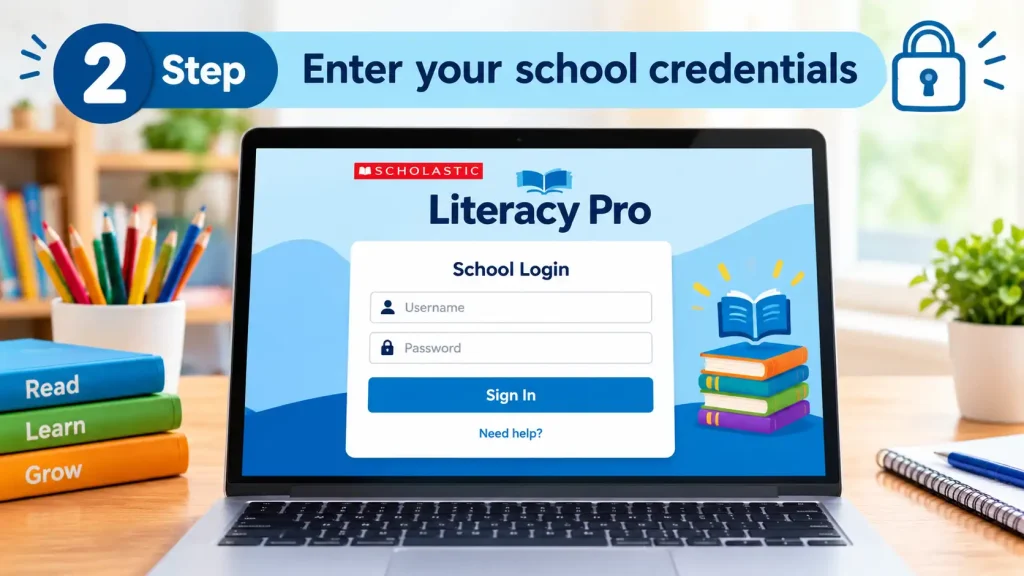
Sign in with the username and password supplied by your teacher or administrator. If your school uses an approved single sign-on service, select the relevant option and follow the prompts.
Step 3: Find Literacy Pro
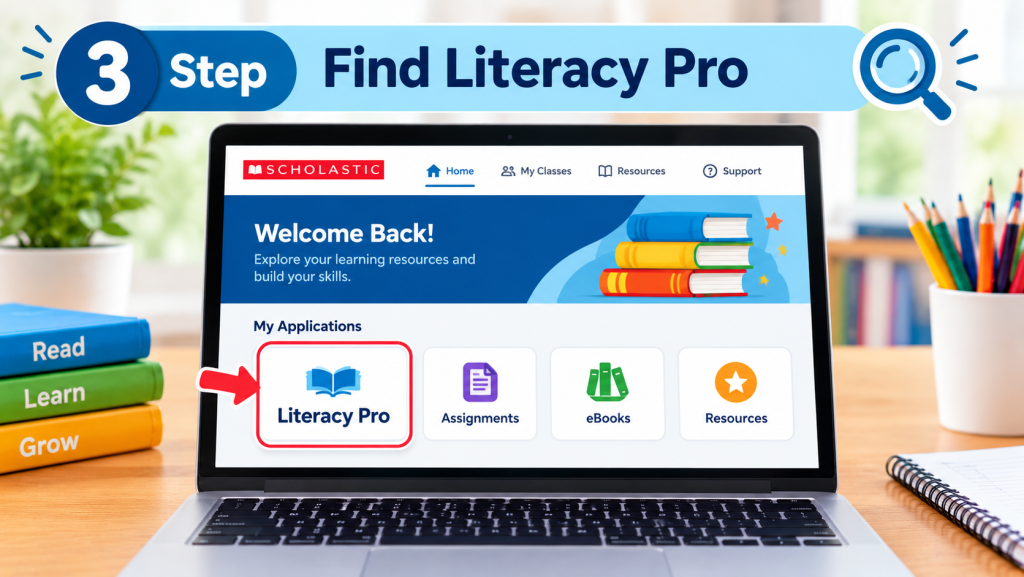
After signing in, look for the Literacy Pro icon in the My Zone dashboard or your available learning applications. If it is missing, your school may need to assign the application to your account.
Step 4: Open your reading dashboard
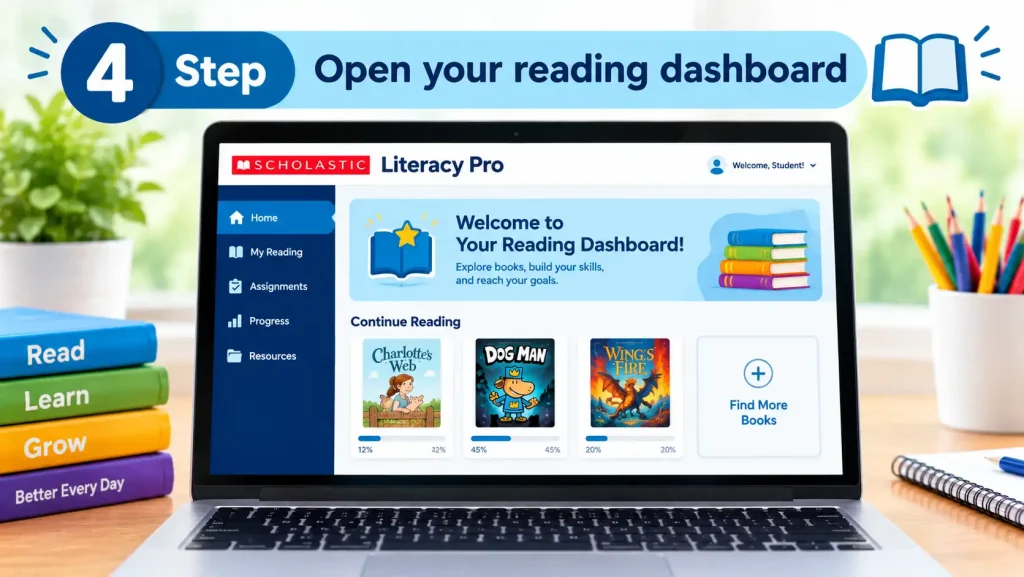
Select Literacy Pro or the relevant launch option. Once the platform loads, review your available books, assigned assessments and reading activities.
Important: The exact buttons and login options can differ between school configurations. If your school has provided a custom URL, use that link instead of assuming every student follows the same sign-in process.
Setting Up a Literacy Pro Account
A student’s first experience with Literacy Pro usually depends on the account arrangements made by their school. In many cases, school administrators organise student and teacher accounts in advance rather than asking each learner to register independently.
This approach helps schools connect accounts with the correct classes and learning groups. It also makes it easier for teachers to manage reading activities and review student progress.
Account setup for school administrators
Administrators and ICT coordinators should confirm that user information has been entered correctly and that the appropriate roles have been assigned.
A practical setup checklist includes:
- Verify that student and teacher records are available in the school’s learning system.
- Check that each user has the correct role, such as student, teacher or administrator.
- Confirm that students are linked to the appropriate classes.
- Check whether Literacy Pro is enabled for the intended users.
- Test the login process before asking an entire class to begin reading activities.
If the school uses roster imports or an integrated learning management system, administrators should follow the school’s established procedures for updating student records. Exact configuration steps depend on the school’s technology environment.
First-time setup for teachers
Teachers should sign in and review their class information before introducing Literacy Pro to students. Depending on the school’s configuration, they may need to confirm class lists, year levels and reading goals.
The supplied setup notes describe a typical daily reading goal of around 20 minutes. Schools and teachers should confirm the goal appropriate for their learners rather than assuming this setting applies to every account.
Before a class begins, teachers can check that:
- Student accounts are active.
- Class lists are correct.
- Reading activities are available.
- Students know how to open their reading dashboard.
- Learners understand how to find books and follow assigned tasks.
Fore More Information:
Visit Homepage
What students should expect on their first visit
When students first open Literacy Pro, an introductory tour may appear. This can explain where to find the library, how to access available reading materials and where reading progress is displayed.
Students can follow the introduction to become familiar with the platform. If the tour can be skipped, they can return to the relevant dashboard sections and explore them with guidance from their teacher.
The most useful starting point is usually the library. Students can look for assigned titles, browse available books and check any reading instructions their teacher has provided.
Understanding the Student Dashboard, Books and Reading Assessments
How to Use the Literacy Pro Student Dashboard
After logging in to Literacy Pro, students can access the reading tools and activities made available by their school. The dashboard helps learners find books, complete assigned assessments and monitor their reading activity.
The available sections may differ depending on school settings and account permissions, but the library and assessment areas are central to the learning experience.
Main areas of the Literacy Pro dashboard
Library
Browse available eBooks, search for reading material and explore titles recommended or assigned by a teacher.
Assessment
Access the reading assessment or other check-ups assigned by the school. Follow the instructions shown on screen.
Reading progress
Review available reading goals, activity indicators, points and milestones to understand how your reading practice is progressing.
Students should check their dashboard regularly so they do not miss assigned activities. If a book or assessment is unavailable, ask the teacher whether it has been assigned or enabled for your account.
Finding the Right Books in Literacy Pro
One of the main purposes of Literacy Pro is to help students discover books that suit both their reading development and personal interests. A book that is too difficult may make reading frustrating, while a suitable book can encourage confidence and independent practice.
The platform’s book discovery tools can help students narrow their choices by title, author, keywords, interests and available Lexile reading ranges.
Step-by-step guide to finding a book
- Open the library: Sign in through your school’s approved Scholastic Learning Zone portal and launch Literacy Pro.
- Search for a title or author: If you already have a book in mind, enter its name or the author’s name in the available search field.
- Explore topics: Try keywords related to subjects you enjoy, such as animals, science, sport, history or adventure.
- Check the reading range: Where Lexile information and filters are available, use your teacher’s guidance to identify books that suit your reading level.
- Open an available book: Select a title and follow the on-screen instructions to begin reading.
- Follow assigned activities: If your teacher has linked a quiz or reading check-up to the book, complete it according to the instructions provided.
A useful reading tip: Interest matters. If you enjoy the subject of a book, you may be more motivated to finish it and explore similar titles. Try different genres rather than choosing every book based on its reading level alone.
What does “good fit” mean?
A good-fit book is one that provides a suitable balance between challenge and understanding. It should give a student opportunities to learn new vocabulary and ideas without making comprehension unnecessarily difficult.
Lexile measures can support this choice, but they should not be treated as the only measure of whether a book is suitable. Students’ interests, background knowledge, reading confidence and teacher recommendations also matter.
For example, a student interested in wildlife might explore an animal book within their recommended reading range. If the text is difficult to understand, they could choose a different title or ask their teacher for guidance.
Understanding Lexile Reading Measures
Lexile measures are used to describe reading ability and text complexity. In Literacy Pro, a student may receive a Lexile measure after completing the relevant reading assessment, depending on the school’s setup and the assessment available.
A score such as 650L is an example of a Lexile measure. The number helps teachers and learners identify a suitable range of reading materials, but it is not a school grade, a percentage mark or a complete measure of a student’s intelligence.
How Lexile information helps students
- It provides a reference point when selecting books.
- It helps teachers recommend texts that offer an appropriate level of challenge.
- It supports discussions about reading development over time.
- It can help students discover books that combine personal interests with suitable text complexity.
Lexile information should be used as a guide rather than a fixed limit. A student may enjoy books above or below their suggested range, particularly when reading with support or exploring a familiar topic.
How teachers can use Lexile measures
Teachers can consider Lexile information alongside classroom observations, comprehension responses and other available assessment results. This broader view helps educators decide whether students need additional support, more challenging material or further reading practice.
A Lexile score is most useful when it informs a learning decision. It should not be used on its own to label a student or determine their overall academic ability.
Literacy Pro Reading Assessment: How It Works
Literacy Pro includes a reading assessment commonly referred to in the supplied user information as the LitPro Test. The assessment is described as adaptive and associated with the Lexile Framework for Reading.
An adaptive assessment adjusts the difficulty of subsequent questions according to a student’s responses. This allows the assessment to gather information about comprehension without giving every learner an identical sequence of questions.
The exact assessment experience, available tests and reporting options may depend on the school’s configuration.
What happens during the assessment?
Before starting: Students should open the assessment area through their school account and read the instructions carefully. They should use a suitable device and a reliable internet connection.
While answering: Read each passage or question carefully and select the answer that best reflects your understanding. In an adaptive test, the difficulty may change as you progress, so a harder question does not necessarily mean that you have made a mistake.
After finishing: Follow the completion instructions and allow the platform to process your responses. Where results are available, teachers can use the assessment information to guide book selection and plan further reading activities.
The supplied information describes a large question bank of more than 5,000 items. This should be understood as the stated item bank, not as the number of questions a student must answer in a single sitting.
Fore More Information:
Visit Homepage
How to prepare for a reading assessment
Students do not generally need to memorise answers for an adaptive reading test. Developing good reading habits and understanding passages carefully are more useful preparation strategies.
- Read the question before choosing an answer.
- Look for clues in the passage instead of guessing immediately.
- Pay attention to the meaning of unfamiliar words.
- Avoid rushing through the questions.
- Ask your teacher if you do not understand the assessment instructions.
- Complete the test independently, following your school’s assessment rules.
The aim is to obtain useful information about reading comprehension, not simply to achieve a high score.
Reading Goals, Points and Progress Tracking
Literacy Pro can help make reading practice more visible by showing available goals, activity indicators and achievements. These features can encourage students to build a regular reading routine and recognise their progress.
The supplied account information describes points being awarded for completing eBooks and passing associated quizzes or reading check-ups. The precise rules depend on the activities and features enabled by the school.
How to make the most of reading goals
A daily reading goal gives students a practical target. The supplied setup notes mention around 20 minutes per day as a typical default, but teachers may set a different target to suit their class.
Students can make reading time more productive by choosing an interesting book, reading without unnecessary distractions and discussing unfamiliar ideas with a teacher or parent.
Remember that progress is not measured by points alone. Understanding a text, learning new words, explaining the main idea and developing a lasting interest in books are also valuable outcomes.
How Teachers Can Use Literacy Pro Reports
Teacher reporting features can help educators understand student reading activity and identify areas that may need further attention. Depending on the available reports, teachers may review assessment results, reading proficiency information and progress over time.
These reports can support decisions such as recommending alternative books, providing targeted comprehension activities or checking whether a student would benefit from extra reading support.
Reports should be interpreted alongside classroom evidence and conversations with students. A single result may not explain every difficulty a learner experiences, so teachers should consider the broader learning context before changing a student’s reading plan.
Common Literacy Pro Problems and How to Fix Them
Although Literacy Pro is designed for school-based reading activities, users may occasionally experience login errors, missing applications or problems opening digital books. Many issues can be resolved by checking account access, browser settings or internet connectivity.
Use the following troubleshooting guide to identify the likely cause and decide what to do next.
| Problem | Possible reason | Recommended solution |
|---|---|---|
| Literacy Pro icon is missing | The application has not been assigned to your account or class. | Ask your teacher or school ICT administrator to check your access and class allocation. |
| Login fails | Incorrect credentials or the wrong login portal. | Recheck your details and use the school-approved login link. |
| Page freezes or keeps loading | Browser cache, an outdated browser or a temporary connection problem. | Refresh the page, update your browser or try clearing the cache and cookies. |
| Forgotten password | The saved credentials are incorrect or outdated. | Use the available password-reset option or contact your school administrator. |
| eBook does not open | An unstable internet connection or a browser compatibility issue. | Check your connection, reopen the book and try a supported, updated browser. |
| Audio does not play | Connection, device audio or playback problems. | Check the volume, device settings and internet connection, then retry playback. |
| Reading progress is not visible | Results may not have updated or the relevant activity may not be completed. | Check the activity instructions and ask your teacher to review the available records. |
Fixing browser and loading problems
If Literacy Pro stops responding, begin with basic checks rather than changing account settings unnecessarily.
- Refresh the browser tab.
- Check that your internet connection is stable.
- Update your browser to a supported version.
- If the problem continues, clear the browser cache and cookies.
- Sign in again through your school’s approved portal.
Google Chrome, Microsoft Edge, Safari and Firefox are common browser options, but the recommended choice depends on the platform’s current compatibility requirements and your school’s device policies. Only change pop-up settings if the site requires them and your school’s IT guidance permits it.
What to do if your account is not working
Students should contact their teacher if they cannot see Literacy Pro in their dashboard or if their credentials do not work. Teachers can check with the school’s ICT administrator or designated Literacy Pro contact.
Avoid creating a separate account without permission. A school-managed account may be linked to a particular class, subscription or roster, and an unrelated account may not provide access to the correct learning resources.
Fore More Information:
Visit Homepage
Best Practices for Students and Teachers
Getting the most from Literacy Pro involves more than signing in and completing assigned activities. Consistent reading, thoughtful book selection and regular teacher guidance help make the platform more useful.
Tips for students
- Read regularly: Follow the reading schedule set by your teacher.
- Choose interesting books: Explore topics you enjoy to build motivation.
- Check comprehension: Think about the main ideas and important details as you read.
- Use reading recommendations: Treat Lexile information as guidance when choosing books.
- Complete assigned activities: Follow the instructions for quizzes and assessments.
- Ask for help: Discuss difficult passages or unfamiliar vocabulary with your teacher.
Tips for teachers
- Check class rosters and account access before starting an activity.
- Set realistic reading goals for the students in your class.
- Encourage learners to explore different subjects and genres.
- Use assessment results alongside classroom observations.
- Review reading progress regularly and provide appropriate support.
- Contact the school’s administrator if access or reporting features are unavailable.
Tips for parents and guardians
Parents and guardians can support literacy development by encouraging regular reading and discussing books with children. Ask what they enjoyed, which ideas were new to them and whether any sections were difficult to understand.
Where the school provides parent access or progress information, use the approved account and guidance supplied by the school. Do not assume that every Literacy Pro subscription includes a separate parent dashboard.
Fore More Information:
Visit Homepage
FAQs
Final Thoughts
Literacy Pro can help Australian schools make reading more structured by connecting digital books, reading assessments and progress information in one learning environment. Students benefit when they select books that interest them, read consistently and use teacher feedback to develop comprehension skills.
For the smoothest experience, begin with the official Scholastic Australia website, follow your school’s login instructions and contact your teacher or ICT administrator if account access or reading activities are unavailable.
The main goal is not simply to complete assessments or collect points. It is to develop stronger reading habits, understand texts more confidently and build an ongoing interest in learning.
Read More:
MyMurdoch Learning Guide 2026: Login, Courses, Features and Student Support
Toy Theatre: History, Ideas, Making Guide & Australian Collection
Book Week Costumes: Ideas, DIY Options and Easy Choices for 2026
SEQTA Login Guide 2026: Learn, Engage and School Portal Access
CITEC Queensland Government: Complete ICT Services Guide 2026