For students at Murdoch University, accessing course materials, checking assessment deadlines, and keeping up with university announcements are essential parts of academic life. MyMurdoch Learning provides a central online environment where students can access learning resources, participate in educational activities, submit assessments, and review feedback from teaching staff.
The platform is Murdoch University’s Learning Management System (LMS), based on Moodle. It acts as a virtual classroom, connecting students with unit outlines, lecture recordings, learning materials, discussion forums, quizzes, and assignment submission facilities. Students can access these resources through the university’s online learning environment, subject to their enrolment and account permissions. (MU – Home)
Whether you are a new student preparing for your first semester or a continuing learner managing several units, understanding MyMurdoch Learning can make your study routine easier to organise. Knowing where to find course information and how to resolve common login problems can also help you avoid unnecessary delays.
The official starting point is the MyMurdoch student portal, which provides access to university information, student administration, support services, and learning tools.
This guide explains how to access MyMurdoch Learning, understand its main features, find your enrolled units, use online learning resources, and get assistance when something does not work as expected.
Fore More Information:
Visit Homepage
What Is MyMurdoch Learning?
MyMurdoch Learning is the online learning management system used by Murdoch University to support teaching and learning. Students use it to find information about their units, access digital study materials, communicate through learning activities, and complete assessment-related tasks.
Unlike a general university information page, My Murdoch Learning focuses on the academic side of student life. Each unit can have its own online learning area containing resources and activities selected by the teaching team.
For example, a student studying an information technology unit might use the platform to download lecture slides, read weekly learning materials, participate in a discussion, and submit an assignment. Another student may use the same system to access recorded lectures and review assessment feedback.
According to Murdoch University’s official information, the LMS is the main online platform for accessing most of the university’s other learning tools. (MU – Home)
MyMurdoch and MyMurdoch Learning: What Is the Difference?
Although their names are similar, the two services have different purposes.
| Feature | MyMurdoch | MyMurdoch Learning |
|---|---|---|
| Main purpose | General student information and university services | Online teaching and learning |
| Student administration | Provides access to student administration services and related information | Focuses on unit learning activities |
| Course materials | Provides access to university resources and learning links | Hosts unit learning materials and activities |
| Assessment activities | Helps students navigate university services | Provides assessment submission facilities where configured |
| Lecture recordings | May link students to relevant services | Provides access to recordings through integrated learning tools |
| Academic communication | Provides university updates and support information | Supports unit announcements and discussion activities |
| Related systems | Includes links to services such as MyInfo | Connects students with learning tools used in their units |
The main distinction is straightforward: MyMurdoch is the broader student portal, while My Murdoch Learning is the online classroom. MyInfo is another related system used for student information, including enrolments, personal details, classes, fees, and results. (MU – Home)
Understanding these differences is useful when you need to complete an administrative task rather than study a subject. For instance, if you need to check your enrolment details, MyInfo is the relevant system to look for. If you want to read your unit materials or submit coursework, My Murdoch Learning is the more appropriate starting point.
MyMurdoch Learning Login: How to Access Your Account
Accessing My Murdoch Learning begins with your university account. New students should follow the account activation instructions provided by Murdoch University before attempting to use the learning management system.
Step 1: Open the official MyMurdoch website

Visit the university’s student portal:
Check that you are using the genuine Murdoch University website before entering any account information.
Step 2: Find My Murdoch Learning
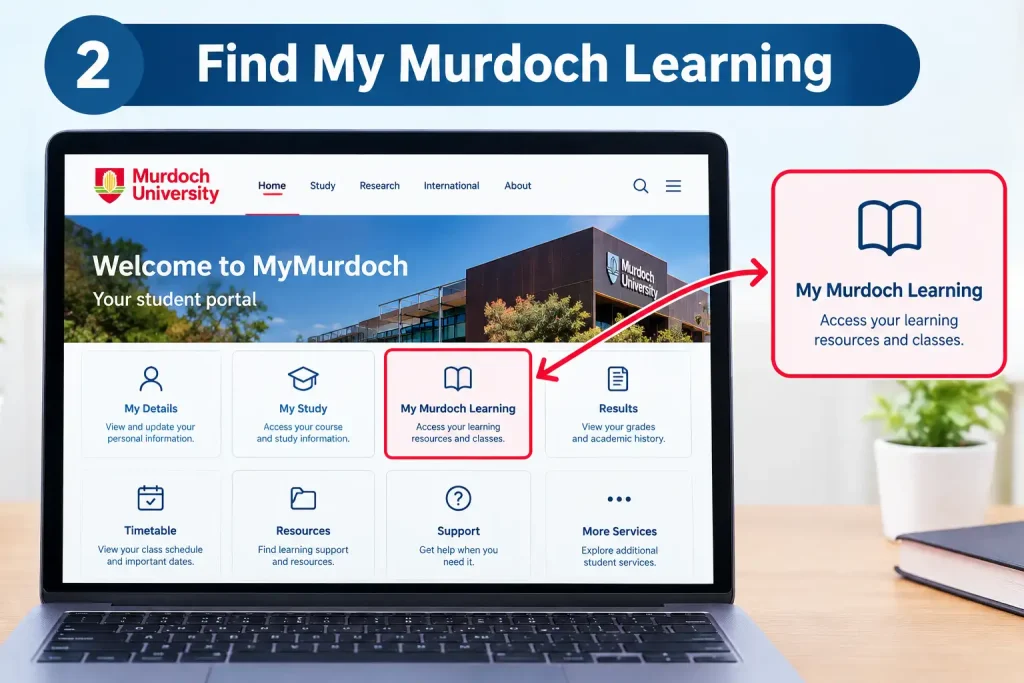
Navigate through the available student resources and locate the link for My Murdoch Learning or the LMS. You may also use the university’s official learning technology information page to find the relevant service.
Official resource: MyMurdoch Digital Learning Tools
Step 3: Enter your university username
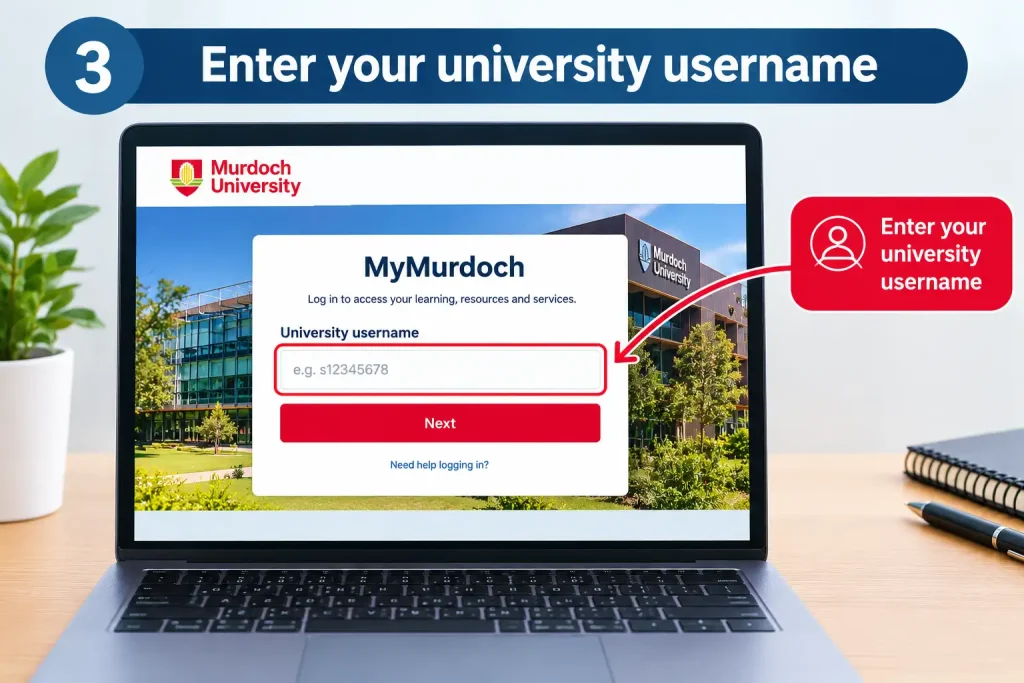
Use the username associated with your student account. For example, the format may resemble [email protected].
This is an illustrative example, not a real student’s account. Enter your own assigned details rather than copying the example.
Step 4: Enter your password
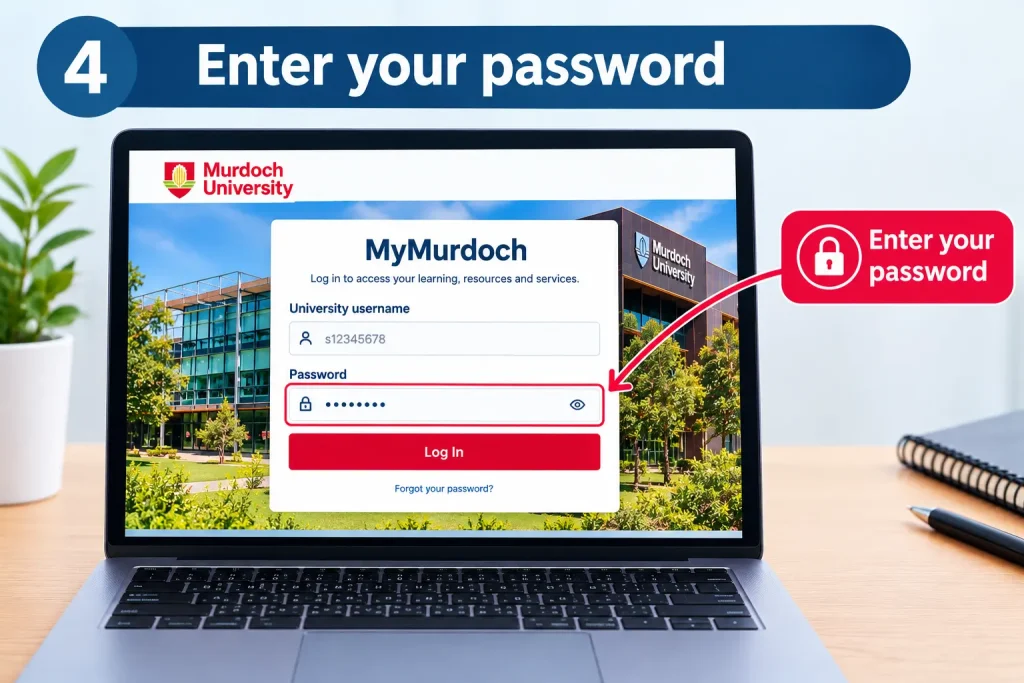
Type your Murdoch University account password carefully. If your credentials are rejected, check the spelling of your username and make sure your keyboard settings have not changed the characters you enter.
Step 5: Complete multi-factor authentication
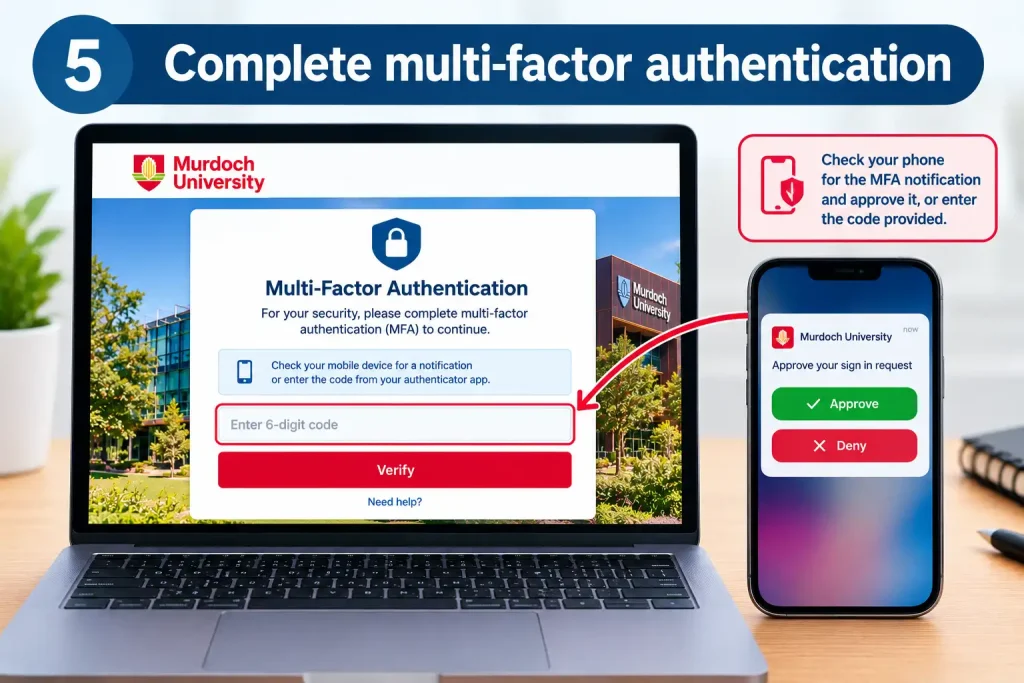
If the sign-in process requests additional verification, follow the instructions associated with your registered authentication method.
MFA adds another layer of protection to your university account. New students should complete the setup process described in their university onboarding instructions.
Step 6: Open your learning dashboard
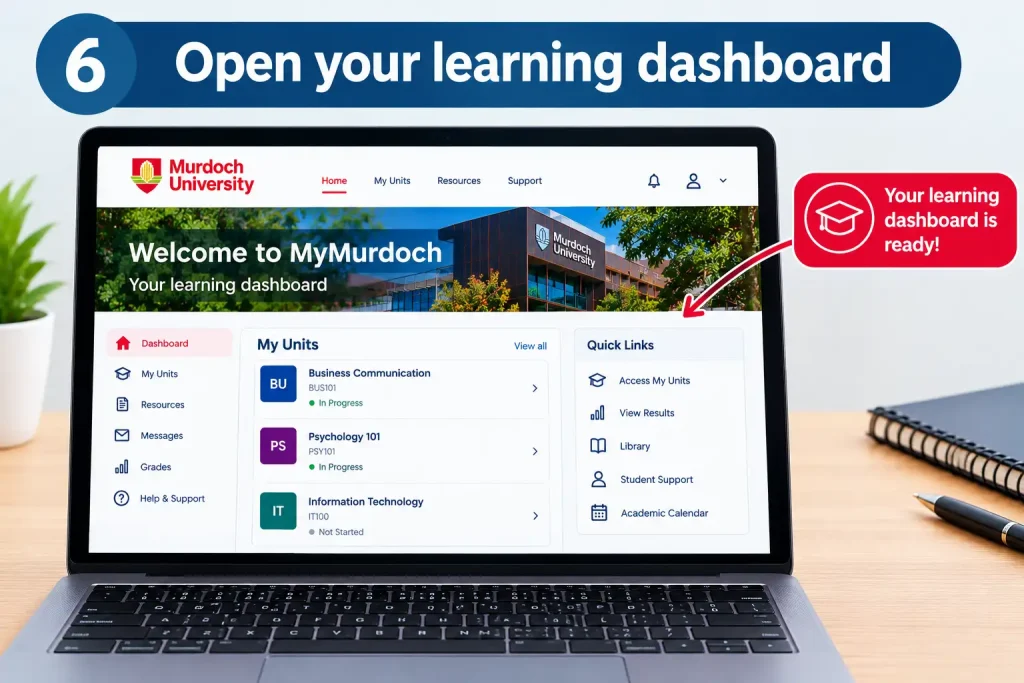
After successful authentication, open the My Murdoch Learning dashboard. From there, locate your enrolled units and select the subject you want to study.
If you cannot access the system after completing these steps, consult the official Student IT support page.
MyMurdoch Login Details at a Glance
| Login requirement | What to use |
|---|---|
| Official starting point | MyMurdoch student portal |
| Username | Your assigned Murdoch student username |
| Username format | Student ID followed by @student.murdoch.edu.au, as specified by the university |
| Password | Your established Murdoch University account password |
| Additional security | MFA when requested |
| Learning platform | MyMurdoch Learning (LMS) |
| Technical assistance | Murdoch University Student IT support |
Remember: My Murdoch Learning access is connected to your student account and enrolment. The university states that access to its IT systems depends on your enrolment status and the relevant teaching period. (MU – Home)
Setting Up MyMurdoch Learning for the First Time
If you are starting at Murdoch University, preparing your account before classes begin can prevent login difficulties when you need to access your first unit.
New students should begin with the instructions supplied in their university welcome information. These instructions explain how to establish their password and configure multi-factor authentication.
Complete Your Initial Account Setup
Work through the following checklist:
- Locate your student ID in your Letter of Offer or Confirmation of Enrolment.
- Establish your Murdoch University account password using the official password setup service.
- Configure multi-factor authentication as instructed by the university.
- Confirm that you can sign in to the relevant student systems.
- Open My Murdoch Learning and locate the appropriate orientation materials or enrolled units.
Official account setup resources:
- Murdoch password setup
- Multi-factor authentication setup
- Student IT support
The university’s orientation guidance directs new students to establish their username and password and configure MFA before accessing My Murdoch Learning. Continuing students generally do not need to repeat the initial setup unless they are instructed to do so. (MU – Home)
What If You Have Not Received Your Login Instructions?
If you cannot find your initial account setup information, check the email address you used during the admissions process and review any welcome communications from the university.
If the instructions are still missing, contact Murdoch University through its official support channels rather than attempting to create a separate account or using another person’s credentials.
You can find the university’s contact information and student support options on the official MyMurdoch portal.
Finding Your Units on MyMurdoch Learning
Once you have signed in successfully, your next task is to locate the subjects you are studying.
My Murdoch Learning provides online spaces for individual units. The resources available in each space depend on how the teaching team has configured the unit and which activities are relevant to the subject.
How to Locate an Enrolled Unit
Start from your My Murdoch Learning dashboard and look for the units or courses associated with your account.
- Open the My Murdoch Learning dashboard.
- Review the list of units available to your account.
- Select the unit you want to access.
- Explore the unit homepage for its outline, learning materials, announcements, and assessment information.
- Check the unit regularly for updates from the teaching team.
The exact dashboard layout and available links may vary. Follow the labels displayed in your account rather than assuming every student will see an identical interface.
Why Some Units May Not Appear
If a unit is missing, avoid assuming that your account is broken. Several factors may affect what you can see, including your current enrolment, the availability of the unit’s learning site, and the timing of changes to your student record.
Use MyInfo or the appropriate student administration service to check your enrolment details. Murdoch University identifies MyInfo as the system for managing student information, including enrolments and class details. (MU – Home)
If your enrolment appears correct but the unit is still unavailable, contact the university for advice. Provide the unit code and explain what you see on the dashboard, but do not include your password or MFA codes in your message.
Fore More Information:
Visit Homepage
Key Features of MyMurdoch Learning for Students
My Murdoch Learning provides an online environment where students can organise their studies, access unit materials, and complete academic activities. Instead of relying entirely on classroom handouts or separate messages from lecturers, students can use the learning platform to find many of the resources associated with their enrolled units.
The features available depend on the unit, the teaching team’s settings, and the tools used for a particular subject. The following sections explain the main areas students should become familiar with.
1. Accessing Unit Outlines and Study Materials
A unit outline is one of the first resources students should review when starting a subject. It explains the unit’s learning objectives, assessment requirements, expected activities, and other information relevant to the study period.
To locate these details through My Murdoch Learning:
- Sign in to the official learning platform.
- Open the relevant unit from your dashboard.
- Look for the unit outline or introductory section.
- Review the assessment instructions and important dates.
- Check the weekly learning materials for readings, lecture slides, and other resources.
Keep a copy of important instructions for reference. If an assessment requirement is unclear, contact the unit coordinator before preparing your submission.
Image recommendation
- Description: A student viewing an online university unit outline on a laptop.
- Suggested filename:
mymurdoch-learning-unit-outline.png - ALT text: My Murdoch Learning unit outline and study resources.
- Placement: After this section.
2. Finding Weekly Learning Resources
Many units organise content into weekly topics, modules, or learning activities. This structure helps students follow the teaching schedule and prepare for upcoming classes.
Depending on the subject, My Murdoch Learning may provide access to:
- Lecture slides and presentation materials.
- Digital readings and learning guides.
- Links to recommended resources.
- Videos and other multimedia content.
- Practice exercises and quizzes.
- Instructions for independent study.
A useful habit is to review the next topic before attending a class and revisit the material afterwards. This makes it easier to identify questions that need clarification.
Not every unit uses the same layout. Some teaching teams organise resources by week, while others use topic-based sections or learning modules. If you cannot find a particular document, check the unit announcements or contact your lecturer.
3. Watching Lecture Recordings
Recorded lectures can be useful when you need to revisit a difficult concept, revise for an examination, or catch up on a class you could not attend.
Where recordings are provided, students may access them through links or integrated media tools within their unit sites. The availability of recordings depends on the subject and the arrangements made by the teaching team.
To find a recording:
- Log in to My Murdoch Learning.
- Open the relevant unit.
- Look for a section labelled lectures, recordings, videos, or learning activities.
- Select the appropriate recording.
- Check that the video plays correctly and use the available controls to navigate through it.
Some recordings may open in a separate service rather than directly inside the learning platform.
If a video does not load, check your internet connection and try refreshing the page. You can also test another supported browser or open the recording link again from the unit site.
Study tip: Use lecture recordings to review particular topics and clarify your notes. Check the unit’s assessment information to understand which materials you are expected to study.
Image recommendation
- Description: A university student watching a recorded lecture on a laptop.
- Suggested filename:
mymurdoch-learning-lecture-recordings.png - ALT text: Watching lecture recordings through My Murdoch Learning.
- Placement: After this section.
4. Participating in Discussions and Academic Communication
Communication is an important part of online learning. Depending on how a unit is designed, My Murdoch Learning may include discussion forums, announcements, and other activities that allow students to interact with teaching staff and classmates.
Announcements are particularly important because lecturers and unit coordinators may use them to communicate changes to learning activities, reminders, or other subject-related information.
Discussion forums, where available, provide a space to ask academic questions and contribute to conversations about unit topics.
To use these features effectively:
- Check announcements whenever you open a unit.
- Read existing discussion threads before posting a question.
- Keep messages relevant to the subject.
- Use a clear subject line when starting a discussion.
- Avoid sharing private information in public or shared forums.
- Follow the communication guidelines provided by your teaching team.
Students should not assume that posting a question guarantees an immediate response. If a matter is urgent or relates to a confidential issue, use the appropriate university contact channel.
5. Completing Assignments Through MyMurdoch Learning
Assessment activities are a central part of the online learning experience. Depending on the unit, My Murdoch Learning may provide assignment links, online quizzes, submission areas, marking rubrics, and feedback.
Each assessment has its own instructions. Students should review those instructions carefully before uploading any work.
How to Submit an Assignment
Step 1: Open the correct unit
Sign in to My Murdoch Learning and select the subject for which the assessment is due.
Step 2: Find the assessment activity
Look for the assessment section or the specific assignment title. Read the task requirements and submission instructions.
Step 3: Check the deadline
Confirm the due date and time displayed in the unit. Allow sufficient time to prepare and upload your work before the deadline.
Step 4: Prepare your document
Save your assignment in a file format accepted by the submission page. PDF and Word documents are common academic formats, but the instructions for your particular assessment determine what is acceptable.
Step 5: Upload your work
Open the submission activity, select your file, and follow the displayed instructions. Some assessments may require additional steps, such as confirming the submission or completing an academic integrity declaration.
Step 6: Confirm the submission
Check the submission status and look for a receipt or confirmation message where provided. Do not assume an upload has succeeded simply because you selected a file.
Step 7: Review feedback
After marking is complete, return to the assessment area to check your grade, comments, and any available rubric feedback.
Understanding Turnitin and Academic Integrity
Some assessment activities may use Turnitin or another tool to support academic integrity and the review of submitted work.
Whether Turnitin is required depends on the assessment instructions. Students should follow the submission method specified by their lecturer rather than uploading the same assignment to an unrelated activity.
To maintain good academic practice:
- Reference sources using the required citation style.
- Clearly distinguish your own ideas from information taken from other sources.
- Follow the university’s rules on collaboration and permitted AI assistance.
- Read the assessment instructions before using external tools.
- Keep a copy of your submitted work and any available confirmation.
A similarity report should be interpreted in context. A similarity percentage alone does not establish whether academic misconduct has occurred.
Image recommendation
- Description: A student reviewing an assignment submission page and assessment feedback.
- Suggested filename:
mymurdoch-learning-assignment-submission.png - ALT text: Submitting assignments and reviewing feedback in My Murdoch Learning.
- Placement: After this section.
Fore More Information:
Visit Homepage
How to Use MyInfo Alongside MyMurdoch Learning
Students sometimes confuse MyInfo with My Murdoch Learning because both services are associated with their university account. However, they support different aspects of student life.
MyInfo is used for student administration, while My Murdoch Learning focuses on teaching and learning activities.
For example, you might use MyInfo to review enrolment information and then open My Murdoch Learning to access the materials for a unit.
| Task | Appropriate starting point |
|---|---|
| Review student administration information | MyInfo |
| Check enrolment details | MyInfo |
| Access unit learning materials | My Murdoch Learning |
| Read unit announcements | My Murdoch Learning |
| Submit coursework through an online assessment activity | My Murdoch Learning |
| Review assessment feedback | The relevant unit assessment area |
| Find university learning technology information | Official MyMurdoch support pages |
For more information about the university’s systems, visit the official MyMurdoch student administration information.
If an administrative change has been made recently, the information displayed in connected systems may not update immediately. If your enrolment information appears correct but a unit remains unavailable, contact university support rather than repeatedly attempting to submit a request.
Practical Ways to Stay Organised With MyMurdoch Learning
Having access to the learning platform is only the first step. Students also need a reliable way to keep track of deadlines, study materials, and academic communications.
These habits can help make My Murdoch Learning more useful throughout the semester.
Check Your Dashboard Regularly
Make checking your enrolled units part of your normal study routine. Review announcements and upcoming assessment activities so that you do not overlook changes communicated by your teaching team.
Create a Personal Assessment Calendar
Record the due dates listed in each unit and organise them in a calendar or planner. Include examination dates, project milestones, and other important academic commitments when these details are available.
Remember to verify dates against the official information in the relevant unit.
Organise Your Learning Materials
Save downloaded resources in clearly labelled folders on your device. For example, you could create a separate folder for each unit and organise documents by week or topic.
This approach can reduce the time spent searching for lecture slides and readings when preparing an assignment.
Use More Than One Study Method
Reading digital notes is useful, but it should not be your only revision method. Depending on the subject, you could also practise questions, summarise key concepts, revisit lecture recordings, or participate in academic discussions.
Choose methods that support the learning outcomes and assessment requirements of your units.
Protect Your Student Account
Use a secure password, complete MFA when requested, and avoid signing in on shared computers without taking appropriate precautions.
When using a university computer or another person’s device, sign out when you finish and avoid saving your password in the browser.
MyMurdoch Learning on Mobile Devices
Students may want to check announcements, review course information, or access learning resources while away from their computers.
The mobile experience depends on the device, browser, learning tools, and services supported by Murdoch University. Some activities may work well on a phone, while others may be easier to complete on a laptop or desktop.
For example, checking an announcement or reading a short document may be convenient on a mobile device. Preparing a lengthy assignment or uploading several files may be more manageable on a larger screen.
Tips for Using the Platform on Your Phone
- Open the official MyMurdoch website rather than relying on an unfamiliar link.
- Use an up-to-date mobile browser.
- Make sure your internet connection is stable.
- Check that documents display correctly before relying on them for study.
- Complete important assessment submissions early enough to resolve technical problems.
- Confirm that any uploaded work has been submitted successfully.
If Murdoch University provides a supported mobile application or specific instructions for accessing its learning tools, follow the information published on its official digital learning tools page.
How to Fix MyMurdoch Learning Login Problems
Encountering a login error can interrupt your studies, particularly when you need to access an assignment or review an important announcement. Most access problems can be investigated by checking your credentials, browser, account status, and the availability of the relevant university service.
If My Murdoch Learning is not working as expected, work through the following troubleshooting steps before contacting support.
1. MyMurdoch Learning Says Invalid Credentials
An invalid credentials message may appear when the username or password entered does not match the account details recognised by the university.
What you can do:
- Check that your student username is entered correctly.
- Confirm that you are using your Murdoch University account password.
- Check for typing errors, extra spaces, and incorrect keyboard settings.
- If necessary, use the university’s official password management service.
- Try signing in again through the official MyMurdoch website.
If you have forgotten your password, visit the official Murdoch password management service.
Avoid repeatedly guessing your password. If the problem continues, contact Student IT support for assistance.
2. MyMurdoch Learning Keeps Returning to the Login Page
A repeated login screen can be frustrating because it may appear that your credentials have been accepted before the page returns to the beginning.
Possible troubleshooting steps include:
- Close the affected browser tab.
- Open a new private or incognito window.
- Navigate directly to the official MyMurdoch portal.
- Sign in again and complete any requested MFA verification.
- If the problem persists, clear the browser’s cached data and cookies for the relevant site.
- Try another supported browser.
Browser extensions can sometimes interfere with authentication or page loading. If you suspect an extension is responsible, temporarily disable it and test the login again.
If none of these steps works, the issue may require assistance from the university’s IT team.
3. My Enrolled Units Are Missing
Students may sign in successfully but discover that one or more expected units are not visible in My Murdoch Learning.
Before assuming there is a technical fault, check the following:
- Confirm that you are enrolled in the relevant unit.
- Review your student administration information through MyInfo.
- Check whether the unit’s online learning site has been made available.
- Review any university communications about your enrolment.
- Contact the relevant teaching team or Student IT support if the unit remains unavailable.
Recent enrolment changes or the timing of a unit’s release may affect what appears in your dashboard. However, you should not assume that every missing unit will become available automatically within a particular number of hours.
For enrolment information, visit the official MyMurdoch student administration resources.
4. Assignment Uploads Are Failing
An assignment upload problem can become particularly concerning when a deadline is approaching. If an upload fails, investigate the issue promptly rather than repeatedly submitting the same file without checking its status.
Try these steps:
- Read the assessment instructions to confirm the accepted file formats.
- Check whether your document has finished saving on your device.
- Confirm that your internet connection is stable.
- Check for any file-size restrictions shown by the submission activity.
- Try a supported browser if the upload continues to fail.
- Reopen the assessment page and check whether a submission has already been recorded.
If the assignment remains unsubmitted, contact your lecturer or the appropriate university support service as soon as possible.
Keep a copy of the file you intended to submit and any relevant error messages or screenshots. These details can help explain what happened.
Important: Do not assume that selecting a document or starting an upload means your assignment has been successfully submitted. Always check the submission status and retain any confirmation provided by the platform.
5. Lecture Recordings or Learning Materials Will Not Open
Sometimes the learning platform works correctly, but a particular recording, document, or external learning tool does not load.
The problem may be related to your browser, internet connection, file permissions, or the service hosting the resource.
Try the following:
- Refresh the page.
- Check whether other websites load correctly.
- Open the resource again from the relevant unit.
- Try another supported browser.
- Check whether the file or recording opens in a separate tab.
- Contact your lecturer if the resource appears to be unavailable to your class.
If the problem affects several learning tools rather than a single file, consult the university’s official Student IT support resources.
MyMurdoch Learning Troubleshooting Table
Use this table to identify a suitable first response to common problems.
| Problem | Possible explanation | Recommended action |
|---|---|---|
| Invalid username or password | Incorrect credentials or an account issue | Check your details and use the official password management service if needed |
| Repeated login screen | Browser cookies or authentication difficulties | Try a private window or another supported browser |
| MFA verification fails | Authentication setup or verification issue | Follow the university’s MFA instructions |
| Enrolled unit is missing | Enrolment or unit availability issue | Check MyInfo and contact the university if necessary |
| Assignment upload fails | File restrictions, browser problems, or connection issues | Check the assessment instructions and confirm the submission status |
| Lecture recording will not play | Browser, network, or media service issue | Retry the resource and consult Student IT support if necessary |
| Learning resources appear unavailable | Access permissions or unit configuration | Contact the teaching team or university support |
| Login problem continues | An issue requiring further investigation | Contact Student IT support through official university channels |
The table provides general troubleshooting guidance rather than a guarantee that every issue has the same cause. If an error persists, the university’s support team can advise on the appropriate next step.
How to Contact Murdoch University Student IT Support
If you cannot resolve a MyMurdoch Learning problem yourself, the next step is to contact Murdoch University’s official support service.
Student IT support can help students investigate problems involving university accounts, login access, and learning technology.
Before Contacting Support
Prepare the information needed to explain your problem clearly.
You may want to include:
- A brief description of the problem.
- The name of the affected service, such as My Murdoch Learning.
- The unit code, if a particular unit is affected.
- The approximate time the problem occurred.
- The browser or device you were using.
- The exact error message, if one appeared.
- A screenshot showing the error, provided it does not expose passwords, verification codes, or other sensitive information.
Do not include your password in a support request.
Where to Find Official Help
Use the following university resources:
- MyMurdoch Student Portal — Your starting point for student services and university information.
- Student IT Support — Information about student IT access and technical assistance.
- Digital Learning Tools — Information about the university’s online learning environment and associated tools.
- Murdoch Password Management — The official starting point for password-related assistance.
- MFA Setup — Guidance for setting up multi-factor authentication.
Use the contact options and instructions displayed on these official pages, as support arrangements can change.
FAQs
Final Thoughts
MyMurdoch Learning is an important part of the online study experience at Murdoch University. It gives students a central place to access unit resources, follow announcements, participate in learning activities, and complete assessments through the tools provided for their subjects.
Getting started is straightforward: visit the official portal, sign in with your university credentials, and open the units associated with your enrolment. Once you are familiar with the dashboard, make a habit of checking announcements, reviewing assessment instructions, and confirming that your submissions have been recorded.
If something goes wrong, check your account details, browser, and enrolment information before contacting the university. For problems you cannot resolve, use the official Student IT support resources rather than relying on unofficial login pages.
The most important rule is to use official Murdoch University links for account access and support. This helps protect your student account and ensures that you receive guidance from the appropriate university service.
Read More:
Toy Theatre: History, Ideas, Making Guide & Australian Collection
Book Week Costumes: Ideas, DIY Options and Easy Choices for 2026
SEQTA Login Guide 2026: Learn, Engage and School Portal Access
CITEC Queensland Government: Complete ICT Services Guide 2026
Australia Visitor Visa 600: Complete Application Guide 2026