QuickCliq makes it easier for Australian families to organise school lunches, uniforms and school-related payments without relying on cash. Through its online platform, parents and caregivers can manage their children’s school orders, add account credit and arrange purchases from a computer, tablet or smartphone.
Whether you’re registering for the first time, accessing the parent portal, adding a student or placing a canteen order, understanding how QuickCliq works can save time and prevent common ordering mistakes.
This guide covers the registration process, account setup, login instructions, available services, online payments and practical tips for using the platform.
Fore More Information:
Visit Homepage
QuickCliq at a Glance
Quick Cliq is an Australian online ordering platform that connects families with participating schools and their canteen services. It also supports uniform purchases, fundraising activities and school events.
| Platform detail | Information |
|---|---|
| Platform name | Quick Cliq |
| Main audience | Parents, caregivers and school communities |
| Country | Australia |
| Main purpose | Online school ordering and payments |
| Website | quick cliq.com.au |
| Parent login | app.quick cliq.com.au |
| Registration | Free account setup |
| Customer support | 1300 11 66 37 |
| Support email | support@quick cliq.com.au |
What Can You Do Through QuickCliq?
Quick Cliq brings several school-related services together under one parent account. Depending on the services enabled by your child’s school, you may be able to:
- Order school meals: Select food and drinks for scheduled recess and lunch breaks.
- Purchase school uniforms: Browse available uniform items and submit online purchases.
- Manage school events: Access eligible fundraising activities, event payments and other school-related requests.
- Organise multiple children: Manage orders for children attending participating schools through one account.
- Manage payments: Add money to your online wallet or pay as you go using an available payment method.
- Check transactions: Review active orders and previous transactions.
How to Register for a QuickCliq Account
Before ordering school lunches or purchasing uniforms, parents need to create a Quick Cliq account. Registration is free, and the process involves providing your details and verifying your email address.
Step 1: Open the Official QuickCliq Website
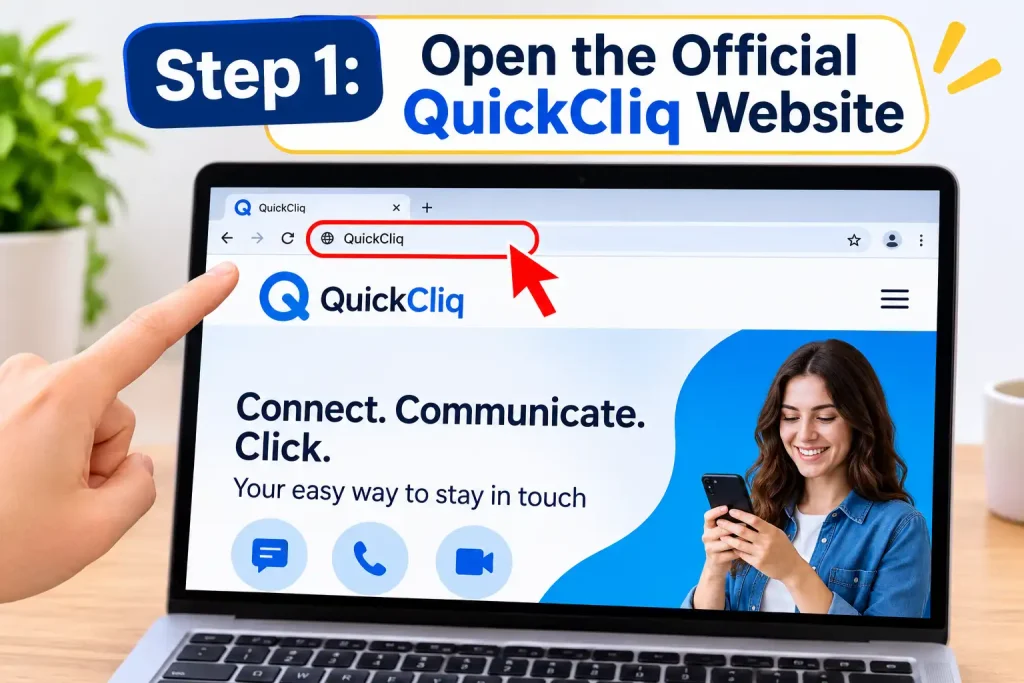
Visit the official Quick Cliq website using your preferred web browser.
Find the registration option on the homepage and select the parent registration link. You can also go directly to the Quick Cliq registration page.
Make sure you’re using the official website before entering personal information.
Step 2: Enter Your Personal Information
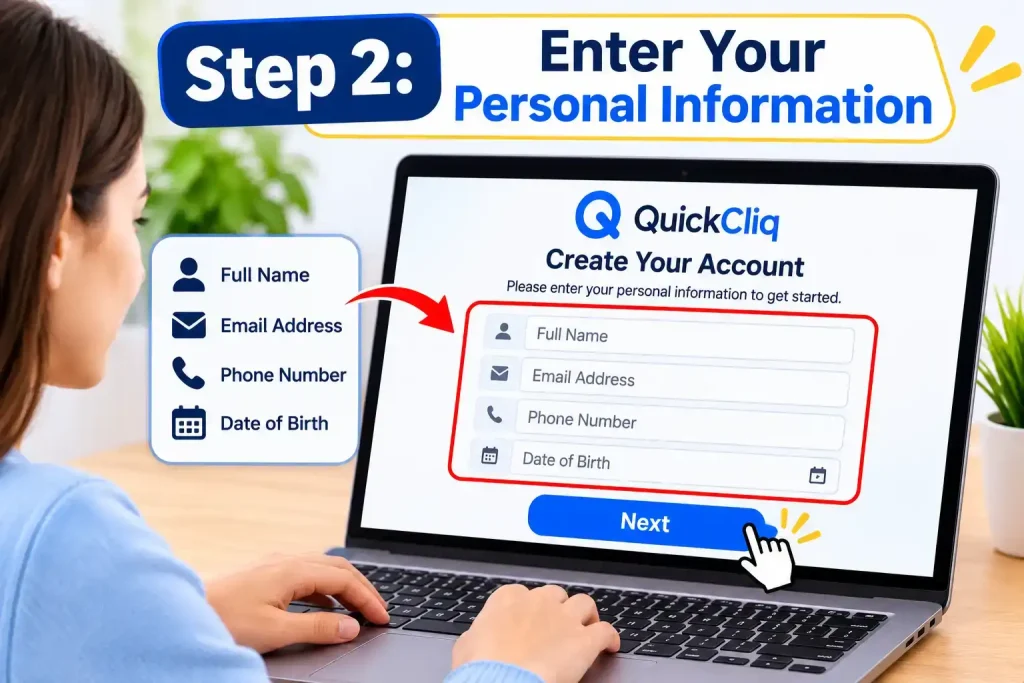
The registration form asks you to provide the details needed to establish your parent or caregiver profile.
Complete the requested fields carefully, including:
- First and last name
- Email address
- Contact information
- Other details requested by the registration form
- A new account password
Use an email address that you can access because Quick Cliq sends an activation message to verify your registration.
Step 3: Submit Your Registration
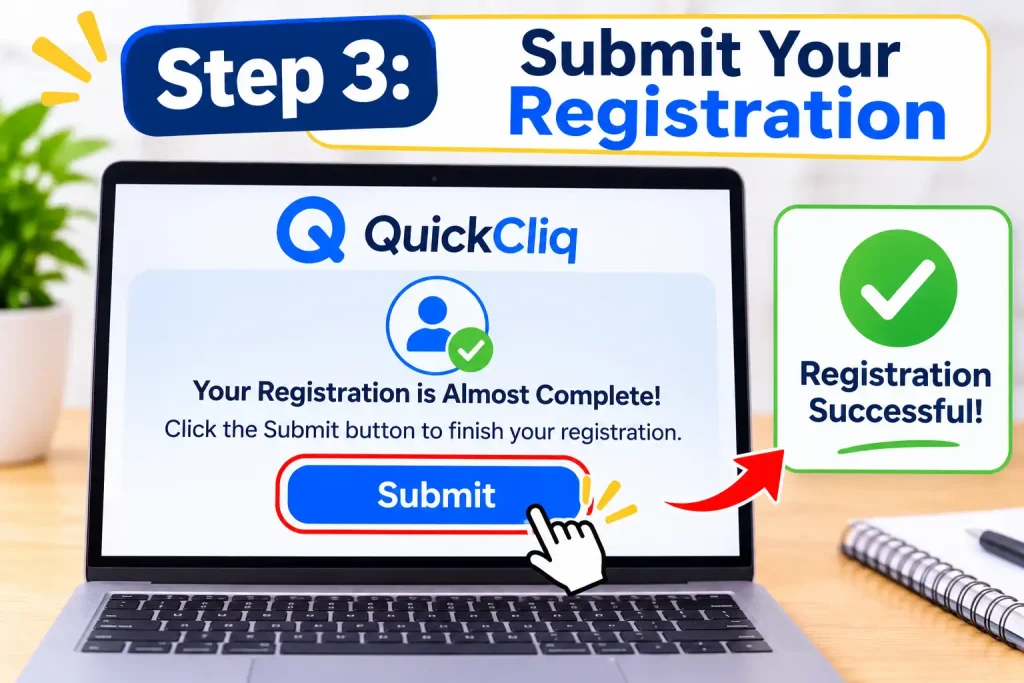
Once you’ve completed the required information, review the details and select the Finish or registration submission option.
Check that your email address is correct. A typing mistake could prevent you from receiving the verification message.
Step 4: Activate Your Account Through Email
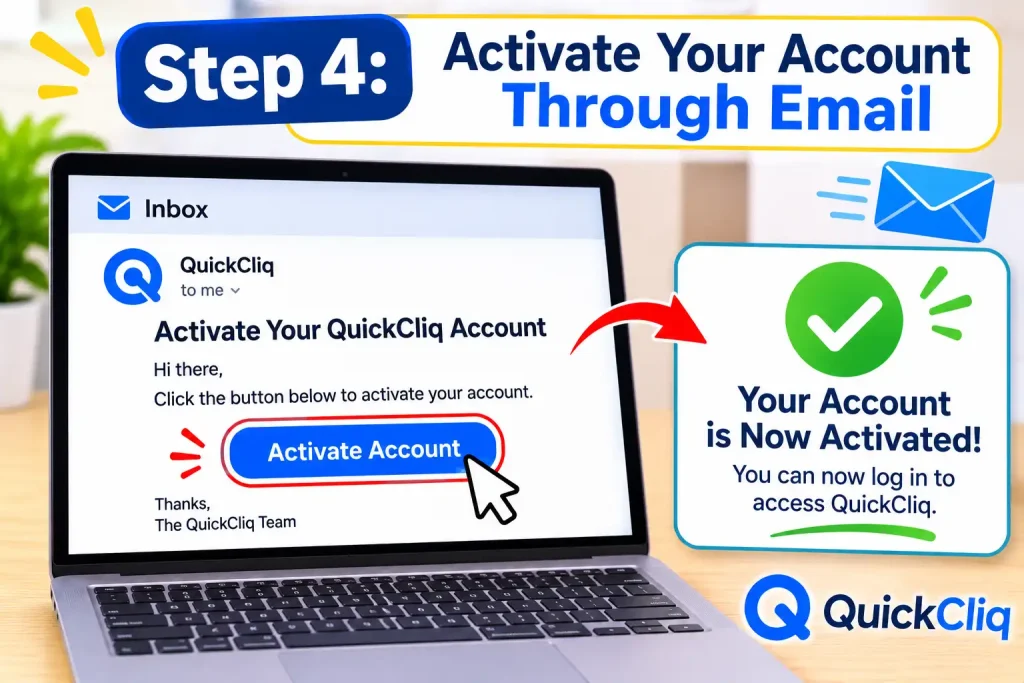
After submitting the form, open your email inbox and look for the Quick Cliq activation message.
- Check your main inbox first.
- Look in Spam or Junk if the message isn’t visible.
- Open the email and follow its activation link.
- Wait for the account verification process to finish.
Important
Email verification is required before you can access your newly registered account.
Step 5: Sign In to Your New Account
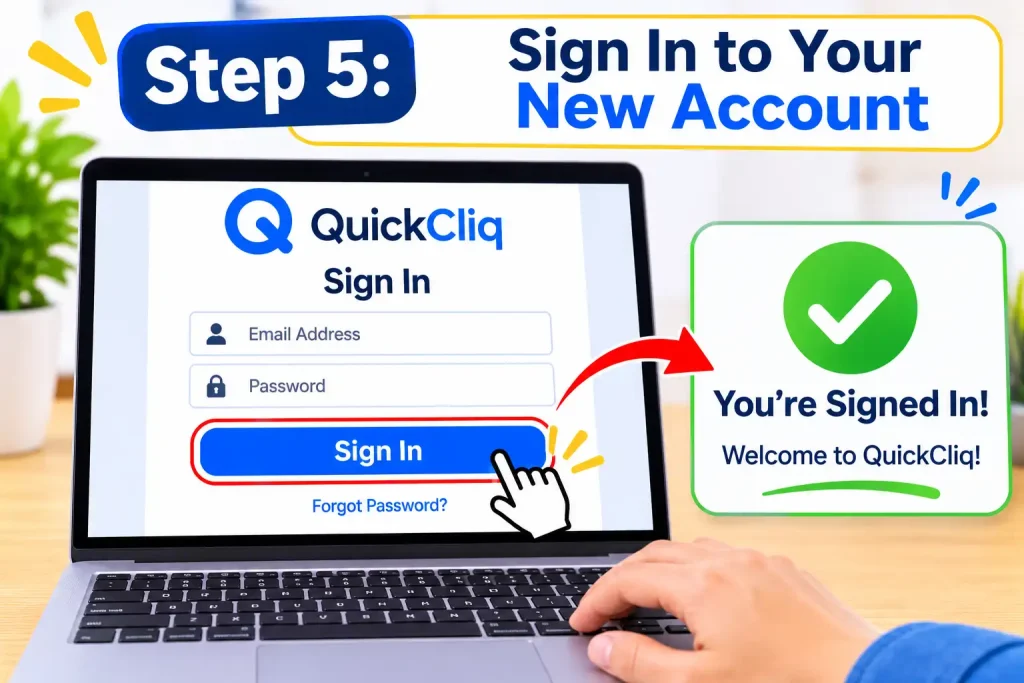
After activating your profile, visit the Quick Cliq parent login portal.
Enter your registered email address and password, then select the login option to open your account.
QuickCliq Login: How to Access the Parent Portal
The Quick Cliq login portal is the main access point for managing school-related orders and payments. Parents can use it to check their account balance, view available services and organise purchases.
Follow These Login Instructions
- Open the Quick Cliq login page.
- Locate the email or username field.
- Enter the email address associated with your account.
- Type your registered password.
- Select Login to access your parent dashboard.
Once signed in, you can navigate to the student, meal ordering, uniform and payment sections available to your account.
What If You Forget Your QuickCliq Password?
Forgetting a password doesn’t mean you need to register again. Quick Cliq provides a password recovery option on its login page.
To reset your password:
- Open the login page.
- Select Forgot your password?
- Enter your registered email address.
- Submit the password reset request.
- Check your inbox for the reset instructions.
- Follow the supplied link to create a new password.
If you cannot access the registered email address or the reset message doesn’t arrive, contact Quick Cliq support for assistance. quick cliq.com.au
How to Add a Child to Your QuickCliq Account
After signing in, the next step is to connect your child to your parent profile. This allows Quick Cliq to display the relevant school services and menus when you place an order.
1. Open the Student Section
From your Quick Cliq dashboard, find the Add Student option and select it to begin linking your child’s information.
2. Enter the Student’s Details
Complete the requested information. This may include:
- Child’s first and last name
- School name
- Year level or class
- Room or teacher details, where requested
- Other information required by the school
3. Select the Correct School
Choose your child’s school from the available options. Make sure you select the correct institution because school menus and ordering arrangements are linked to the participating school.
4. Review and Save
Check the information before proceeding. Select the relevant Next or Save option to complete the student registration.
If you have more than one child attending a participating school, repeat the process for each child.
Can You Manage Multiple Children Through One QuickCliq Account?
Yes. Quick Cliq allows parents to manage multiple children’s school requirements through one account, including children attending different participating schools.
This is useful for families who regularly arrange school lunches for more than one child. Rather than maintaining separate parent profiles, you can access the available student records from the same login.
Understanding QuickCliq’s Online Wallet and Payment Options
Quick Cliq offers a cashless payment system that allows parents to pay for school-related purchases online. You can add credit to your account before ordering or use an available pay-as-you-go payment option.
How to Add Credit to Your QuickCliq Account
If you prefer keeping money available for future purchases, the online wallet can make regular canteen ordering more convenient.
Follow these instructions:
- Log in to your Quick Cliq account.
- Find the Add Credit option on your dashboard.
- Select the available payment method.
- Enter the amount you want to add, where requested.
- Follow the payment instructions.
- Complete the transaction and check your account balance.
Once the payment has cleared and been processed, the available credit can be used for eligible purchases.
Available QuickCliq Payment Methods
According to Quick Cliq’s parent information, the platform supports several payment methods. Availability and applicable charges should be checked within your account before completing a transaction.
| Payment method | How it works |
|---|---|
| Credit card | Pay using an accepted card, including supported Visa, Mastercard and American Express options |
| PayPal | Use an eligible PayPal account where available |
| Direct debit | Make payments using an Australian bank account through the available payment facility |
A note about payment fees: The precise surcharge depends on the payment option and the applicable terms. Don’t assume that fixed percentages apply to every transaction. Review the charges displayed during checkout before confirming payment.
Can You Pay Without Adding Wallet Credit?
Yes. Quick Cliq provides a pay-as-you-go option using an eligible credit or debit card.
This means parents don’t necessarily have to maintain a pre-funded wallet to place an order. You can select the available payment option when completing your purchase.
How to Place a QuickCliq Canteen Order
Ordering school meals online is one of the main reasons families use Quick Cliq. Instead of sending cash with your child, you can select available food items and arrange payment before the school’s ordering deadline.
Follow This Meal Ordering Process
Step 1: Open Meal Order
Sign in to your parent account and select the Meal Order option from the dashboard.
Step 2: Choose Your Child
If your account contains multiple student profiles, select the child for whom you’re placing the order.
Check the student’s name carefully before proceeding.
Step 3: Select the School Date
Choose the date on which the meal should be supplied.
Step 4: Browse the Available Menu
The menu displays the food and drink options offered by the participating school canteen.
Depending on the menu, you may be able to select:
- Sandwiches and rolls
- Hot meals
- Snacks
- Drinks
- Other available canteen products
Some menu items may offer customisation choices, such as fillings or other selections.
Step 5: Review Your Shopping Cart
Before moving to payment, check the selected items and quantities.
Pay particular attention to the student name, ordering date and any customisation choices. This is also a good opportunity to review the total amount and any applicable order fees.
Step 6: Confirm and Pay
Select the payment option and follow the checkout instructions.
When everything is correct, choose Pay & Place Order to submit your purchase.
Step 7: Check Your Confirmation
After successful payment and submission, Quick Cliq sends an order confirmation email.
Ordering tip
Place school lunch orders early rather than waiting until the morning. Each canteen has its own cut-off time, and Quick Cliq cannot submit meal orders after that deadline.
Ordering School Uniforms Through QuickCliq
Quick Cliq also provides an online option for purchasing school uniforms where the participating school has enabled the service.
Parents can use the uniform section to browse available products and follow the school’s purchasing process.
How to Purchase Uniforms
- Sign in to your Quick Cliq parent account.
- Select the Uniforms menu.
- Browse the products listed by your school.
- Choose the required uniform items.
- Select available sizes or other product options.
- Review the items and total cost.
- Complete payment using an available payment method.
- Keep your order confirmation for reference.
Uniform availability, collection arrangements and delivery details may differ between schools. Check the information displayed during checkout or contact the school if you need clarification.
Managing School Events, Fundraising and Book-Related Payments
Quick Cliq can also support school-related purchases beyond everyday canteen orders.
Depending on your school’s setup, the platform may provide access to:
- School fundraising activities
- Special event payments
- Excursion-related orders
- Book packs and other school purchases
- Other activities made available through the school’s online ordering system
To access these services, sign in and look for the relevant Events or other available service sections.
How to View, Cancel or Change QuickCliq Orders
After placing an order, parents can return to their Quick Cliq account to check its status or manage eligible purchases.
The Active / Cancel Orders section is particularly useful when you need to review an upcoming school lunch or cancel an order before the canteen’s deadline.
How to Check an Existing Order
- Open the Quick Cliq parent portal.
- Sign in using your registered credentials.
- Select Active / Cancel Orders.
- Find the relevant student’s order.
- Review the date, items and order details.
You can also use the Transaction History section to review previous purchases.
How to Cancel a Meal Order
Quick Cliq allows eligible orders to be cancelled before the relevant canteen cut-off time.
- Log in to your account.
- Open Active / Cancel Orders.
- Locate the order you want to cancel.
- Select the Cancel option.
- Follow any confirmation instructions.
If the order has already passed its cut-off time, contact the canteen directly. Any late cancellation will depend on the canteen’s decision.
What Happens If Your Child Is Absent?
If your child is unwell or cannot attend school, check whether the order is still within its cancellation period.
Where cancellation remains available, submit the request through your account as soon as possible. If the deadline has passed, contact the school canteen to explain the situation.
Don’t assume that an order will automatically be cancelled when a student is absent.
QuickCliq Troubleshooting: Common Problems and Solutions
Occasionally, parents may experience difficulties when registering, accessing their accounts or completing payments. The following table covers common situations and the steps worth trying.
| Problem | Possible reason | Recommended solution |
|---|---|---|
| Activation email hasn’t arrived | Message delayed or filtered | Check Spam and Junk folders and verify your email address |
| Cannot log in | Incorrect credentials | Re-enter your email and use password recovery if needed |
| Student’s school isn’t listed | School or student details unavailable | Confirm the school selection and contact support |
| Payment unsuccessful | Bank or payment processing issue | Check the payment details and try an available alternative |
| Wallet balance hasn’t updated | Payment hasn’t cleared | Allow processing time and check your transaction history |
| Meal order option unavailable | School service or menu not active | Contact the school or canteen |
| Missed ordering deadline | Canteen cut-off has passed | Contact the canteen directly |
| Incorrect or missing food order | Order fulfilment issue | Open Orders and select Enquire to contact the canteen |
What to Do If You Cannot Find Your School
Start by checking that you’ve selected the correct school name when adding your child.
If the school is correct but the relevant class or year group is missing, contact Quick Cliq support. The school may need to confirm its student information or account configuration.
What If You Receive the Wrong Meal?
Quick Cliq provides an enquiry option for reporting incorrect or missing orders.
Open your account, navigate to Orders, locate the relevant transaction and select Enquire. Submit the details so the canteen can investigate the issue.
FAQs
Final Thoughts
QuickCliq offers Australian parents and school communities a convenient way to manage everyday school-related activities online. From registering a parent account and adding children to ordering canteen meals, purchasing uniforms and managing payments, the platform brings several useful services together in one place. Its online ordering system can also help families plan school lunches ahead of time and reduce the need for cash transactions. Before placing an order, parents should check their school’s available services, payment charges and canteen cut-off times. With the correct account details and a little preparation, Quick Cliq can make managing school purchases more organised and convenient. For account assistance and the latest platform information, visit the official Quick Cliq website.
Read More:
LeapFrog Australia: A Complete Guide to Learning Devices, Accounts and Online Support
ACAP Student Portal: Login, Student Access, Features and Complete User Guide
RANZCP: Complete Guide to Psychiatry Training, Membership and Specialist Assessment
EdChat Guide 2026: Login, Access, Features and Student AI Support
MyGCA Portal Guide 2026: Login, Student Access and Support