Starting your studies at the Australian College of Applied Psychology (ACAP) means getting familiar with several online services that support your academic journey. From accessing learning materials and checking enrolment information to joining online classes and contacting student support, the ACAP Student Portal provides a central starting point for managing these activities.
Whether you are a newly enrolled student, continuing your course or returning after a study break, knowing how to use the ACAP Student Portal can save time and help you stay organised. The official platform connects students with essential academic information, student email, library services, IT assistance and other support resources.
This guide covers the portal’s main purpose, how to access your account, first-time login arrangements, password recovery and the services available to ACAP students.
Fore More Information:
Visit Homepage
What Is the ACAP Student Portal?
The ACAP Student Portal is the institution’s online gateway for students who need access to academic information and essential college services. It brings together links to learning materials, reading lists, study guides, online classes, student email and administrative resources.
Rather than visiting several different sections of the ACAP website every time you need information, you can use the portal as your starting point for everyday study activities.
According to ACAP’s official website, students can use the platform to:
- Access subject learning materials, reading lists and study guides.
- Participate in online classes, seminars and live discussions.
- Manage enrolment and fee-related information.
- Open their ACAP student email.
- Find IT assistance and library resources.
- Access academic and personal support services.
- Connect with career development and employability support.
The portal is relevant to students studying online, on campus or through blended learning arrangements. However, the services displayed may depend on your enrolment, course and account permissions.
How to Access the ACAP Student Portal Login Page
Finding the correct login page is the first step. Students should always begin through ACAP’s official website rather than relying on third-party login pages or unfamiliar links.
Step 1: Visit the official ACAP website
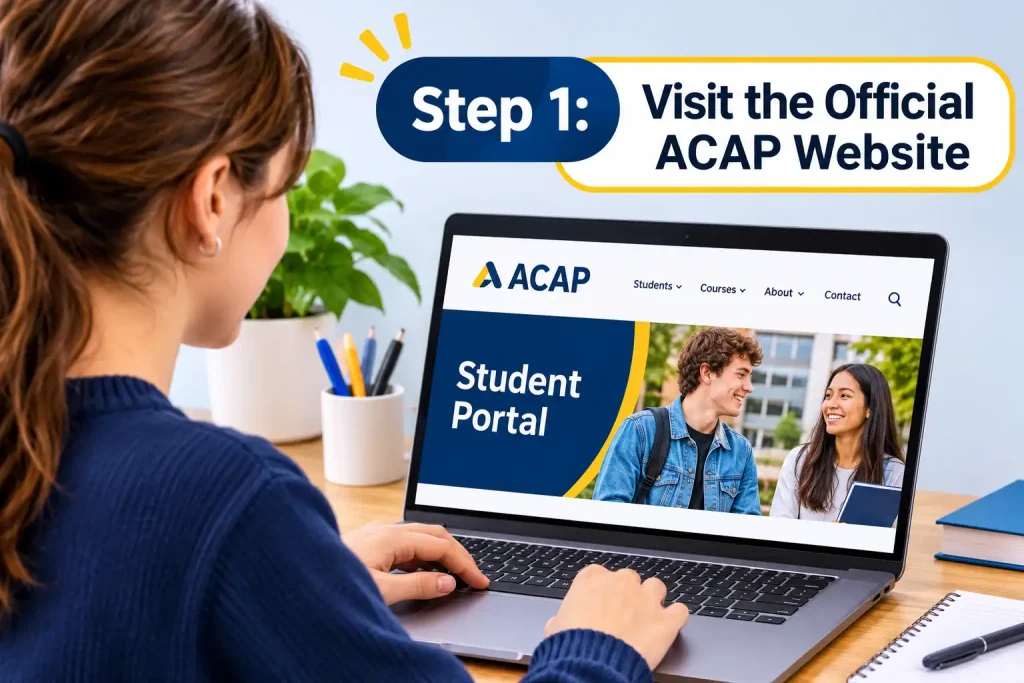
Open the ACAP Student Portal and Resources page in your preferred web browser.
Step 2: Locate the Student Portal access link
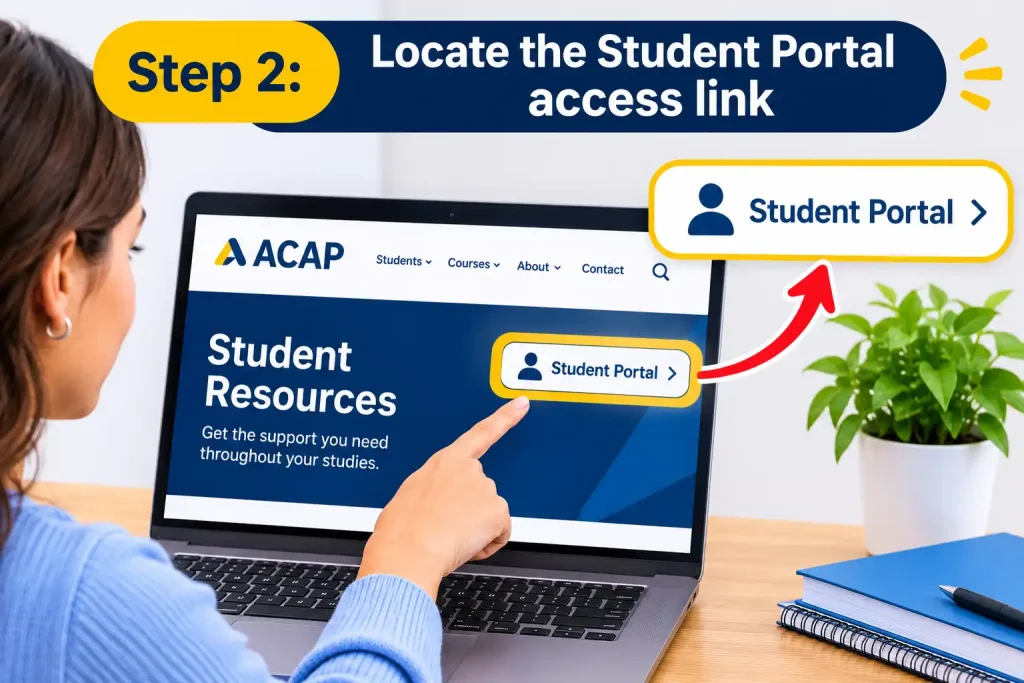
Find the portal access option on the official page and select the relevant link to continue to the student sign-in service.
Step 3: Enter your student login details
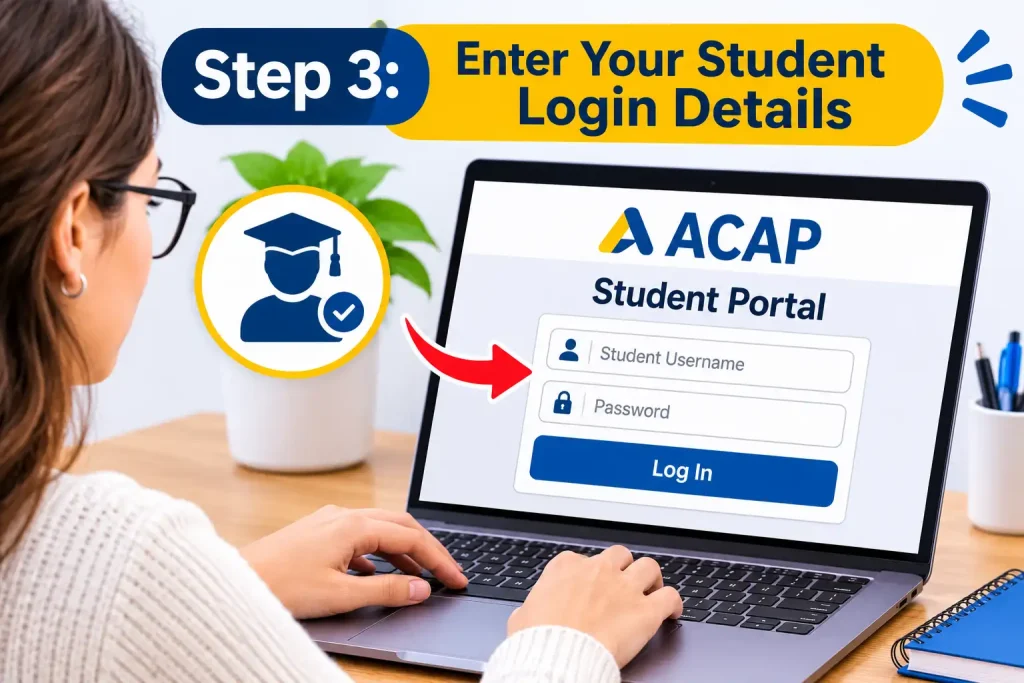
Use the student credentials supplied by ACAP. Your student number and institutional email details are provided when you commence your studies. Follow the account instructions sent by the college.
Step 4: Complete the authentication process
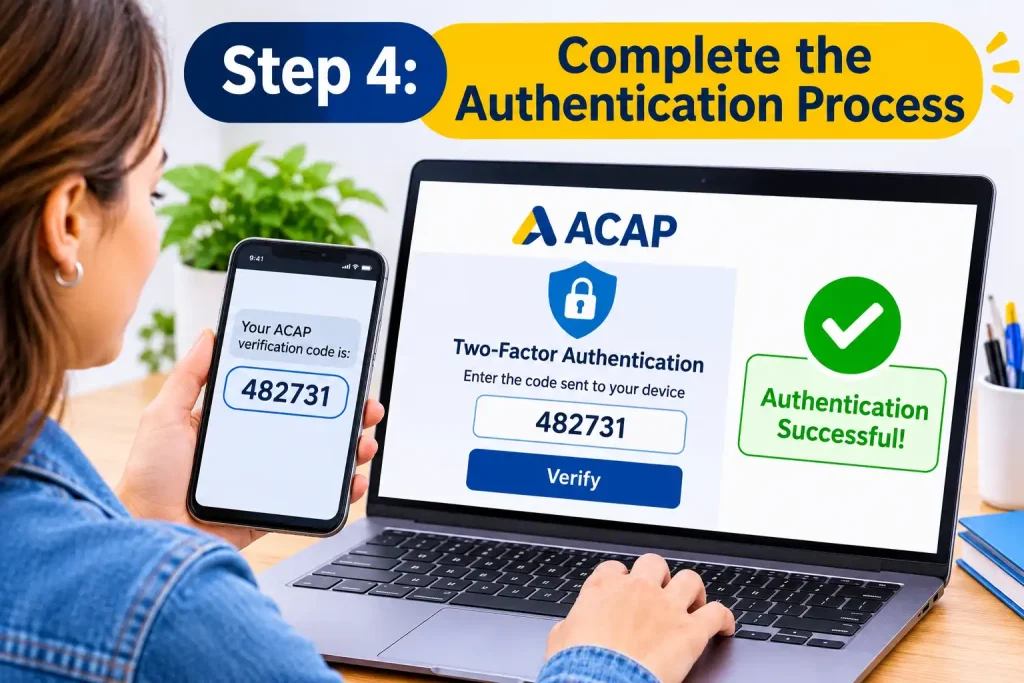
Enter your password and follow any additional security verification instructions displayed on the sign-in screen.
Step 5: Open your student dashboard
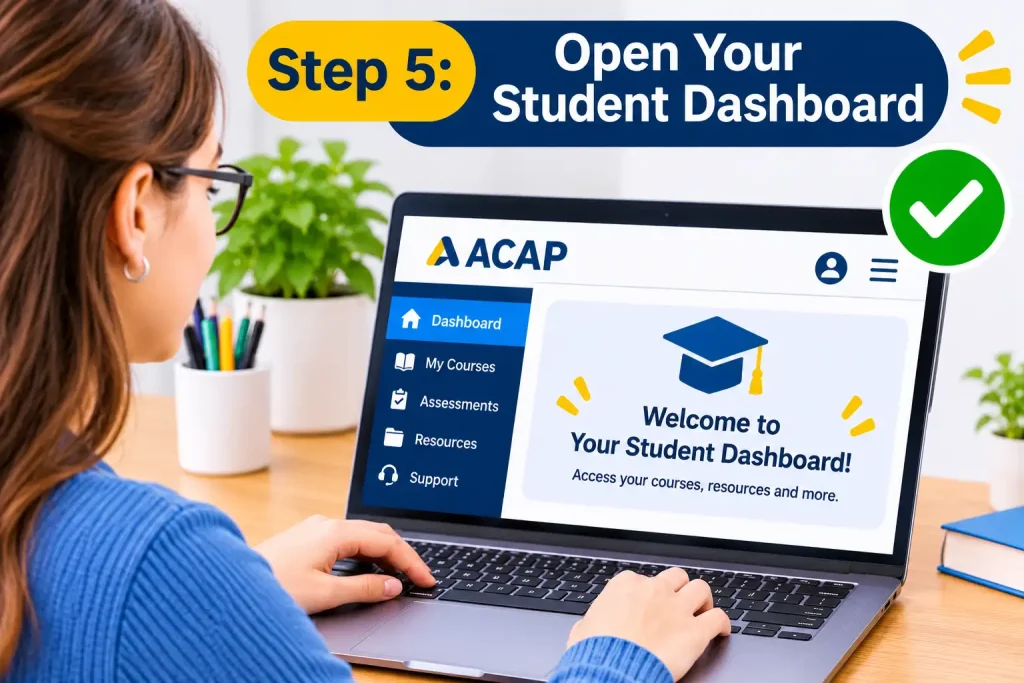
After successful authentication, you can access the services and information available to your account.
Practical tip: Save the official portal page in your browser bookmarks. This makes it easier to find the correct ACAP Student Portal login route whenever you need it.
First-Time Login: Activating Your ACAP Student Account
New students may need to complete an initial account setup before using the ACAP Student Portal. ACAP advises commencing students that they receive a student number and an email containing instructions for accessing the portal.
If you have recently completed enrolment, check the personal email address you used during your application.
What should new students do?
- Look for an official welcome or account-access email from ACAP.
- Locate your allocated student number and the login instructions.
- Follow the instructions provided for accessing your institutional account.
- Complete any password setup or security requirements presented during the initial sign-in.
- Check that you can access the student services associated with your enrolment.
Keep your student credentials private. Avoid sharing your password with other students or using the same password across unrelated websites.
If your welcome email has not arrived, check your spam and junk folders before contacting the college.
New students can also review the official ACAP New Students information for orientation details, useful contacts and preparation advice.
Important: Follow the actual account activation and password instructions supplied by ACAP. The exact setup requirements may vary, so do not assume that every student receives identical authentication prompts.
Main Features Available Inside the ACAP Student Portal
Once you have signed in, the ACAP Student Portal becomes an important access point for managing your academic responsibilities. The available services cover several areas, including course participation, communication, enrolment and student assistance.
Understanding these features helps you find the right service without wasting time searching through different website sections.
1. Student Dashboard and Essential Services
The student portal provides access to different services that support your daily academic activities. Depending on your course and account permissions, you can use its links to reach:
- Learning materials and subject information.
- Student email and college communications.
- Enrolment and fee management services.
- Online learning environments.
- Library and academic support resources.
- IT assistance and student services.
- Career development resources.
Students should regularly check their available announcements and institutional communications. These can contain information about upcoming academic activities, course requirements and administrative matters.
2. Accessing ACAP Online Classes and Course Materials
One of the main reasons students use the ACAP Student Portal is to access their learning environment.
ACAP provides online learning facilities where students can interact with educators, participate in discussions and work through subject-specific activities. Depending on the course, learning activities may include webinars, recorded sessions, quizzes, discussion forums and other interactive materials.
ACAP identifies Moodle as its online classroom environment, where students can communicate with educators and classmates.
How to find your learning materials:
- Sign in through the official ACAP Student Portal.
- Locate the relevant learning or online classroom link.
- Open your enrolled subject or unit.
- Review the available weekly resources and learning activities.
- Check any instructions provided by your educator.
Your online classroom may contain:
- Subject readings and recommended resources.
- Lecture presentations and study materials.
- Discussion activities and learning exercises.
- Assessment information and submission instructions.
- Links to scheduled online sessions.
For live online sessions, ACAP also uses Zoom webinar facilities where applicable. Students should check their subject information and official communications for session links and attendance requirements.
Useful official resource: ACAP Online Study Options.
3. Managing Assignments and Assessment Information
Keeping track of assessments is an essential part of studying at ACAP. The online learning environment provides access to assessment information and the relevant instructions for completing and submitting coursework.
Before starting an assignment, read the assessment brief carefully. Pay attention to the submission deadline, required format, marking criteria and referencing expectations.
A useful assessment routine includes:
- Reviewing assessment instructions as soon as they become available.
- Checking the marking rubric to understand how your work will be evaluated.
- Preparing your document in the required format.
- Following the submission instructions provided in your unit.
- Checking the submission confirmation after uploading your work.
If you experience a technical problem while submitting an assessment, consult the official ACAP IT Student Helpdesk. Its support resources include assessment submission instructions and other technical guides.
4. Accessing Your ACAP Student Email
Your institutional email is an important communication channel during your studies. ACAP issues students with an email address, which can be used for communication with educators and college services.
You should check this account regularly because academic and administrative messages may be sent to your student email.
ACAP provides Microsoft 365 and student email guidance through its IT Helpdesk.
To access your student email:
- Open the ACAP Student Portal.
- Find the student email or Microsoft 365 access link.
- Follow the official sign-in instructions.
- Enter your institutional account details.
- Check your inbox for messages from ACAP.
You can also consult the ACAP Student IT Helpdesk for instructions on accessing Microsoft 365, configuring student email in Outlook and managing multi-factor authentication.
5. Library Access and the ACAP Learning Hub
Academic research is an important part of higher education, particularly for students studying psychology, counselling, social work and related disciplines.
The ACAP Student Portal connects students with library and learning resources that support research, academic writing and independent study.
The Learning Hub is another valuable service. It provides online study resources, personalised webinars and opportunities to receive individual academic guidance.
Students can use the Learning Hub to develop skills in areas such as:
- Academic writing and assignment preparation.
- Research and effective study techniques.
- Understanding assessment requirements.
- Improving confidence with higher education.
- Accessing books, journals and academic skills materials.
The service also offers Peer Assisted Study Sessions (PASS) and personalised support options.
Visit the official ACAP Learning Hub to explore its available services.
Study tip: Do not wait until an assignment deadline approaches before using academic support. Exploring the Learning Hub early can help you understand expectations and improve your study routine.
6. Enrolment, Fees and Student Administration
Administrative tasks are another important reason to access the ACAP Student Portal. ACAP confirms that students can use the portal to manage enrolment and fee-related information.
These services are particularly useful during enrolment periods, when students need to review their course arrangements and check administrative information.
Depending on the service available to your account, you may need to:
- Review your current enrolment information.
- Check relevant fee details.
- Follow re-enrolment instructions.
- Confirm course or unit information.
- Contact Student Engagement about administrative questions.
For matters involving course arrangements, fees or enrolment, students can contact the Student Engagement and Administration team.
How to Reset Your ACAP Student Portal Password
Forgetting your password or experiencing login difficulties can interrupt your studies. ACAP provides dedicated IT guidance to help students change or recover their account passwords.
If you cannot remember your login credentials, start with the official password recovery instructions rather than repeatedly attempting different passwords.
Password recovery process
- Visit the ACAP IT Student Helpdesk.
- Find the Student Portal section.
- Select the password reset or password change guide that matches your situation.
- Follow the instructions provided by ACAP.
- Return to the student login page and try signing in with your updated credentials.
If the self-service process does not resolve the problem, contact the IT Helpdesk for further assistance.
Remember: Your student account credentials are private. Never send your password to someone claiming to represent ACAP.
Fore More Information:
Visit Homepage
Common ACAP Student Portal Login Problems and Solutions
Sometimes the ACAP Student Portal may not work as expected. Login errors can result from incorrect credentials, browser settings, account permissions or temporary technical issues.
The following troubleshooting suggestions can help you identify the problem.
| Login problem | Possible reason | What you can do |
|---|---|---|
| Invalid username or password | Incorrect login information | Check your student credentials and try again. |
| Forgotten password | Password is no longer available to you | Follow ACAP’s official password recovery guide. |
| Login page keeps refreshing | Browser cookies or cached information | Clear browser cache and cookies, then try again. |
| Portal pages are not loading | Browser compatibility or extension issues | Update your browser or try another supported browser. |
| Multi-factor authentication problem | Verification difficulty | Consult ACAP’s Microsoft 365 MFA support instructions. |
| Access denied | Account permissions or enrolment-related issue | Contact Student Engagement to check your access. |
Browser-related problems
An outdated browser or restricted browser settings can sometimes prevent online services from working correctly.
If the login page does not load properly, try these steps:
- Update Google Chrome, Microsoft Edge, Firefox or Safari.
- Clear your browser’s cached files and cookies.
- Open the portal in a private browsing window.
- Check whether browser extensions are interfering with the sign-in process.
- Allow necessary pop-ups and cookies where required.
If the same issue continues across different browsers, contact the ACAP IT Helpdesk rather than repeatedly changing your account settings.
Multi-factor authentication difficulties
Multi-factor authentication (MFA) adds another security check when accessing an online account. Depending on the account and service, this may involve a verification code or an authentication application.
ACAP provides separate instructions for Microsoft 365 MFA through its IT support website.
Visit the ACAP MFA and Microsoft 365 Help Guides to find the relevant instructions.
How to Contact ACAP Student Support
Students who cannot resolve an issue independently can contact ACAP through its official support channels.
Choosing the correct department can make it easier to receive assistance.
Student Engagement and Administration
The Student Engagement team is the main contact point for many administrative enquiries. Its services include assistance with:
- Student portal enquiries.
- Re-enrolment questions.
- Student cards and transport cards.
- Textbook information.
- Campus facilities and room bookings.
- General administrative matters.
IT Student Helpdesk
For technical problems involving account access, passwords, online classes, Microsoft 365 or assessment submissions, the IT Helpdesk is the appropriate starting point.
Its website includes self-service guides covering:
- Student Portal login.
- Password changes and resets.
- Microsoft 365 and student email.
- Moodle classroom access.
- Assessment submission.
- Zoom sessions.
- Browser settings and cookies.
IT Helpdesk support is available to current students and teachers.
FAQs
Final Thoughts
The ACAP Student Portal is an important part of managing your academic experience at the Australian College of Applied Psychology. It provides access to learning materials, online classes, student email, enrolment information and support services through a central online starting point.
For the best experience, keep your login details secure, check your institutional email regularly and become familiar with the Learning Hub and IT Helpdesk. If an account or enrolment issue prevents you from accessing a service, use ACAP’s official support channels to get the correct assistance.
Bookmark the official ACAP Student Portal so you can return to the right starting point whenever you need it.
Read More:
RANZCP: Complete Guide to Psychiatry Training, Membership and Specialist Assessment
EdChat Guide 2026: Login, Access, Features and Student AI Support
MyGCA Portal Guide 2026: Login, Student Access and Support
Geelong Grammar School: Complete Guide for Parents and Students (2026)
Literacy Pro: Complete User Guide for Australian Students and Teachers (2026)
MyMurdoch Learning Guide 2026: Login, Courses, Features and Student Support