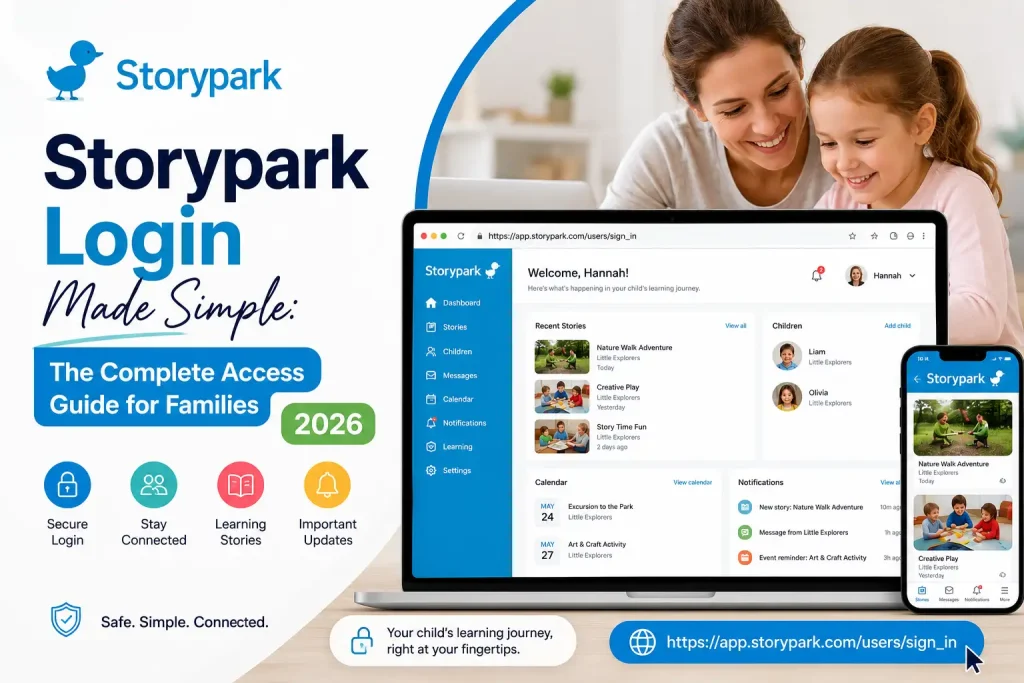
Signing in to Storypark is usually a straightforward process. Parents, family members and educators with an existing account generally need their registered email address and password to access the platform.
Storypark is a private online service that connects early learning educators with families. Through an account, users may be able to view learning stories, photos, videos, notes, conversations and other information shared through a child’s profile. The exact features available depend on the user’s role and permissions.
Start With the Official Storypark Sign-In Page
The safest way to access your account is to use Storypark’s official login page rather than relying on unfamiliar third-party links.
Official Storypark Login:
https://app.storypark.com/users/sign_in
Storypark’s Help Centre explains that existing users can sign in with the email address and password linked to their account. You can also reach the login area from the main Storypark website by selecting Log in.
Security reminder: Never enter your Storypark password on a website you do not recognise. Saving the official login page as a browser bookmark can also make future sign-ins easier.
What Can You Do With Storypark?
Storypark gives early learning services and families a shared online environment for documenting and communicating about children’s learning and development.
Depending on your account access, you may be able to:
- Read learning stories and updates
- View photos and videos
- Follow information connected to a child’s profile
- Communicate with educators and other approved family members
- Review other content shared by the early learning service
Families can use Storypark to stay connected with what is happening at their child’s early learning service. Educators, meanwhile, can use the platform to document learning, communicate with families and manage information relating to their service.
The browser version can also provide access to functions that aren’t necessarily available through the mobile app.
Check These Details Before Signing In
Most basic login problems can be avoided by having the right account information ready.
Before you attempt to access Storypark, check that you have:
| What you need | Why it matters |
|---|---|
| Registered email address | Identifies your Storypark account |
| Current password | Required for normal sign-in |
| Internet connection | Needed to access the online service |
| Updated browser | Helps avoid browser-related issues |
| Access to your email | Useful if you need to reset your password |
| Correct mobile app | Needed when signing in from a phone or tablet |
If your account was created through an invitation from an early learning service or administrator, use the email address connected to that invitation.
An invitation may need to be accepted before you can finish setting up your Storypark account.
A Simple Way to Sign In to Storypark
Once your account has already been created, the normal browser login involves only a few steps.
1. Go to Storypark’s Login Page
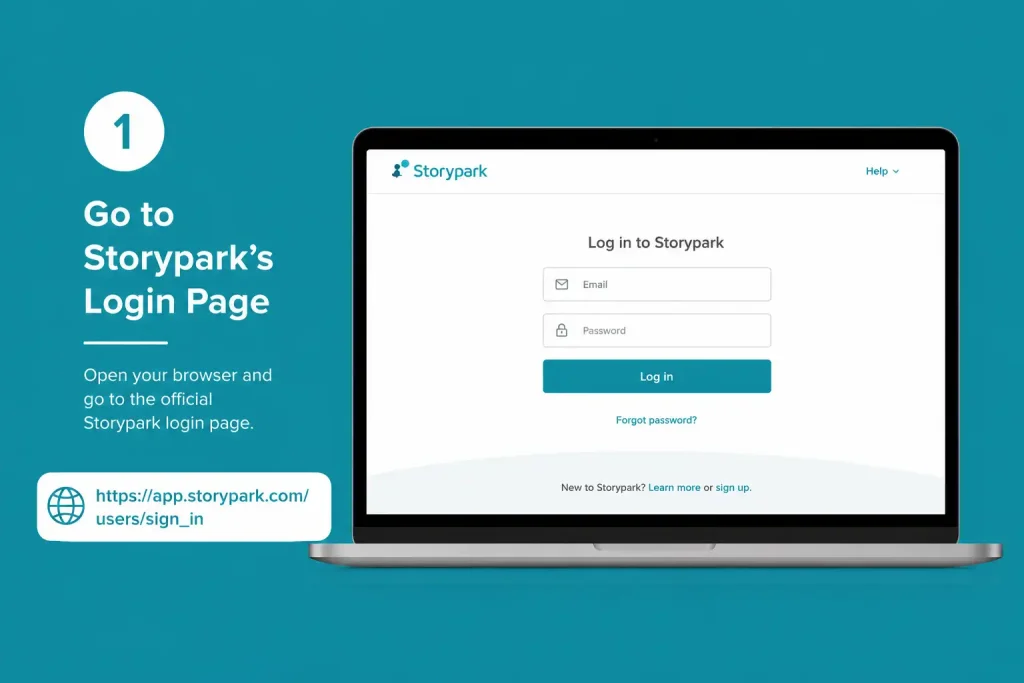
Open a supported browser such as Chrome, Safari or Firefox and visit the official Storypark sign-in page.
Storypark Login:
https://app.storypark.com/users/sign_in
Going directly to the official page helps reduce the risk of using an incorrect or misleading login link.
2. Enter the Email Used for Your Account
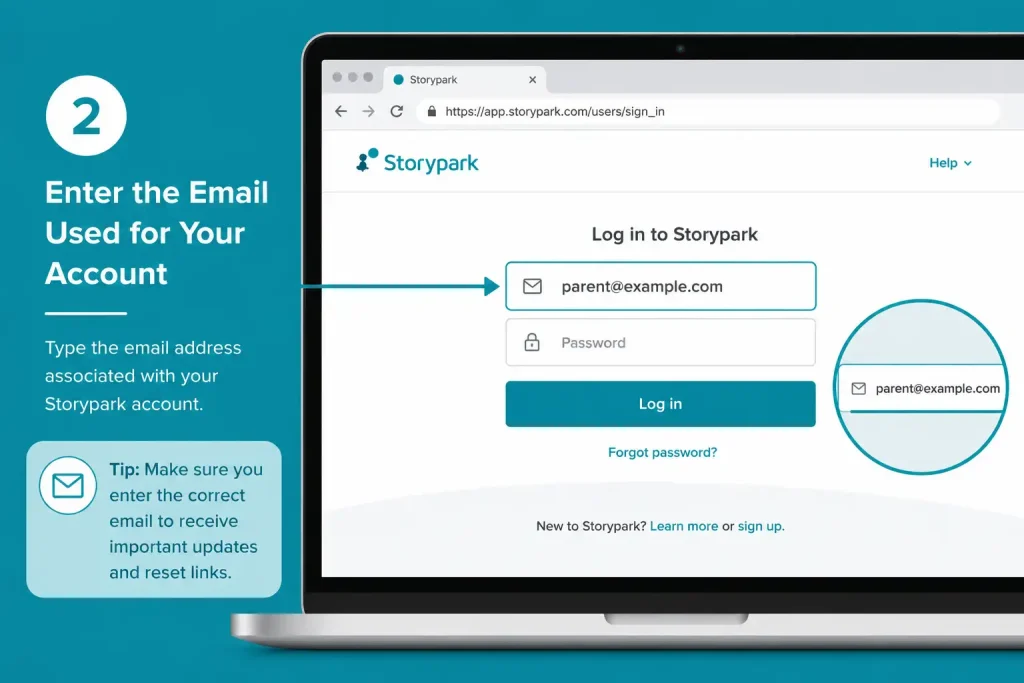
Type the email address associated with your Storypark account into the email field.
Check the address carefully before continuing. Even a minor typing error can prevent you from signing in.
If your browser automatically fills the email field, make sure it has selected the correct address.
3. Enter Your Current Password
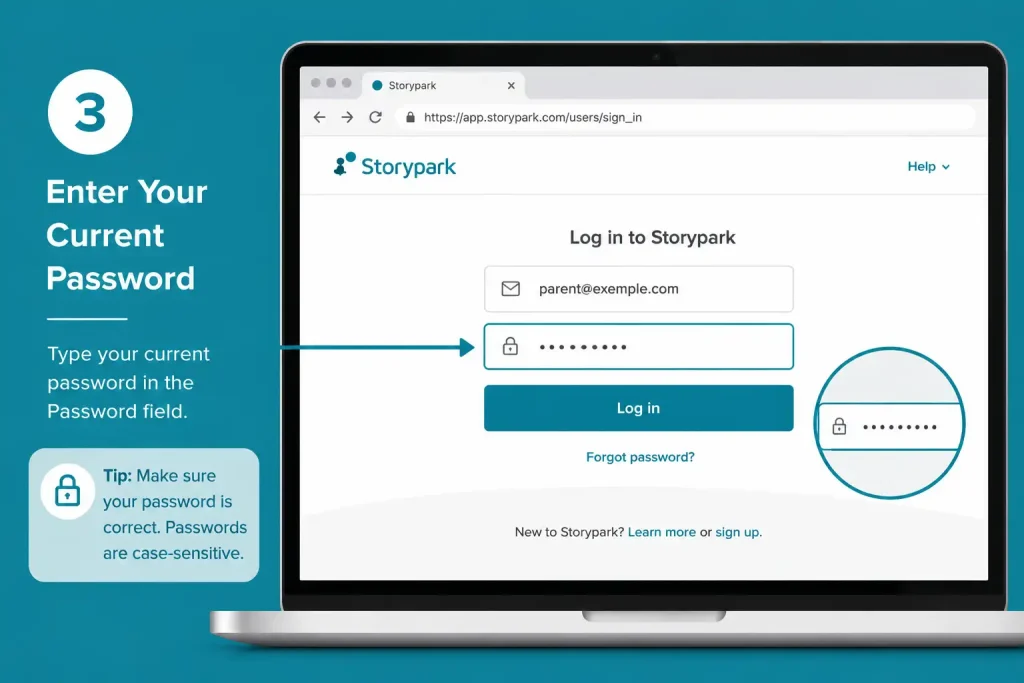
Type your Storypark password into the password field.
If you’ve changed your password recently, check that your browser or password manager isn’t inserting an older saved password. Stored login details can sometimes cause confusion after a password change.
4. Press Sign In
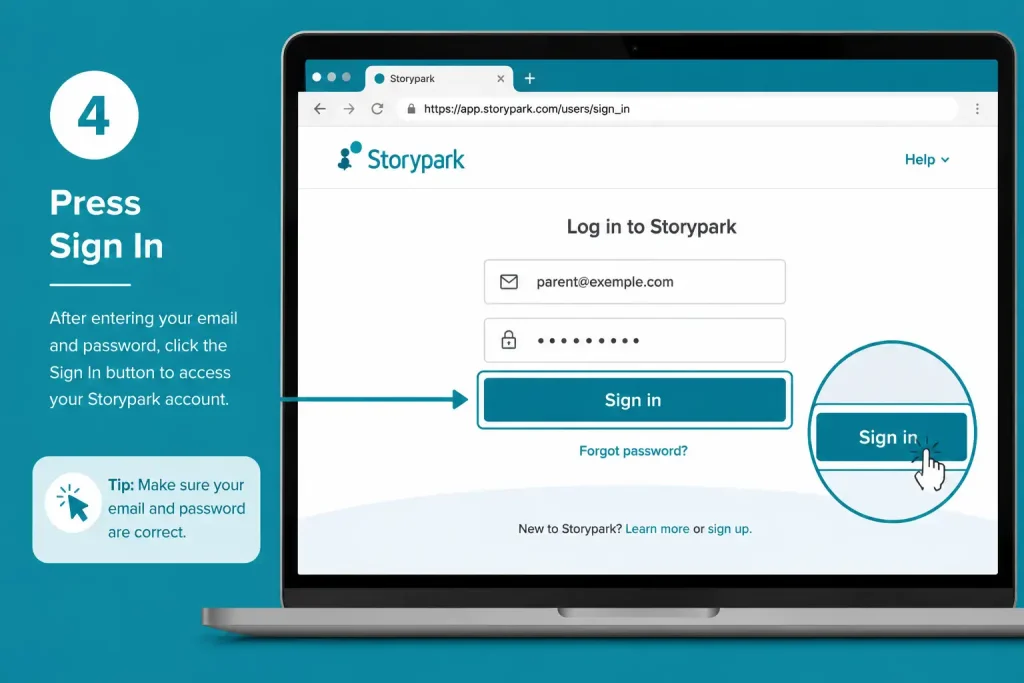
After checking both fields, select Sign in.
When the credentials are correct, Storypark should open your account. What you see after signing in depends on whether you are using a family, educator or another type of account and which permissions have been assigned to you.
Accessing Storypark as a Parent or Family Member
Family users with an established Storypark account can generally use their existing credentials through the website or the Storypark for Families app.
Storypark’s official family login guidance states that existing users can enter the same email address and password associated with their Storypark account when accessing the Families app.
The mobile application can make it convenient to receive and view stories, photos, videos and communications from educators. However, Storypark notes that the browser version may provide access to the full set of platform features.
Visit Homepage
What If You Have Only Received an Invitation?
Receiving an invitation does not necessarily mean you already have a completed Storypark account.
If you haven’t registered yet, follow the invitation process instead of attempting to log in with an account that hasn’t been set up.
A typical process is:
- Open the invitation email from Storypark.
- Follow the registration or invitation link.
- Complete the account setup instructions.
- Create your password.
- Finish registration.
- Return to the Storypark sign-in page when your account is ready.
If the invitation is no longer available or has expired, you may need to contact the relevant early learning service or administrator and request another invitation.
Storypark Login for Educators
Educators with an existing account can normally access Storypark through the website using their registered email address and password.
There is an important distinction for educators who have been invited to join a service. Storypark’s guidance indicates that invited educators should follow the invitation process rather than unnecessarily creating another service account.
Organisations Using Single Sign-On
Some organisations use Single Sign-On (SSO) instead of relying entirely on standard Storypark credentials.
Storypark’s documentation states that its SSO offering supports Microsoft Entra and Azure. In these environments, an educator may be directed through the organisation’s own sign-in system.
If you’re unsure which method applies to you, check whether your early learning organisation has provided separate login instructions.
Using Storypark on a Phone or Tablet
Storypark offers different mobile experiences depending on whether you’re using the service as a family member or educator.
Storypark for Families
The Storypark for Families app is available for iOS and Android devices. Existing users can sign in using the credentials associated with their Storypark account.
It can be useful for keeping up with learning stories, photos, videos and communications while away from a computer.
Storypark for Educators
Educators can use the Storypark for Educators app on supported Apple and Android devices.
The educator application works alongside the web platform and provides tools for activities such as:
- Viewing activity
- Creating content
- Communicating with teams
- Documenting children’s learning
The app doesn’t necessarily contain every function available through the website. If a feature isn’t available on mobile, switching to the browser version may be necessary.
Browser vs Mobile App
The best option depends on what you need to do.
| Access method | Best suited to |
|---|---|
| Storypark website | Broader access to platform features |
| Storypark for Families | Families checking stories, media and communications |
| Storypark for Educators | Educators documenting learning and managing activity |
For a basic account check or viewing shared updates, the mobile application may be convenient. For tasks requiring features that aren’t included in the app, the web version is the better choice.
Common Storypark Login Problems to Check First
If Storypark won’t let you sign in, start with the basics before assuming there’s a problem with the platform.
Wrong email address
Make sure you’re using the email address originally connected to the Storypark account. If you’ve received an invitation, check which address it was sent to.
Old saved password
A browser or password manager may automatically enter an older password. If you’ve recently changed your password, replace the saved value with the current one.
Account not fully registered
If you were invited but never completed registration, you may need to return to the invitation email and finish the account setup before normal login will work.
Expired or missing invitation
If an invitation can no longer be used, contact the early learning service or administrator that sent it and ask whether a new invitation can be issued.
Feature missing from the app
Not every Storypark feature is necessarily available in the mobile application. Try the browser version if you cannot find a function you need.
Storypark Login: Key Points to Remember
The normal Storypark sign-in process is based on the email address and password associated with an existing account. Families can use the website or Families app, while educators may use the website or Educators app depending on their needs and organisation’s setup.
If you have only received an invitation, complete the registration process first. Educators should also check whether their organisation uses Single Sign-On, as this can change the normal login process.
For the safest access, start with Storypark’s official sign-in page and avoid entering your credentials into unfamiliar websites.
Storypark Password Reset: Recovery Steps and Login Fixes
A Storypark login failure doesn’t necessarily mean you’ve lost access to your account. The cause may be as simple as an old saved password, an incorrect email address, an incomplete invitation, a browser issue or a problem with the mobile app.
The best approach is to identify the type of problem first, then use the appropriate recovery method. If you’ve forgotten your password, Storypark provides a reset option directly from its sign-in page.
Forgot Your Storypark Password? Start Here
Go to the official Storypark sign-in page:
Storypark Login:
https://app.storypark.com/users/sign_in
From there, you can begin the password-recovery process without normally needing your childcare centre, school or early learning service to change the password for you.
Use the Password Reset Link
On the Storypark sign-in screen, look for Forgot password? below the usual login fields.
Select this option to start recovering access to your account.
Enter the Email Linked to Storypark
You’ll then need to provide the email address associated with your Storypark account.
If you use several email addresses, make sure you choose the one originally used to register your account or accept your Storypark invitation. The reset message must be associated with the correct account email.
Look for the Recovery Message
After submitting your email address, check your inbox for the password-reset email.
Don’t stop at the main inbox if you can’t see it. Check:
- Spam
- Junk
- Promotions
- Other filtered email folders
- Your mailbox search
Also double-check that the email address entered during recovery was correct. If the message hasn’t appeared after a short wait, avoid repeatedly submitting new requests immediately.
Set a New Password
Open the reset message and follow the link provided by Storypark.
Create and confirm your new password, then save the change. Once the reset has been completed, return to the Storypark login page and sign in with the new credentials.
One thing people often overlook: if your browser stores passwords, update the saved Storypark credential as well. Otherwise, it may continue filling in your previous password.
No Storypark Reset Email? Try These Checks
When a password-reset message doesn’t arrive, the problem isn’t necessarily the reset function itself. The first thing to establish is whether the correct account email was used.
| Check | What to do |
|---|---|
| Registered email | Confirm you’re using the address connected to Storypark |
| Spam or Junk | Search filtered folders for the reset message |
| Promotions | Check whether your email provider moved the message there |
| Safe senders | Consider adding [email protected] |
| Multiple email addresses | Make sure you’re recovering the correct account |
| Waiting time | Allow a few minutes before trying again |
If none of these checks helps, the issue could involve the email address associated with the Storypark account rather than the password itself.
What to Do When Your Storypark Account Came From an Invitation
Not every Storypark user begins by creating an account directly from the login screen.
An early learning service, school or organisation may first send an invitation. In that situation, the account setup process needs to be completed before normal login credentials are available.
Still Have the Invitation?
Search your email for the original Storypark invitation.
Open it and follow the registration instructions provided. After completing the setup, you’ll be able to use the account credentials for future Storypark sign-ins.
If you try to log in before completing this process, you may not have a fully configured password or account yet.
Has the Invitation Expired?
An expired invitation generally needs to be handled by the organisation that originally sent it.
Contact the relevant childcare centre, school, early learning service or administrator and ask them to issue a new invitation.
Avoid creating a second account simply because an invitation isn’t working. If your original account already exists, another account can make the connection between you, the organisation and the child’s profile more difficult to manage.
Need to Change Your Storypark Email Address?
If you can still sign in but your email address has changed, update it from your account settings rather than waiting until you lose access.
Based on the supplied information, the process is:
- Sign in to Storypark using a web browser.
- Open your profile menu.
- Select Account settings.
- Find the email address associated with the account.
- Enter the replacement email address.
- Save the updated details.
- Check the new email inbox for any verification message.
It’s much easier to make this change while you still have access to the account.
If you’ve lost access to both Storypark and your previous email address, the normal account-settings route may no longer be sufficient.
Storypark Login Not Working? Match the Fix to the Problem
Correct credentials don’t always guarantee a successful login. Browser settings, saved passwords, mobile apps and account invitations can all affect access.
The Email or Password Is Rejected
Start by checking the basics:
- Re-enter your email address manually.
- Look for spelling mistakes.
- Make sure there are no unwanted spaces.
- Check whether Caps Lock is enabled.
- Confirm you’re using your latest password.
- Replace any old password automatically inserted by your browser.
If the password still doesn’t work, use Forgot password? instead of repeatedly trying different passwords.
The Storypark Login Screen Won’t Load Properly
A blank page or endless loading screen may be related to browser data, extensions or the current browser session.
Try the following in order:
Refresh → Private/Incognito window → Clear relevant cache and cookies → Check extensions → Try another browser
You should also confirm that your internet connection is working normally.
The supplied troubleshooting information specifically points to clearing browser cache and cookies, checking extensions or ad blockers, and testing Storypark in an Incognito or Private window when blank-screen or loading-loop problems occur.
Storypark App Keeps Logging You Out
If you can access Storypark through a browser but the mobile application repeatedly signs you out, check the app version first.
Mobile App Troubleshooting
- Open the app store on your device.
- Search for the relevant Storypark application.
- Check whether an update is available.
- Install the latest available update.
- Close and reopen the application.
- Try signing in again.
An outdated app or an operating-system compatibility issue may contribute to repeated mobile login problems, according to the supplied troubleshooting material.
If the problem remains, test your account through the Storypark website. If the browser works normally, that can help indicate that the issue is specific to the application rather than your account credentials.
Storypark Login Troubleshooting: A Practical Checklist
Before asking an administrator for help, work through the following checks.
Account
- Is the email address correct?
- Am I using the current password?
- Is Caps Lock switched off?
- Is my browser filling in an old password?
Password Recovery
- Have I checked Spam?
- Have I checked Junk?
- Have I checked Promotions?
- Did I enter the email address registered with Storypark?
- Have I waited a few minutes for the reset message?
Browser
- Did I refresh the page?
- Have I tried a Private or Incognito window?
- Have I cleared relevant cache and cookies?
- Have I tested another browser?
- Are any extensions or ad blockers interfering?
App
- Is the Storypark app up to date?
- Is the device software reasonably current?
- Does the account work when accessed through a browser?
Invitation
- Did I complete the original invitation process?
- Has the invitation expired?
- Can the organisation send another invitation?
When You Need Help From an Administrator
Password recovery won’t solve every Storypark access problem.
The relevant organisation or account administrator may need to help if:
- Your invitation has expired.
- You never received the original invitation.
- Your account is linked to the wrong organisation.
- You no longer have access to the email address registered to the account.
- Your account information requires an administrator’s involvement.
- Your organisation uses a special authentication method such as Single Sign-On.
For general platform questions, Storypark also provides an official Help Centre containing separate information for family members and educators.
The Most Efficient Order for Fixing Storypark Login Issues
Don’t waste time repeatedly entering passwords when you don’t know what is actually causing the failure.
A more useful troubleshooting sequence is:
Check your email → verify the password → use password recovery → test the browser → update the app → check the invitation → contact the administrator
This approach helps narrow the problem down to one of several areas: account credentials, email delivery, browser behaviour, mobile-app issues or account administration.
Storypark Password Recovery Image SEO
Image description: A secure Storypark account-recovery scene showing a password-reset email, email address field and login interface.
ALT text: Storypark password reset and account recovery screen
SEO filename: storypark-password-reset-account-recovery.webp
Recommended placement: Immediately after the password-reset instructions.
Suggested style: Clean educational illustration focused on account recovery and secure login.
Kadence layout: Use a full-width information card for the recovery section, followed by a two-column troubleshooting area. Keep spacing generous and ensure tables remain easy to read on smaller screens.
Storypark Login Problems: Quick Reference
| Problem | Recommended action |
|---|---|
| Forgot your password | Select Forgot password? on the login page |
| Reset email hasn’t arrived | Check Spam, Junk and Promotions and verify the account email |
| New password isn’t working | Make sure the browser isn’t inserting the previous password |
| Login page is blank or stuck | Clear relevant browser data or test Private mode |
| App keeps signing you out | Check for an available app update |
| Invitation has expired | Ask the organisation to issue another invitation |
| Email address has changed | Update it through Account settings while you still have access |
| Account remains inaccessible | Contact the relevant organisation administrator or support channel |
Final Reminder
Most Storypark access problems have a straightforward starting point. Check the account email first, use the password-reset option when necessary, test the browser if the page behaves unexpectedly, and update the app if the problem only occurs on mobile.
If the issue involves an invitation, organisation connection or registered email that you can no longer access, the relevant administrator may need to step in.
Storypark Login: What You Can Access and How to Stay Secure
Once you successfully complete your Storypark login, what you see next depends on the type of account you have and the permissions assigned to it. Families and educators use the platform in different ways, so their dashboards and available tools won’t necessarily look the same.
For families, Storypark can provide a shared space for following a child’s early learning experiences and keeping in touch with educators. Educators have a broader set of tools focused on recording learning, communicating with families and working with their early learning team.
What Families Can Do in Storypark
Storypark is designed to help family members stay involved with their child’s learning experience.
Depending on the service and account configuration, a family member may be able to:
- Read learning stories
- View photos and videos shared by educators
- Follow updates relating to their child
- Communicate with educators
- Review activity associated with the account
- Use the Storypark for Families mobile app
The available options can vary, so don’t be concerned if another family member’s account looks slightly different from yours.
Storypark also maintains dedicated guidance for families covering platform navigation and mobile-app use.
Tools Available to Storypark Educators
Educators generally use Storypark for more than simply viewing updates. Their account experience is centred on documenting children’s learning and collaborating with families and other members of the service.
Depending on their access, educators can work with features such as:
- Creating and managing learning stories
- Communicating with families
- Using the educator mobile application
- Working with teams
- Managing children’s learning information
- Accessing Storypark through a web browser
If an expected feature isn’t appearing after you sign in, first check that you’ve logged into the correct account and the correct service.
Protecting Your Storypark Account
Storypark can contain information relating to children, families and educators, so protecting account access is important.
A few straightforward habits can reduce avoidable security risks.
Keep Your Password Private
Don’t give your Storypark password to another person. If you believe someone else may know it, change the password rather than continuing to use the same credentials.
It’s also sensible to avoid reusing your Storypark password on unrelated websites. Using different passwords limits the impact if another service experiences an account-security problem.
Always Check the Login Address
When signing in, use the official Storypark website:
Official Storypark Login:
https://app.storypark.com/users/sign_in
Be cautious if a message unexpectedly sends you to a login page. Don’t enter your credentials into an unfamiliar website simply because it appears to resemble Storypark.
Secure the Email Connected to Your Account
Your email address plays an important role in account recovery because password-reset messages are sent there.
Protect the email account associated with Storypark and don’t share its password. If someone gains access to your email, they could potentially access account-recovery messages as well.
Sign Out on Shared Computers
Using Storypark on a shared computer requires extra care.
If you’ve logged in from a school, workplace, public or other shared device, sign out before leaving it. This prevents the next person using the device from opening an account that is still signed in.
Should You Use Storypark in a Browser or App?
Both options can be useful, but they aren’t identical.
| Access method | Most useful for |
|---|---|
| Web browser | Broader account access and platform features |
| Storypark for Families app | Families checking updates and staying connected |
| Storypark for Educators app | Educators using Storypark from supported mobile devices |
Storypark’s documentation indicates that the browser provides the broader platform experience, while the mobile applications provide convenient access to selected functions.
Useful tip: If you can’t find a particular feature in the app, open Storypark in a browser before assuming that something is wrong with your account.
Still Can’t Get Into Storypark?
If you’ve checked your credentials, tried password recovery and tested your browser without success, repeating the same login attempt is unlikely to help.
Instead, identify which type of problem you’re dealing with.
Password issue
Use Storypark’s Forgot password? option to begin account recovery.
Email issue
Check which email address was originally registered with Storypark or used for your invitation.
Invitation issue
If an invitation has expired or isn’t working, ask the organisation that originally invited you to issue another one.
Browser issue
Try a different browser or open Storypark in a Private or Incognito window.
Mobile-app issue
Check for an available app update, then try accessing your account through the website.
Organisation or account issue
If the problem involves your service, account connection or organisation-specific access, contact the appropriate administrator or Storypark support channel.
Working through the problem by category is much more effective than repeatedly entering different passwords.
FAQs
Final Thoughts
Most Storypark access issues start with a small number of checks: confirm the correct email, make sure you’re using the current password and use the official sign-in page.
If the normal credentials don’t work, password recovery is the next logical step. Invitation-based accounts require additional attention because the original invitation is part of the account setup process; an expired invitation should normally be replaced by the organisation that sent it.
Browser problems can often be isolated by trying Private or Incognito mode, clearing relevant browser data or testing another browser. When the problem only appears in the mobile app, checking for updates and testing the web version can help identify the cause.
Read More:
Passport Application 2026: From Online Form to Final Lodgement
ATO Business Portal 2026: Complete Login & Online Services Guide
Minecraft Education 2026: The Complete Guide to Creative & Interactive Learning
Passport Renewal 2026: Complete Guide to Requirements, Fees & Online Application
Tax Agent Portal: The Complete Professional Guide (2026)