Minecraft Education turns the familiar Minecraft environment into a structured learning space where students can explore ideas, solve problems and work together. Rather than being limited to entertainment, the platform can support lessons in coding, STEM, mathematics, science, history, language, creativity and collaborative learning.
Teachers can use purpose-built lessons, classroom tools and interactive activities to make abstract topics more practical. The platform is available across a range of devices, including Windows, Mac, Chromebook, iPhone/iPad and Android.
Official Minecraft Education website:
Minecraft Education official website
This section looks at who can use educational minecraft, how licensing works, where to download it, how students and educators sign in, and how its classroom features can support learning.
Minecraft Education Explained
educational minecraft is a classroom-focused edition of Minecraft created for educational settings. The emphasis is on using the virtual world as a learning environment, giving teachers ways to build activities around exploration, creation, collaboration and problem-solving.
Its educational resources cover areas including computer science, mathematics, science, social studies, language and arts. Educators can also use prepared lessons, build challenges and immersive activities instead of having to create every learning experience from scratch.
Why Educators Bring Minecraft Into Lessons
One of the platform’s strengths is that students can demonstrate an idea by building or interacting with something rather than only reading about it.
For example, a class could construct a model, investigate a scientific concept, solve a design challenge or work through a coding task. Group projects can also encourage students to communicate, divide responsibilities and develop a solution together.
Key Minecraft Education Features
| Learning area | What students and educators can use |
|---|---|
| Game-based learning | Interactive activities and learning experiences |
| Curriculum | STEM, coding, mathematics, science, history, language and other subjects |
| Collaboration | Shared worlds and multiplayer classroom projects |
| Programming | Coding activities and computer-science resources |
| Teacher support | Lessons, tutorials, training materials and build challenges |
| Accessibility | Tools including Immersive Reader |
| Device support | Windows, Mac, Chromebook, iPhone/iPad and Android |
| Classroom management | Settings intended for organised learning environments |
Who Is Minecraft Education Designed For?
educational minecraft can be used by a range of educational and community organisations. Access depends on the organisation, account type and applicable licensing arrangement.
Potential users include:
The platform is therefore broader than a traditional school classroom. Its resources can also be used by organisations running educational activities outside normal school hours.
Visit Homepage
How Licensing Works
In a school setting, access is generally connected to an eligible Microsoft 365 account and managed by the organisation. Students who are unsure whether they have access should normally check with their school, teacher or administrator.
educational minecraft also provides purchasing options for organisations that fall outside standard educational licensing arrangements. Because licensing terms and prices can change, current information should always be checked on the official education minecraft website.
Downloading Minecraft Education Safely
The official educational minecraft website is the recommended place to obtain the application. Using the official download source helps ensure that you are installing the correct version for your device rather than an unofficial copy.
Devices Supported
The official download information covers several platform categories:
Device requirements can change as new versions are released, so check the current requirements before installing the application on a school or personal device.
Minecraft Education Installation Steps
1. Go to the official download page
Open the educational minecraft download page and select the appropriate installation option.
2. Select your device platform
Choose the version that matches the operating system you are using.
3. Download the installer
Start the download and wait for the installation package to finish downloading.
4. Install the application
Open the downloaded file and follow the instructions provided by your device.
5. Open educational minecraft
Once installation has finished, launch the application. You should then reach the sign-in screen.
Deploying Minecraft Education Across a School
Installing the application on one computer is different from deploying it across an entire school or organisation. Schools managing multiple devices may need administrator-level deployment procedures and configuration.
For larger installations, IT staff should use the current deployment documentation supplied through the official educational minecraft resources. This helps administrators apply the appropriate setup rather than treating every school-managed device as an individual installation.
Minecraft Education Login: Getting Into Your Account
After the application has been installed, users can normally begin from the educational minecraft sign-in screen.
Sign-In Process
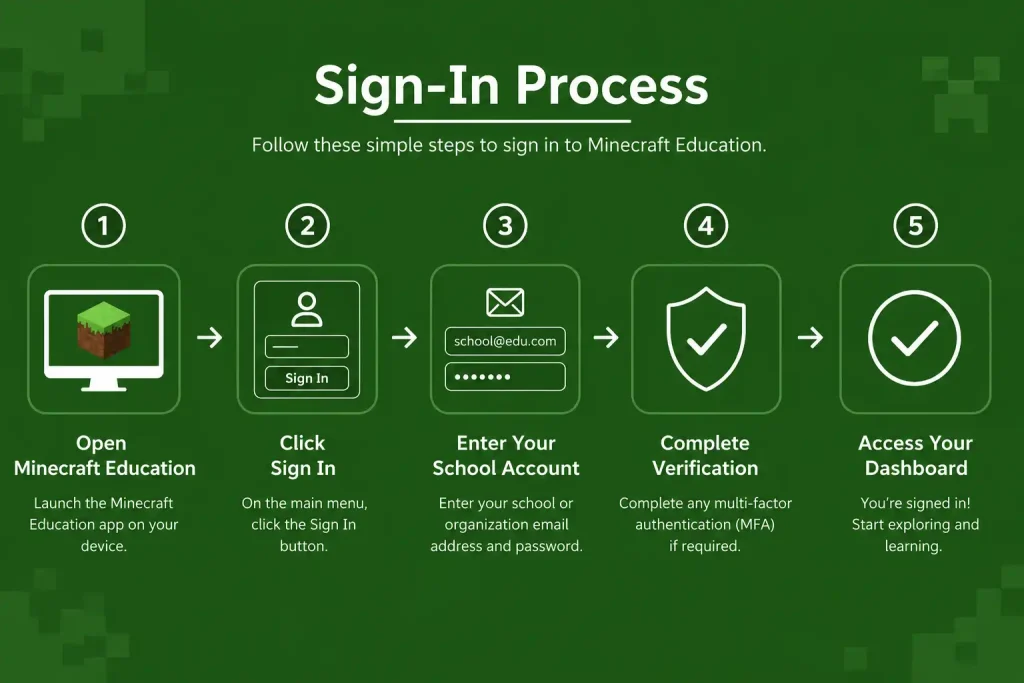
Students should normally use the account supplied or approved by their school or organisation. If an account cannot accesseducational minecraft, creating another account at random is unlikely to solve a licensing or organisational access problem.
What to Check If Login Fails

If education minecraft refuses to sign you in, work through these checks:
For managed school accounts, an administrator may need to investigate the licence or account configuration.
What Can Teachers Do With Minecraft Education?
educational minecraft differs from the standard Minecraft experience because its features are designed with structured learning in mind. Alongside the familiar building environment, educators can use classroom tools, curriculum resources, coding activities and accessibility features.
Useful examples include:
These features allow the Minecraft environment to become more than a construction space. Students can use it to create, investigate, test solutions and show what they have learned.
Using Code Builder to Teach Programming
Coding is an important part of educational minecraft. Code-based tasks allow learners to connect programming instructions with visible actions inside the Minecraft world.
The platform’s computer-science resources cover areas such as coding, AI literacy, digital citizenship and cybersecurity. Its GameCode curriculum also combines game creation with programming concepts, allowing learners to work towards arcade-style mini-games.
For beginners, seeing code produce an immediate result can make programming concepts easier to grasp. Instead of working only with abstract instructions, students can watch their commands affect the virtual environment.
What Students Can Practise Through Coding
education minecraft coding activities can encourage learners to:
Building a Classroom World
After installing educational minecraft and confirming that the required account is working, teachers can prepare a world around the lesson they want to deliver.
The amount of freedom students receive can be adjusted to suit the activity. An open creative project may benefit from fewer restrictions, while a structured task or assessment may require tighter controls.
A little preparation beforehand can prevent problems once the class begins. Test the world, review the permissions and make sure the settings match the learning objective.
Preparing a New Learning World
A typical classroom setup looks like this:
The exact controls may differ depending on the educational minecraft version and device. If an option has moved or has a different name, use the settings displayed in the current application.
Classroom Controls Worth Checking
| World control | Classroom use |
|---|---|
| Player permissions | Determines what participants are allowed to do |
| World type | Sets the general style of the learning environment |
| World Builder | Provides authorised users with extra building capabilities |
| Weather controls | Helps keep environmental conditions consistent |
| Immutable World | Can protect selected areas from unwanted changes |
| Border Blocks | Defines boundaries that students should not cross |
| Allow/Deny Blocks | Helps control where particular actions are permitted |
These controls become especially useful when students have a specific task to complete. Instead of spending time repairing accidental changes, the teacher can create an environment that keeps learners focused on the activity.
Teacher tip: Before using a world with a full class, run through it yourself or test it with a small group. This makes it much easier to spot permission or interaction problems before the actual lesson.
Educational Tools That Add More Than Building
educational minecraftincludes a collection of features designed specifically for learning. The official resource library covers activities in areas such as mathematics, science, computer science, history, language, art and social-emotional learning.
These tools can help teachers provide instructions, document student work and make activities more accessible.
Camera and Portfolio Tools
Students can document what they create instead of relying only on the finished world as evidence of their work.
For project-based learning, they can capture important stages of an activity, record discoveries and build a visual record of their progress. This gives teachers another way to assess how a learner reached the final result.
NPCs for Guidance
Non-player characters, or NPCs, can act as information points within aeducation minecraft world.
A teacher could place an NPC at a particular location and use it to provide instructions or explain the next stage of an activity. This allows students to find guidance while exploring rather than depending on constant teacher instructions.
Chalkboards for In-World Instructions
Chalkboards provide another way to display written information inside a learning world.
For instance, a teacher might place introductory directions near the entrance and add a second set of instructions beside the area where students need to complete their task. Students can then refer back to the information as they work.
Immersive Reader and Accessibility
Accessibility is an important part of the education minecraft experience. Immersive Reader provides reading and language support for learners who may benefit from additional assistance.
Depending on the content and supported features, it can provide functions such as text-to-speech, translation and other reading tools.
For teachers, this can make digital learning activities more accessible to a broader range of students.
Bringing Science Concepts Into Minecraft
education minecraftcan give science lessons a visual and interactive setting.
The Chemistry Resource Pack, for example, is intended to support chemistry learning by allowing students to explore elements and compounds within the Minecraft environment.
This type of activity can introduce a scientific idea through experimentation and interaction before students move on to written exercises or practical work. The important point is to connect the Minecraft task to a defined learning outcome rather than allowing the activity to become unrelated play.
Finding Ready-Made Minecraft Education Lessons
Teachers don’t have to design every Minecraft activity themselves. The official education minecraft resource library provides lessons and activities that can be explored according to subject, topic and age or learning level.
A useful preparation process is:
Choose a topic → find a suitable lesson → check its learning objective → prepare the required world and resources → introduce the activity → let students complete the task.
Existing lessons can also serve as starting points. Teachers can adapt an activity to fit the needs, ability level and objectives of their own class.
Subjects Available in the Lesson Library
Resources can cover a broad selection of subjects, including:
That range makes education minecraft useful well beyond programming lessons.
Multiplayer Learning With Minecraft Education
Shared worlds can turn education minecraft into a collaborative classroom environment. Students can work in the same space while planning, communicating and solving a teacher-designed challenge together.
Multiplayer is particularly suited to projects where students need to divide responsibilities or reach a shared outcome. However, it is worth testing the setup before bringing an entire class into the world.
How to Host a Multiplayer World
A teacher or another designated host can normally start from a new or existing world.
A typical process is:
The position and wording of controls can vary between versions, so follow the options available in the current release.
Joining a Shared World as a Student
Students can generally join by:
Participants should be using compatible application versions and accounts that satisfy the organisation’s multiplayer requirements.
Test Multiplayer Before Class
Don’t wait until the full class is online to discover that something isn’t working.
Run a short trial with one or two students. Let them join, move through the world and test the planned activity. This can expose account, network or permission problems while there is still time to fix them.
Designing a Better Minecraft Education Lesson
The strongest education minecraft activities start with what students need to learn, not simply what they need to build.
For example, “build a city” is a broad activity. A more useful objective could ask students to design a sustainable city that demonstrates three renewable-energy concepts. The building task then becomes a way of showing their understanding rather than the purpose of the lesson itself.
A Practical Lesson Structure
1. Define the learning outcome
Decide what students should understand or demonstrate by the end.
2. Prepare the world
Create a suitable environment or select an existing one.
3. Explain the challenge
Give students the instructions and expectations before they begin.
4. Allow time to work
Let learners build, investigate, experiment and collaborate.
5. Monitor the activity
Check student progress and make sure the work remains connected to the objective.
6. Ask students to explain their decisions
The final creation isn’t the whole assessment. Students should be able to explain what they did and why.
7. Review the results
Depending on the activity, use screenshots, portfolios, presentations, discussion or written reflection.
This structure helps keep Minecraft connected to genuine learning instead of turning a lesson into unrestricted gameplay.
Using Minecraft Education for Coding
Coding activities give students an opportunity to see programming concepts in action.
A learner might write a sequence of instructions, run the code, notice an error and then change the commands until the result works as expected. Because the outcome appears directly in the Minecraft world, students can see the relationship between their instructions and what the computer does.
education minecraft provides computer-science resources and coding-focused activities for this type of learning.
Programming Skills Students Can Develop
Minecraft-based coding tasks can support:
The difficulty can also be adjusted to suit the learner. Beginners may start with visual programming blocks, while more experienced students can progress towards text-based programming where appropriate.
Troubleshooting Common Classroom Problems
Even a carefully prepared education minecraft activity can run into technical or classroom-management issues.
Students Can’t Join the World
Check the following:
Students Can Change Too Much
If learners have more control than intended, review the world permissions and classroom settings.
Adjust the relevant controls so students can carry out the activity without modifying areas that should remain protected.
The Activity Is Taking Too Long
Minecraft naturally encourages exploration, which can sometimes make a lesson run beyond its planned duration.
Breaking the lesson into timed stages can help. One example is:
| Stage | Example time |
|---|---|
| Introduction | 10 minutes |
| Building or exploration | 20 minutes |
| Student explanation | 10 minutes |
| Reflection | 5 minutes |
These timings are only a starting point. Teachers should adjust them according to the class, task and available lesson time.
Keeping Minecraft Education Focused and Responsible
Minecraft should support the educational objective rather than replace it.
Before a lesson begins, teachers should consider the learners’ age, the purpose of the activity, accessibility requirements, account security and relevant school technology policies.
Students also need clear expectations when working in shared worlds. They should respect classmates’ creations, follow the teacher’s instructions and avoid behaviour that interferes with another learner’s work.
Best practice: explain the rules for collaboration before students enter a multiplayer world. Establishing expectations early can prevent many avoidable problems during the lesson.
Official Minecraft Education Resources
For downloads, licensing information, lesson materials, educator guidance and support, the official education minecraft resources should be treated as the primary reference point.
Useful resources include:
The source material identifies these official resources as the recommended places to find current information.
Final Classroom Checklist
Before starting a education minecraft lesson, teachers can quickly check:
Why Minecraft Education Works Well for Learning
The real educational value of education minecraft comes from making ideas interactive. Instead of only reading about a topic or completing a worksheet, students can build models, test solutions, explore virtual environments and explain their thinking.
That approach can work especially well for project-based learning, where students are expected to create something, solve a challenge or work with others to reach a defined outcome.
Main Educational Advantages
Creativity and design
Students have room to create structures, environments and original solutions. This gives them a practical way to demonstrate ideas rather than relying entirely on written answers.
Teamwork and communication
Shared worlds can turn a lesson into a collaborative project. Students can plan tasks, communicate with teammates and work towards a common result.
Hands-on coding
Programming becomes easier to visualise when commands produce visible changes in the Minecraft environment. Students can write instructions, test them and adjust their code based on what happens.
Cross-curricular learning
education minecraft isn’t limited to computer science. Its educational resources cover subjects including STEM, mathematics, science, history, language, arts and social-emotional learning.
Accessibility support
Tools such as Immersive Reader can provide additional reading and language support, helping selected activities work for a wider range of learners.
Teacher control
Educators can configure worlds and permissions to create an environment that fits the lesson. This is particularly useful when students need freedom to create but still have to work within specific boundaries.
Minecraft Education or Regular Minecraft?
Both versions use the familiar Minecraft concept, but they are intended for different purposes. Standard Minecraft is primarily a general gaming experience, while education minecraft adds features and resources designed around teaching and learning.
| Feature | Minecraft Education | Standard Minecraft |
|---|---|---|
| Primary purpose | Education and structured learning | General gameplay |
| Classroom resources | Designed for educational use | Not primarily classroom-focused |
| Ready-made lessons | Available through educational resources | Not a core purpose |
| Coding | Dedicated educational coding resources | Depends on the edition and external options |
| Teacher tools | Classroom-focused controls and features | More limited for structured teaching |
| Accessibility | Educational accessibility features | Varies by edition and available tools |
| Curriculum content | Educational activities and lesson resources | Not the main focus |
The biggest difference isn’t the Minecraft world itself. It’s the educational framework built around it. education minecraft gives teachers ways to connect gameplay with curriculum objectives, structured activities and student outcomes.
How to Make a Minecraft Lesson More Effective
Opening a Minecraft world and giving students unlimited freedom doesn’t automatically produce a successful lesson. The activity should be designed around something students are expected to learn or demonstrate.
Decide What Students Should Learn First
Start with the learning outcome, then choose the Minecraft activity.
For example, rather than simply asking a class to build a structure, a mathematics lesson could ask students to design a building that meets specific measurements or area requirements. Similarly, a science activity could require learners to create a model showing how a particular process works.
This keeps the virtual building connected to the subject being taught.
Set the Rules Before Students Start
A clear framework gives students creative freedom without allowing the activity to lose direction.
Before the lesson begins, decide:
These boundaries also make it easier for students to understand what successful work looks like.
Make Reflection Part of the Activity
The finished Minecraft build doesn’t have to be the final assessment.
Ask students to explain their choices and experiences. Useful questions include:
Reflection helps connect the creative experience with the underlying learning objective.
Minecraft Education Classroom Checklist
A short preparation routine can make lessons easier to manage.
Before the Lesson
While Students Are Working
After the Activity
Adapting Minecraft Education for Different Learners
The same Minecraft environment can support activities at different levels of difficulty. Teachers can adjust the challenge, instructions and expected outcome according to the learners involved.
Younger Learners
Younger students can begin with manageable activities such as simple construction challenges, storytelling, introductory problem-solving and basic digital skills.
Older or More Advanced Students
Older learners can take on more demanding projects involving coding, computational thinking, scientific modelling, historical reconstruction and collaborative design.
Collaborative Projects
Group assignments can also be divided into different roles. For example, one student could focus on planning, another on construction, another on research and another on presenting the finished work.
This gives students different ways to contribute and can make group projects more structured.
Preparing for a Minecraft Education Multiplayer Lesson
A multiplayer lesson needs more preparation than an individual activity because account, network, version and permission issues can affect several students at once.
Before the class starts, check these points:
A brief trial with a small number of students can reveal technical problems before they affect the entire class.
Common Minecraft Education Problems and Solutions
Minecraft Education Won’t Open
Start by restarting the application and checking whether the device meets the current requirements. If the problem remains, use the official education minecraft support resources for further troubleshooting.
The Account Won’t Sign In
Check that the student or teacher is using the organisation’s intended account. If the credentials are correct but authentication still fails, an administrator may need to review the account or licensing setup.
Students Can’t See or Join the World
First confirm that the host has actually started the multiplayer session. Then check that students are following the correct joining process and using compatible application versions and accounts.
Students Can Modify Areas They Shouldn’t
Review the world permissions and classroom controls. Restricting unnecessary actions before the lesson begins is generally easier than correcting unwanted changes after students have started building.
Students Lose Focus
If an activity starts feeling more like unrestricted gameplay, return to the learning goal. A defined challenge, clear deadline and specific expected result can help keep the class focused.
FAQs
Final Thoughts
education minecraftis most useful when the Minecraft environment has a clear educational purpose behind it. Building, coding, collaboration and exploration become more meaningful when students know what they are expected to learn and can explain how their work demonstrates that learning.
Good preparation makes a significant difference. Teachers should select the learning objective first, configure the world and permissions before class, explain the challenge clearly, monitor student progress and allow time for reflection.
For current information about downloads, licensing, lessons and educator resources, use the official education minecraft website as the primary reference.
Read More:
Working With Children Check Australia (WWCC): Complete Online Guide 2026
Storypark Login Made Simple: The Complete Access Guide for Families (2026)
Student Portal Navigator: The Ultimate Campus Access Guide (2026)
Passport Application Guide (2026): Complete Online Process & Requirements
Essential Assessment: The Complete Educator’s Handbook (2026)
Tax Agent Portal: The Complete Professional Guide (2026)
Passport Renewal 2026: Complete Guide to Requirements, Fees & Online Application