Staying informed about school activities, student learning and important announcements is easier when families and educators have access to a central online platform. Connect DET is the digital learning and communication environment provided by the Western Australian Department of Education for public schools.
Through Connect, parents can follow their children’s school information, students can access learning materials, and teachers can communicate with families and manage classroom activities. The platform brings several school-related services together, helping users stay connected with their educational community.
Fore More Information:
Visit Homepage
What Is Connect DET and Who Can Use It?
Connect DET is an online environment developed by the WA Department of Education to support communication, collaboration and digital learning across Western Australian public schools.
Rather than relying entirely on printed notices or separate communication channels, schools can use Connect to share learning resources, publish announcements and provide information relevant to students and their families.
The platform supports three main user groups:
- Parents and carers: Access relevant information about their children’s education, including school communications and available reports.
- Students: Visit class workspaces, access educational resources and participate in online learning activities.
- Teachers and school staff: Organise learning content, communicate with students and families, and manage classroom activities.
Connect DET is particularly useful for families who want to remain informed about school activities without having to contact the school for every routine update.
Main Features of the Connect Platform
The information available depends on the user’s account permissions, school arrangements and the features used by individual teachers.
| Feature | How It Helps |
|---|---|
| School notices | Provides access to announcements and important updates. |
| Learning materials | Allows students to access educational resources. |
| Class workspaces | Supports classroom communication and learning activities. |
| Student reports | Gives parents access to reports made available through Connect. |
| Attendance information | Provides access to relevant attendance records where available. |
| Discussions | Supports communication within classes and communities. |
| Submissions and marks | Allows access to relevant learning submissions and assessment information. |
Important: Not every school uses every Connect feature in the same way. The information displayed in an account depends on the student’s enrolment and the school’s use of the platform.
Understanding Connect DET Account Types
Before attempting to access Connect DET, users should understand which login option applies to them. The portal provides separate entry points for staff, parents and students.
Account access overview
| User | Login information | Main purpose |
|---|---|---|
| Parents and carers | P-number | School information and child-related updates |
| Students | School-provided DOE login | Learning resources and class activities |
| Staff | Department sign-in credentials | Teaching and school administration |
Parent and Carer Accounts
Parents, guardians, grandparents and other eligible carers of children attending WA public schools can use the parent option.
A parent account uses a unique P-number as its login identifier. This account must be arranged through the child’s school rather than created independently through the public login page.
Once the school has established access, parents can use Connect DET to view information made available for their children.
Where multiple children are linked to the same parent account, the available child-related information can be accessed through that account.
Student Accounts
Students enrolled in Western Australian public schools use the student login option.
Their credentials are provided through the school. These details allow students to access relevant class spaces, learning materials, notices and other educational resources.
Students should use the exact username and password supplied by their school rather than attempting to register a separate parent account.
Staff Accounts
Teachers and other eligible Department of Education personnel use the staff login option.
According to the official Connect sign-in guidance, staff access uses the same sign-in details already used for other Department systems. Contractors and school visitors who require access should also select Staff and contact their school if they are unsure about their credentials.
How to Get Your Connect DET Account
One of the most important things to understand about Connect DET is that account access is arranged differently for each user group.
Setting Up a Parent or Carer Account
Parents cannot simply create a new account by entering their personal details on the Connect DET website. The child’s school must first arrange the account.
Follow this process:
- Contact your child’s school: Speak with the school administration office and request access to Connect.
- Confirm your details: Make sure the school has your correct contact information, particularly your registered email address.
- Wait for account arrangements: The school will organise the parent account and provide the relevant login information.
- Check your email: Look for the account invitation or instructions sent by the Department of Education.
- Follow the supplied instructions: Use the provided information to establish access and complete any required password setup.
- Visit the portal: Open Connect DET and select Parent.
Helpful tip
If you do not receive an account invitation, contact the school office. It can check whether your parent account has been arranged and whether your email address is correct.
Getting Student Login Credentials
Students receive their Connect DET login details through their school.
The usual process is:
- Ask the classroom teacher or school administration for the correct login information.
- Check any school-provided instructions for accessing online services.
- Keep the username and password secure.
- Use the Student option when visiting the Connect DET login page.
If a student’s account is not working, the school can help check the account details and access arrangements.
Staff Account Access
Staff members should use their existing Department of Education credentials.
If access is unavailable, they should contact their school’s IT administrator or the appropriate Department support contact rather than creating another account.
Connect DET Login: Step-by-Step Instructions
Accessing Connect DET starts with selecting the correct account category. Parents, students and staff have different sign-in arrangements, so choosing the appropriate option is essential.
Step 1: Open the Official Connect Website
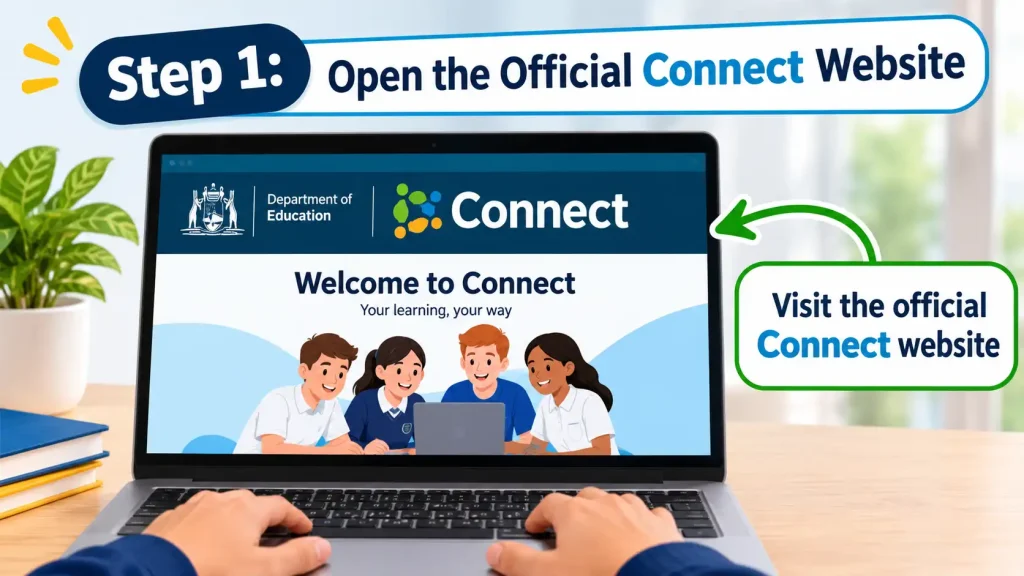
Open Chrome, Microsoft Edge, Safari or another supported browser.
You should arrive at the Connect sign-in page, where the available account options are displayed.
Step 2: Select Your Account Category
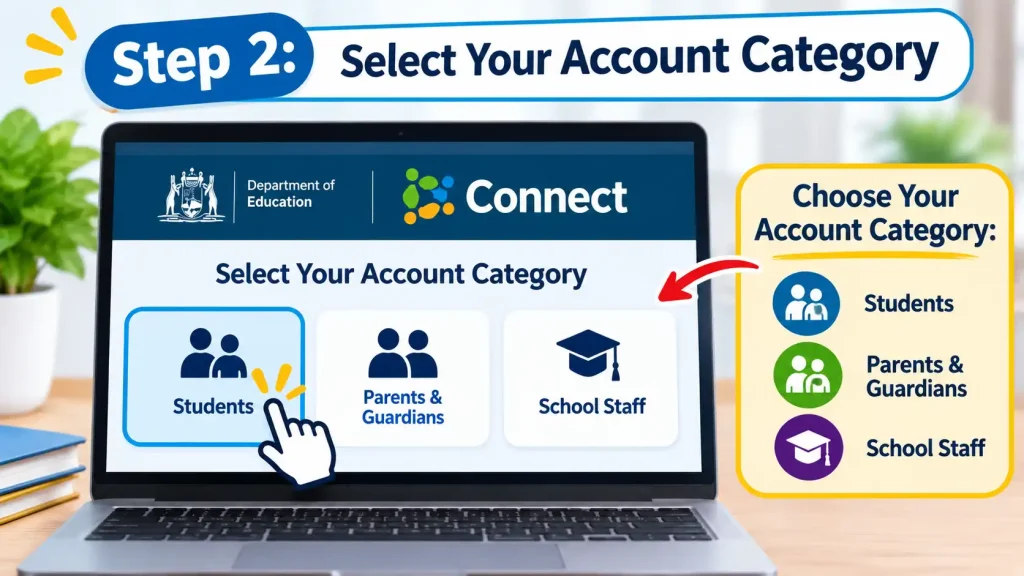
Choose the option that matches your role:
- Staff: For teachers, school leaders, administrative employees and other eligible Department personnel.
- Parent: For parents, guardians, grandparents and carers of children attending WA public schools.
- Student: For students enrolled in Western Australian public schools.
Make sure you select the correct option before continuing.
Step 3: Enter Your Login Credentials
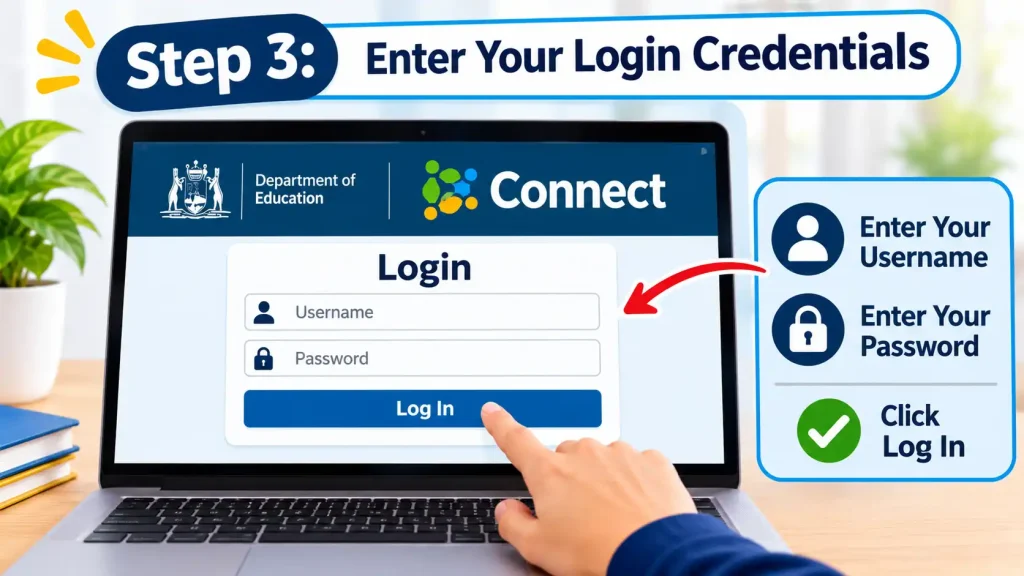
The next screen will direct you to the appropriate sign-in process.
Parents and carers
- Enter your assigned P-number.
- Provide your account password.
- Check that the username has been entered correctly.
Students
- Enter the username and password supplied by your school.
- Follow any additional sign-in instructions displayed on the screen.
Staff
- Use your existing Department of Education sign-in credentials.
- Complete any additional authentication requirements if prompted.
Step 4: Complete Any Security Checks
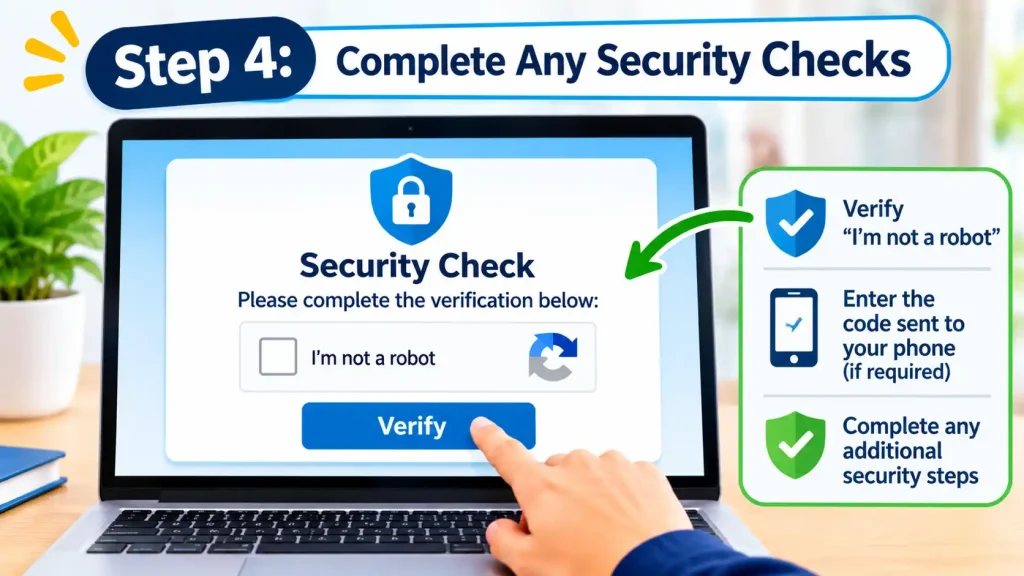
Depending on your account and sign-in circumstances, you may be asked to complete additional verification.
Follow the instructions shown on the official sign-in page. Never share your password or verification codes with another person.
Step 5: Open Your Connect Workspace
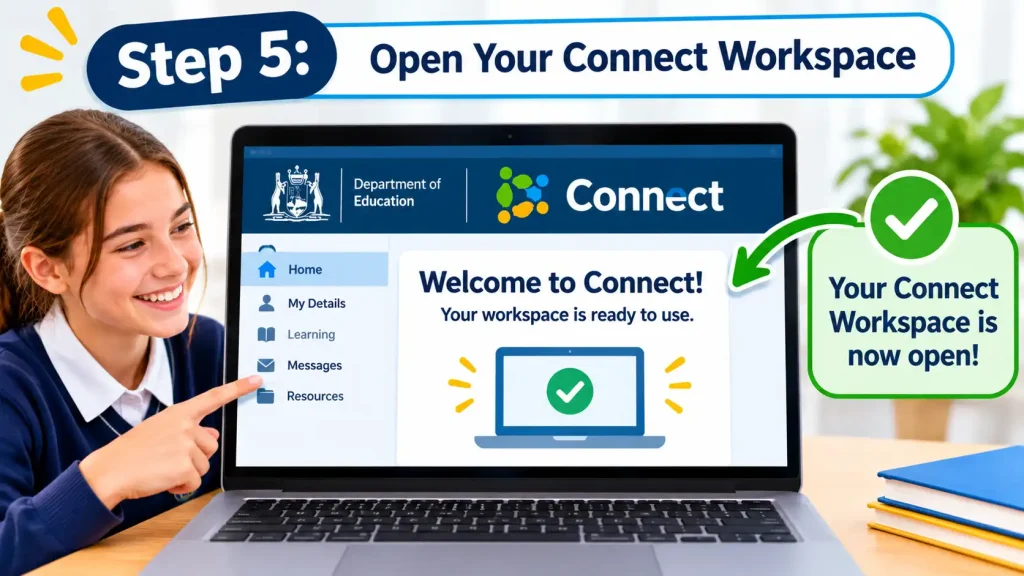
Once authentication is successful, Connect DET will take you to the available account environment.
The information displayed will depend on your role, school permissions and the services enabled for your account.
Login tip
Bookmark the official Connect website in your browser. This makes it easier to return to the correct portal without searching for it each time.
How to Navigate the Connect DET Portal
After signing in, users can explore the sections and resources available to their accounts.
The layout and available tools may differ between students, parents and staff. Understanding the main areas makes everyday portal use more convenient.
For Students: Accessing Learning Resources
Students primarily use Connect as a digital learning environment.
Depending on their school and classes, they may be able to:
- Open classroom workspaces.
- Read teacher announcements.
- Access shared learning documents.
- View homework instructions.
- Participate in class discussions.
- Submit assigned work where the relevant tools are enabled.
- Access other educational resources.
Best practice: Check your Connect classroom spaces regularly so you do not miss new instructions, learning materials or school announcements.
For Parents: Keeping Track of School Information
Parents and carers can use Connect to stay informed about their children’s school activities.
Depending on what the school publishes, available information may include:
- School announcements and notices.
- Classroom updates.
- Educational information.
- Student reports.
- Relevant attendance information.
- Messages from teachers.
Parents should check the portal periodically, especially when expecting information about school activities or student progress.
For Teachers and School Staff
Staff members can use Connect to support classroom organisation and communication.
Relevant tools may include:
- Creating and maintaining class spaces.
- Publishing learning materials.
- Sharing announcements.
- Communicating with students and families.
- Managing relevant assessment activities.
- Organising digital learning resources.
The available functionality depends on staff permissions and the school’s use of Connect.
Accessing Connect DET on Mobile Devices
Users who prefer smartphones or tablets can access Connect through a mobile browser or the Connect Now application.
Using a Mobile Browser
The mobile browser option is useful when you do not want to install another application.
- Open Chrome or Safari on your smartphone.
- Enter connect.det.wa.edu.au.
- Select Staff, Parent or Student.
- Enter your assigned login credentials.
- Follow the security instructions if requested.
- Open the available school information and learning resources.
The mobile website provides access to the portal without requiring a separate desktop computer.
Using the Connect Now Application
The Connect Now app provides a mobile option for accessing relevant Connect information.
To get started:
- Open the official app store on your device.
- Search for the Connect Now application.
- Check that the application is the correct Department of Education service.
- Install or update the application.
- Open it and follow its displayed sign-in instructions.
- Use your eligible account credentials to access the available features.
Important: App availability and functionality can vary by device and account type. Follow the current instructions provided by the Department of Education rather than assuming every browser feature is available in the app.
Password Recovery and Account Security
Forgetting a password can prevent access to important school information. If you cannot sign in to Connect DET, first identify whether the problem relates to your username, password or account access.
What to Do If You Forget Your Password
Use the password assistance option available on the relevant sign-in page, if provided.
- Check that you selected the correct account category.
- Confirm that your username or P-number is accurate.
- Follow the official password recovery instructions.
- Use the registered contact details if verification is required.
If the recovery option does not work, contact your school for assistance.
Keeping Your Account Secure
A Connect DET account may contain personal school information, so users should take reasonable security precautions.
- Use a strong, unique password.
- Never share account credentials.
- Avoid signing in on public computers where possible.
- Always sign out after using a shared device.
- Keep your mobile application and browser updated.
- Do not open suspicious emails claiming to be school login requests.
If you suspect someone else has accessed your account, contact the school or relevant Department support team promptly.
Common Connect DET Login Problems and Solutions
Although Connect DET is designed to provide convenient access to school information, users may occasionally experience login difficulties or technical issues.
Most access problems can be investigated by checking the account details, browser settings or school registration information.
The following table covers common issues and practical steps to resolve them.
| Problem | Possible reason | Recommended solution |
|---|---|---|
| Invalid username or password | Incorrect login details | Check your username, P-number and password. |
| Forgotten password | Password has been forgotten | Use the available password recovery option or contact your school. |
| Account unavailable | Account not yet arranged or activated | Contact the school administration office. |
| Missing student information | Student profile or account linkage issue | Ask the school to check the registration details. |
| Portal not loading | Browser or connection issue | Refresh the page or try another browser. |
| Blank screen | Browser cache or cookie conflict | Clear cached data and reopen Connect. |
| Mobile app problems | Outdated application or device issue | Check for application updates. |
| Repeated verification requests | Authentication problem | Follow the displayed instructions or contact support. |
Fixing Invalid Login Details
If Connect DET displays an incorrect login message, begin by checking the account category and username.
Parents should enter their complete P-number, including the letter prefix. Students and staff should use their assigned Department credentials.
Also check:
- Whether Caps Lock is enabled.
- Whether unnecessary spaces were entered.
- Whether the correct password was used.
- Whether you selected the right sign-in option.
If the problem continues, contact the school rather than repeatedly attempting different passwords.
Resolving Forgotten Password Problems
A forgotten password does not necessarily mean that the account has been disabled.
Visit the official Connect login page and look for the available password assistance instructions.
Parents may need access to the email address registered with their child’s school. If you cannot complete recovery, ask the school administration team to help.
What to Do When Student Information Is Missing
Sometimes a parent may successfully access Connect but cannot see the expected child-related information.
Possible reasons include incomplete account arrangements, incorrect contact details or an issue linking the parent account to the student’s school record.
To resolve this:
- Contact the school administration office.
- Explain which student’s information is missing.
- Confirm your registered email address and parent account details.
- Ask the school to check the relevant account and student linkage.
- Follow any further instructions provided by the school.
Browser and Mobile Troubleshooting
If Connect DET is not loading correctly, try these basic checks:
- Refresh the website.
- Check your internet connection.
- Close unnecessary browser tabs.
- Clear the browser cache and cookies.
- Open the website in a private browsing window.
- Try another supported browser.
- Restart your mobile device if the application is unresponsive.
- Check whether an application update is available.
These steps can help identify whether the problem is related to your device or browser.
FAQs
Tips for Getting the Most Out of Connect DET
Using Connect DET regularly can make communication and digital learning more organised.
Consider the following recommendations:
For parents and carers
- Check school announcements regularly.
- Keep your registered email address up to date.
- Review available student information.
- Contact the school if your account displays incorrect details.
- Keep your login information private.
For students
- Visit your classroom workspaces regularly.
- Read teacher announcements carefully.
- Check assignment instructions and deadlines.
- Keep your login credentials secure.
- Ask your teacher for help when learning resources are unavailable.
For teachers and staff
- Keep classroom resources organised.
- Publish clear announcements.
- Use the available communication tools appropriately.
- Check that learning materials are accessible to the intended users.
- Follow Department account security requirements.
These habits help make Connect a more useful part of everyday school communication and learning.
Final Thoughts
Connect DET plays an important role in supporting digital education across Western Australian public schools. By bringing classroom resources, school announcements and communication tools into one online environment, it helps students, parents and teachers stay informed and connected.
Getting started requires selecting the correct account type and using the credentials provided through the school or Department. Parents should remember that their accounts must be arranged by the school, while students and staff use their assigned Department login details.
If you experience difficulties, checking your credentials, reviewing browser settings and contacting the school are sensible first steps.
Read More:
QuickCliq: Complete User Guide for Parents and School Communities in Australia
LeapFrog Australia: A Complete Guide to Learning Devices, Accounts and Online Support
ACAP Student Portal: Login, Student Access, Features and Complete User Guide
RANZCP: Complete Guide to Psychiatry Training, Membership and Specialist Assessment
EdChat Guide 2026: Login, Access, Features and Student AI Support