The OARS.ACER portal is an online assessment platform associated with the Australian Council for Educational Research (ACER). It supports schools in delivering educational assessments, organising test sessions and managing assessment information through a central online environment. Students and authorised school staff use the platform to access assessments assigned by their school.
OARS, commonly understood as the Online Assessment and Reporting System, is particularly relevant to school-based testing, including assessments such as Progressive Achievement Tests (PAT). Rather than functioning like a public website where anyone can create an account, the OARS.ACER system is generally accessed through participating schools, which organise student accounts, assessment assignments and testing arrangements.
For students, the portal provides access to assigned online assessments. Teachers and authorised school administrators use it to coordinate assessment sessions and access reporting features. Parents and carers may also need to understand how the platform works, particularly when a school schedules an assessment or communicates results.
Fore More Information:
Visit Homepage
What Is OARS.ACER and What Is It Used For?
OARS.ACER is an online assessment environment used within school assessment programmes. It allows participating educational institutions to administer selected ACER tests digitally instead of relying exclusively on paper-based assessment arrangements.
The system is designed to support an organised testing process. Schools can arrange student access, assign assessments and manage the testing process according to their own schedules and requirements.
Key purposes of OARS
| Platform function | What it means |
|---|---|
| Online assessment delivery | Students complete assigned assessments using a compatible device. |
| Student access management | Schools organise student accounts and login credentials. |
| Test assignment | Students access the assessments allocated to their class or cohort. |
| Assessment administration | Teachers and authorised staff coordinate test sessions. |
| Reporting tools | Eligible staff can access assessment reports and performance information. |
| Educational assessment | Schools use assessment data to understand learning progress and inform teaching. |
OARS.ACER is therefore not simply a student login page. It is part of a wider school assessment process that involves teachers, assessment coordinators, students and school administrators.
Who uses the OARS.ACER platform?
Teachers
Teachers use the system to organise assessment sessions, provide students with instructions and oversee the completion of assigned tests.
Students
Students sign in using school-provided details to complete the assessments assigned to them.
Assessment coordinators and school administrators
Authorised staff manage testing arrangements, student access and assessment reporting.
Parents and carers
Families may receive information about school assessments and results through their child’s teacher or school.
Understanding OARS School-Based Access
One of the most important things to know before visiting OARS.ACER is that student registration is generally managed by the school. Students and parents should not expect to find a normal public registration form for creating an assessment account.
The participating school typically handles the setup required for students to participate in a test. This may include preparing accounts, allocating the correct year level or class group, arranging assessment access and distributing login instructions.
Does OARS.ACER allow public student registration?
Usually, students do not independently create accounts on the OARS platform. Access is organised through the participating school or the relevant assessment administrator.
| User | Typical access arrangement |
|---|---|
| Student | Receives login information from the teacher or school. |
| Teacher | Uses staff access supplied or arranged by the school. |
| Assessment coordinator | Manages testing arrangements within their authorised role. |
| Parent or carer | Contacts the school for access questions, assessment details or result information. |
If a student has not received their username or password, the best option is to speak with their classroom teacher before the scheduled test. The school can confirm whether the student has been enrolled in the assessment session and whether their credentials are ready.
Important distinction
OARS.ACER is associated with school-based assessment access. ACER scholarship examinations use a separate registration pathway. Families looking to register for scholarship testing should check the relevant scholarship website rather than assume OARS is the correct portal.
OARS.ACER Login: Step-by-Step Instructions
Students and staff should begin at the official OARS website to find the correct school-specific access page. Selecting the correct school is important because different participating institutions may have their own portal entry points.
Step 1: Open the official OARS website
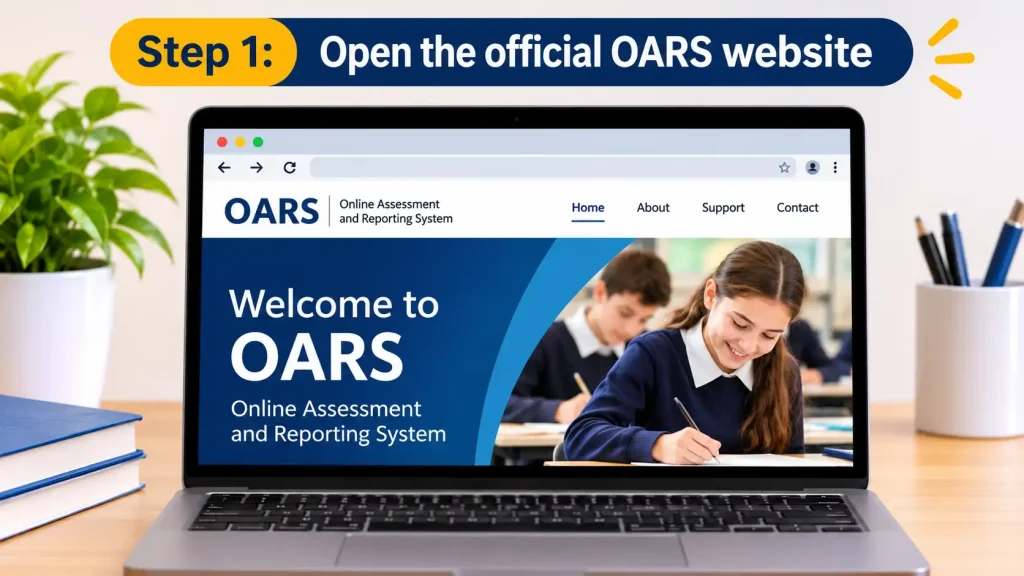
Open a browser on your computer, laptop or school-approved device and visit:
Use the official ACER domain to avoid third-party websites that may display unrelated information or login links.
Step 2: Find your school
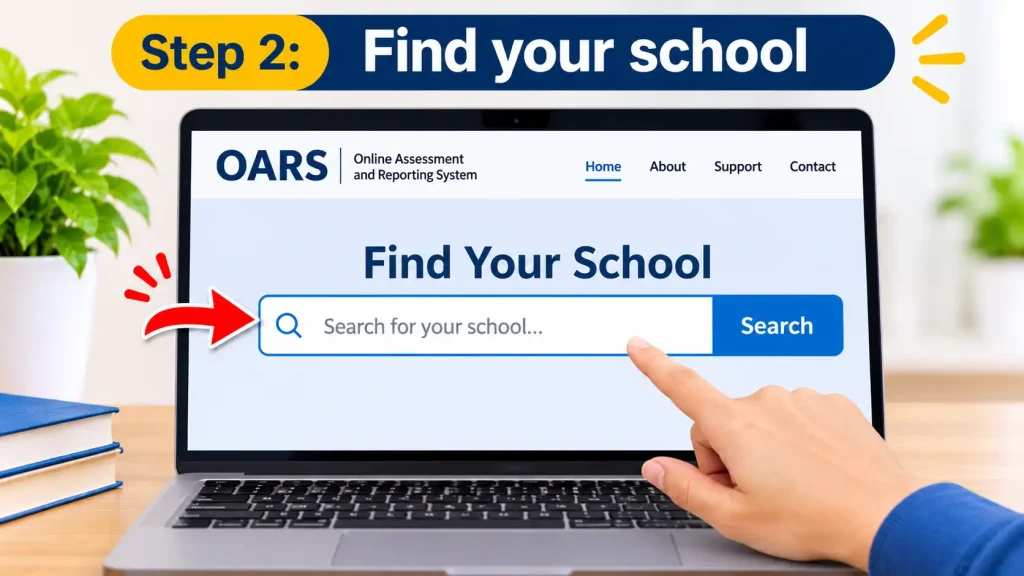
Enter your school name, or type a recognisable part of the name into the school search field. If the portal requests your state or territory, choose the correct location to help narrow the results.
Step 3: Select the correct school
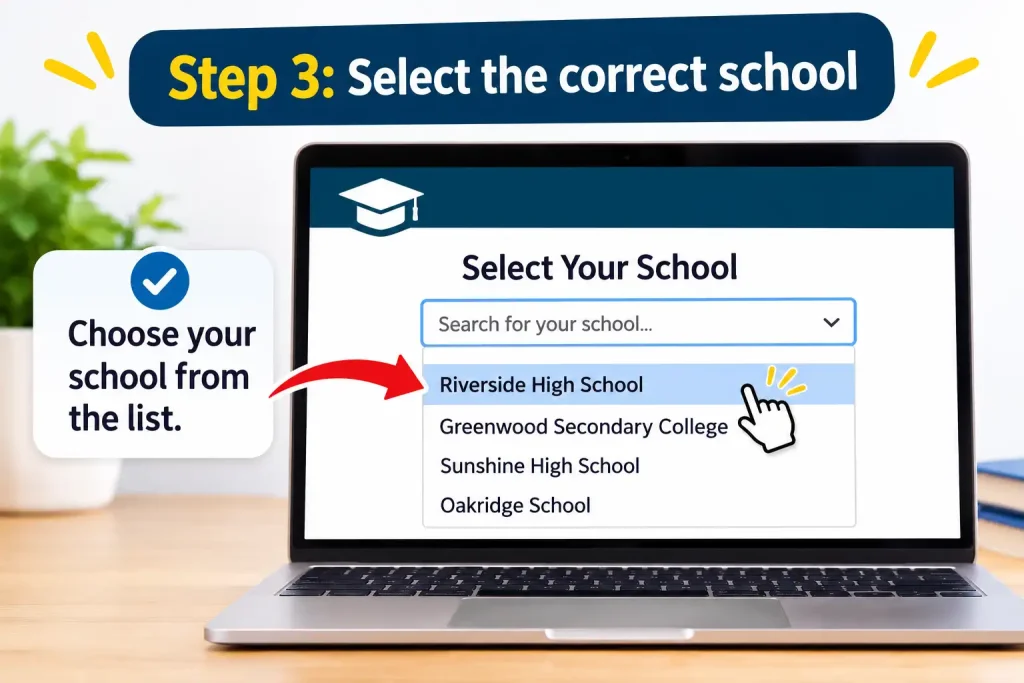
Click the option to find your school, then review the displayed results. Select the correct school entry before continuing. If multiple schools have similar names, confirm the campus or location with your teacher.
Step 4: Open the school sign-in page
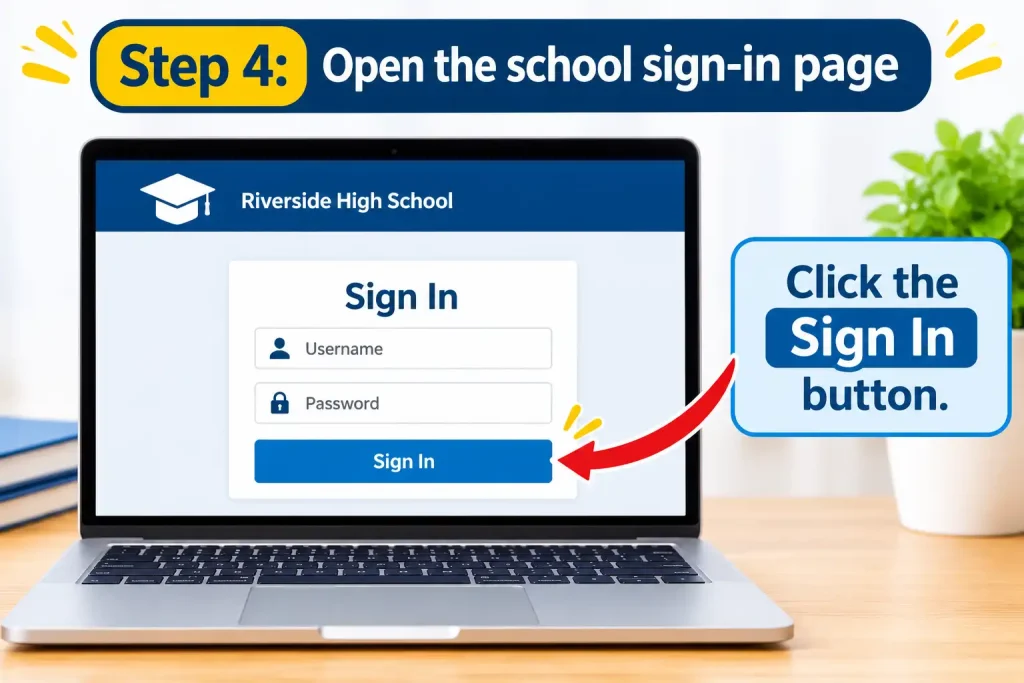
After selecting your institution, the portal should direct you to the relevant school login screen. This is where your school-issued username and password are entered.
Step 5: Enter your credentials

Type your username and password into the corresponding fields. Check that the details have been entered correctly, paying attention to capital letters, numbers and accidental spaces.
Step 6: Log in
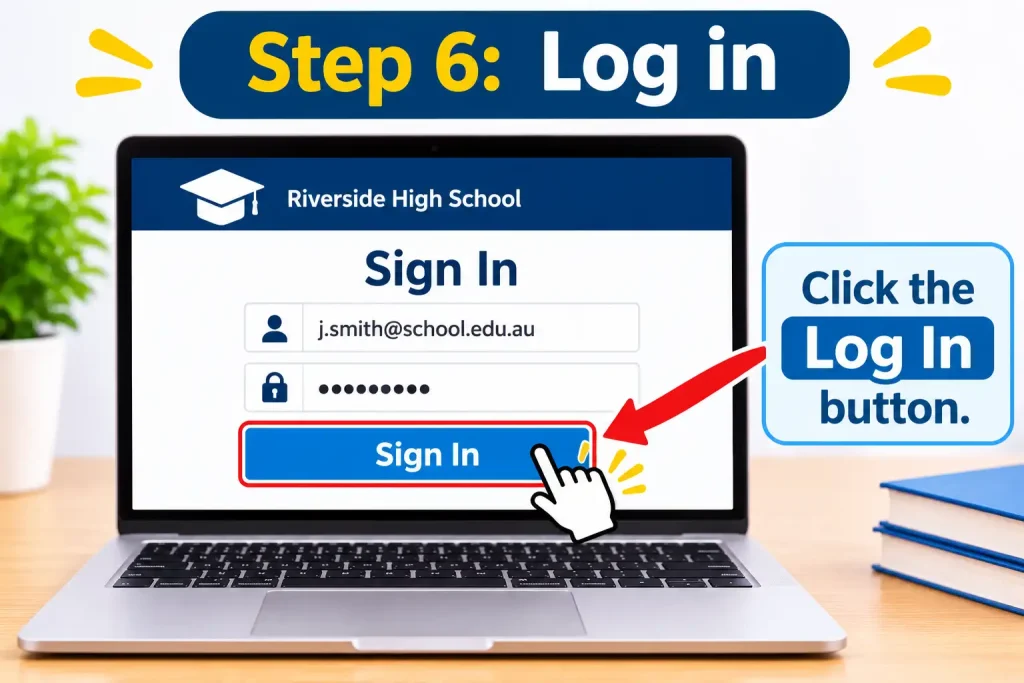
Select the login button to continue. If your account is authorised and the credentials are correct, you should be able to access the assessment environment or the available test entry screen.
Student Accounts, Usernames and Passwords
A student’s ability to log in to OARS.ACER depends on the account prepared for the school assessment. Credentials are usually distributed as part of the school’s testing arrangements, so students should check the instructions given by their teacher rather than attempting to create a new profile.
What should students have ready?
Before opening the OARS.ACER portal, make sure you have:
- Your school-issued username.
- Your assigned password.
- The name of your participating school.
- The correct device for the assessment.
- The assessment date or session information.
- Any instructions provided by your teacher or supervisor.
What if your username or password is missing?
If your login details have not been provided, contact the teacher or school assessment coordinator. They can check your account and advise whether your access has been prepared.
If you have forgotten your password, avoid repeatedly entering random passwords. Follow the school’s reset process or request assistance from the staff member responsible for OARS access.
Students should not share their login credentials with classmates. Each student needs to access their own assigned account so that assessment responses are recorded against the correct student profile.
Preparing for Your OARS Assessment Session
Getting ready in advance can help reduce technical interruptions and confusion during a scheduled school test. Students should understand the basic instructions, have their device ready and know where to ask for help if something goes wrong.
Pre-test preparation checklist
| Preparation | Why it matters |
|---|---|
| Confirm the testing date | Helps you arrive ready for the scheduled assessment. |
| Check your login credentials | Reduces delays at the beginning of the session. |
| Prepare a suitable device | Makes sure you can access the assessment properly. |
| Check the internet connection | Helps prevent interruptions while completing questions. |
| Listen to teacher instructions | Clarifies test rules, timing and allowed navigation. |
| Read the on-screen directions | Ensures you understand the assessment before starting. |
The OARS.ACER environment may contain different assessment types, so the instructions for one test should not automatically be applied to another. Follow the directions displayed for the assessment you have been assigned.
How to Open and Start an Assigned Test
After signing in through the school-specific OARS.ACER portal, students should look for the assessment allocated to their class, year level or testing group. The available tests depend on the school’s assessment programme and what the teacher or administrator has assigned.
Students should not start a test simply because it appears on screen. Some assessments may be scheduled for a particular session, require a teacher’s instructions or have specific conditions that need to be followed.
Steps to access your assessment
- Sign in to OARS.ACER: Open the correct school portal and log in using your assigned credentials.
- Review the available assessment: Identify the test name displayed on your screen.
- Confirm the correct test: Make sure it matches the assessment your teacher has announced.
- Read the instructions: Review the test rules, navigation details and any time-related information.
- Wait for approval if needed: If your teacher controls the start of the session, wait until you are told to begin.
- Start the assessment: Use the displayed start option when you are ready and authorised to proceed.
Examples of assessments students may encounter
Depending on their school programme, students may be assigned assessment activities such as:
- PAT Reading
- PAT Mathematics
- Other ACER online assessments allocated by their school
The exact test names, available subjects and assessment options vary. Your teacher is the best source for confirming which assessment you are expected to complete through OARS.ACER.
Completing an Online Assessment Correctly
Once a test begins, concentrate on the assessment itself and follow the directions presented within the OARS environment. Online tests can include different types of questions, passages, diagrams, charts or other material depending on the subject.
A calm, organised approach is more useful than rushing through the screen.
Practical test-taking guidelines
Read each question carefully
Make sure you understand the wording before selecting an answer. Look for instructions that specify what the question is asking.
Review the answer choices
Read the available options before deciding. Avoid choosing an answer without checking the full question.
Keep a steady pace
If the assessment has a time limit, manage your time sensibly and follow the instructions about moving through questions.
Ask your supervisor about technical issues
If the screen behaves unexpectedly or instructions are unclear, notify your teacher or invigilator.
Understanding test navigation
Depending on the assessment, OARS.ACER may provide controls to move through questions, view progress or complete different sections. The navigation features available are determined by the test design.
Students should check the displayed controls rather than assume they can return to every previous question. Some assessment modules may have particular navigation rules.
Before moving to the next question:
- Check whether you have selected an answer.
- Use only the navigation options provided.
- Read any confirmation or warning displayed on the screen.
- Follow any directions about reviewing or changing responses.
The aim is to complete the assessment carefully while following the test’s own rules.
What Happens When You Finish the Test?
Completing the last question does not always mean the assessment has been formally submitted. Students should look for the final completion or submission instruction within the OARS.ACER test environment.
Before finishing, review any available completion information and follow the instructions on screen.
Final submission process
- Complete the assessment sections required for your session.
- Review your progress or unanswered questions if the test permits.
- Read the final confirmation message carefully.
- Select the appropriate Finish, Submit or completion option if displayed.
- Wait for the system to confirm that the assessment has ended.
- Follow your teacher’s directions about closing the test or signing out.
Avoid closing the browser immediately after completing a test. Wait until the assessment indicates that the process has finished, or your teacher confirms that you can exit.
Avoid premature exit
Closing a testing window while an assessment is active can cause disruption. If you are uncertain whether your responses have been submitted, ask the supervisor before closing the page or restarting the device.
OARS.ACER Technical Requirements
A suitable device and reliable internet connection are important for a smooth online assessment. Since OARS.ACER operates through a web-based environment, users generally access it through a compatible browser instead of installing a conventional desktop programme.
Schools may have additional requirements based on the assessment being used, so always follow the device instructions supplied by the school.
Recommended device and browser setup
| Technical area | Recommended preparation |
|---|---|
| Device | Desktop, laptop, Chromebook or supported tablet |
| Browser | Updated version of a compatible modern browser |
| Internet | Stable connection throughout the testing session |
| Display | A screen large enough to comfortably read test content |
| Browser settings | Cookies and JavaScript enabled where required |
| Power | Fully charged device or connected charger |
| Extensions | Avoid browser add-ons that interfere with the assessment |
| School network | Access to the required ACER services and domains |
Which devices can be used?
A school may use computers, laptops, Chromebooks or supported tablets for online assessments. However, not every assessment will necessarily support every device in the same way.
If you are using a tablet, check whether your test requires a particular screen orientation, keyboard arrangement or minimum screen size. A laptop or school desktop may be preferable when the assessment includes a large amount of text or more complex on-screen content.
Browser compatibility
Using an up-to-date browser helps reduce problems with page loading and interactive assessment content. Students should use the browser recommended by their school and avoid testing with outdated browser versions.
If an assessment is not displaying correctly:
- Check that the browser is updated.
- Confirm JavaScript and cookies are enabled if required.
- Close unnecessary tabs.
- Avoid switching between multiple browser windows during the test.
- Ask school IT staff if the browser is managed and settings cannot be changed.
Internet connection and school network
A stable internet connection is particularly important when students are completing online tests at the same time. Schools may use managed networks, filtered internet access or device policies that affect how testing websites load.
If the OARS.ACER login page loads but the test itself does not, the issue may relate to the network, browser settings or assessment access. The school IT team can check whether the device and network are ready for the scheduled testing activity.
Common OARS.ACER Login and Technical Problems
Occasionally, students or teachers may experience login failures, pages that load slowly, blank screens or unexpected interruptions. Most problems should be reported to the appropriate school contact, especially when they occur during an active assessment.
Troubleshooting table
| Problem | What to try |
|---|---|
| School not appearing in search | Recheck the school name and state or territory selection. |
| Incorrect username or password | Verify the details provided by the school. |
| Login page not loading | Check the internet connection and try the official portal again. |
| Assessment not visible | Confirm with the teacher that the correct test has been assigned. |
| Page loading slowly | Close unnecessary tabs and check the connection. |
| Screen appears blank | Reload only when appropriate and follow supervisor instructions. |
| Browser behaves unexpectedly | Try an approved browser or school-approved device. |
| Test interrupted | Immediately inform the teacher or invigilator. |
Step 1: Check your login information
Ensure that you are using the username and password supplied by the school. Check for typing mistakes, accidental spaces or incorrect capitalisation.
Step 2: Confirm the school selection
Return to the official OARS.ACER portal and make sure you selected the correct school. Choosing an incorrect school entry may take you to an unrelated sign-in page.
Step 3: Check the browser
Make sure the browser is updated and functioning normally. If permitted, try another school-approved browser.
Step 4: Refresh if you are not in an active test
If you are at the login page or a non-assessment screen, a page refresh may help. During a live test, do not refresh without checking with your supervisor.
Step 5: Check the network
Verify that the device has a working internet connection. If several students experience the same issue, it may be a school network problem rather than an individual device fault.
Step 6: Contact school support
If the issue continues, report it to your teacher, assessment coordinator or school IT support staff. They can check the account, assigned test and technical environment.
OARS.ACER Browser and Device Readiness Checklist
Students and schools can use this checklist before a scheduled assessment to identify common issues in advance.
Before the testing session
- I have the correct OARS.ACER website.
- I know which school portal to select.
- My username and password are available.
- My device is supported by the school.
- My browser is up to date.
- My internet connection is working.
- My device has enough battery or is plugged in.
- I have read the assessment instructions.
- I know who to contact if a technical problem occurs.
For school coordinators, preparation may also include checking that the required students have access, the intended tests are assigned and the school network is suitable for the assessment session.
How OARS.ACER Assessment Results Are Accessed
Assessment results are an important part of the OARS.ACER process because they help schools understand students’ learning progress, identify areas of strength and recognise areas where further support may be useful.
However, results access depends on the user’s role. Students and parents do not necessarily have direct access to detailed diagnostic reports through the OARS portal. Schools generally manage the interpretation and sharing of assessment outcomes.
Teachers and authorised school administrators can use reporting features available to their accounts to review results for a class, year group or assessment cohort.
Who can view OARS assessment results?
| User | Results access |
|---|---|
| Students | May receive feedback or results through their school, depending on the school’s arrangements. |
| Parents and carers | Usually obtain information through teachers, school reports or school-provided summaries. |
| Teachers | Can access relevant assessment information for their authorised classes or students. |
| School administrators | May manage assessment reporting and access relevant school-level information, depending on permissions. |
If a student wants to know when their results will be available, they should ask their teacher. Schools may need time to review assessment information and decide how feedback will be communicated.
OARS Reporting Tools for Teachers and School Administrators
The reporting features within OARS.ACER are particularly useful for authorised school staff who need to review assessment information across individual students or groups.
Assessment reporting can help educators understand patterns in student performance rather than relying on a single score in isolation. Reports may help identify learning needs, monitor progress and inform future teaching decisions.
How authorised staff can access reports
The following is a general reporting workflow based on the information supplied for this guide. The exact menu labels and available options can depend on the assessment and account permissions.
- Log in to OARS.ACER using your authorised school staff credentials.
- Open the reporting area by locating the Reports option in the available menu.
- Choose the assessment you need to review, such as PAT Reading or PAT Mathematics, if available for your school.
- Select the relevant student group or cohort.
- Specify the year level and test information where the reporting interface provides these options.
- Set the date range if you need to review assessments completed during a particular period.
- Generate the report using the available reporting controls.
- Review or export the information if your account provides the relevant options.
Types of reporting views
Depending on the assessment and available reporting options, school staff may encounter different ways to review assessment information.
| Reporting view | Purpose |
|---|---|
| Group report | Helps teachers review assessment performance across a class or selected group. |
| Band report | Organises results into performance bands to help interpret student achievement. |
| Longitudinal report | Supports reviewing student performance over multiple assessment occasions where suitable data is available. |
| Exported tables | Allow authorised users to download or organise assessment information for further review. |
These views are useful because student performance can be examined at different levels. A group report may help identify a general classroom learning pattern, while longitudinal information may support understanding how a student’s performance changes across assessment periods.
Teachers should interpret assessment data alongside classroom observations, curriculum work and other relevant information. Online assessment results are one source of evidence for understanding learning, not a replacement for the teacher’s broader judgement.
OARS.ACER Guide for Parents and Carers
Parents and carers may hear about OARS.ACER when a school schedules PAT or another online assessment. Understanding how the portal operates can make it easier to follow school communications and help children prepare for their assessment sessions.
What parents should know
- Student access is generally organised through the school.
- Login details are usually provided by the teacher or school.
- Parents should not expect a standard public student account registration process.
- Assessments are scheduled and assigned according to the school’s programme.
- Detailed assessment results may be shared by the teacher or school.
- Technical problems during a test should be reported to the school immediately.
How parents can support students
Parents can help by making sure their child understands when the assessment is scheduled and has access to the required device if testing arrangements involve home access.
Encourage children to read instructions carefully, take their time and follow the teacher’s directions. There is no need to treat the assessment as a competition or put unnecessary pressure on students to achieve a particular result.
If you have questions about the purpose of an assessment, how it will be conducted or what the results mean, contact the school. Teachers can explain how the assessment fits into the student’s learning and how the school intends to use the information.
OARS.ACER vs ACER Scholarship Registration
The OARS.ACER platform and ACER scholarship registration are not the same process. This distinction is important for families searching online for an ACER assessment login or student registration page.
| Feature | OARS.ACER | ACER Scholarship Portal |
|---|---|---|
| Main purpose | School-managed online assessments | Scholarship examination registration |
| Typical users | Students and authorised school staff | Scholarship applicants and families |
| Account arrangement | Usually managed through participating schools | Separate registration process |
| Assessment access | Tests assigned through school assessment arrangements | Scholarship exam access based on the relevant registration |
| Primary website | oars.acer.edu.au | scholarships.acer.org |
If you are trying to access a test assigned by your school, begin with OARS.ACER. If you are registering for an independent scholarship examination, use the official scholarship website and follow the registration instructions for that examination.
FAQs
Conclusion
OARS.ACER provides participating schools with an online environment for delivering assessments and organising assessment information. For students, the main task is to access the correct school portal, use the credentials supplied by their teacher and complete the assigned assessment according to the instructions.
Teachers and authorised administrators use the system to coordinate testing and review reporting information, while parents and carers can rely on their school for guidance about test arrangements and results.
Understanding the login process, school-managed accounts, technical preparation and reporting arrangements makes the OARS.ACER experience easier to navigate. When in doubt, the school assessment coordinator remains the best contact for account access, test assignments, technical support and results.
Read More:
100 Days of School Costume: Complete Guide to Dress-Up Ideas
NQR Catalogue: Complete User Guide to Weekly Specials and Online Shopping
AITSL: Complete User Guide to Teacher Registration, Accreditation and Skills Assessment in Australia
NSW General Boat Driving Licence: Complete User Guide
Connect DET: How to Access and Use the WA Department of Education Portal