Getting into your school systems should not feel complicated. For students, parents and staff using OneSchool Global, the main challenge is often knowing which portal to use and which login details belong to each service.
OneSchool Global official website provides the organisation’s public-facing information, while learning and administrative services are handled through dedicated online systems. These include Canvas and OnePortal, with access depending on the user’s role and region.
This guide explains how the OneSchool Global login process works, where to find the appropriate official portal, what students and parents can access, and what to try when a sign-in problem occurs.
What Is OneSchool Global?
One School Global is an international school network that uses technology as an important part of its learning environment. The organisation operates campuses across multiple regions and uses Learning Centres designed to support its self-directed learning approach. Its official campus information currently describes a network spanning 20 countries.
Technology is closely connected with the learning experience. One School Global students use digital platforms for course materials, assignments, communication and collaboration, while parents can access information about their children’s education through dedicated systems.
Canvas is particularly important within the One School Global digital environment. The organisation describes Canvas as its learning management system, while Zoom is used for virtual classroom interaction.
For parents, OnePortal provides a central place to access student-related information and links to other systems. One School Global says OnePortal can bring together information such as Canvas deadlines and feedback, timetables and campus calendars.
OneSchool Global at a glance
| User | Main online access | Typical purpose |
|---|---|---|
| Students | Canvas / school SSO | Courses, assignments and learning resources |
| Parents | OnePortal / regional portal | Student information and school updates |
| Teachers and staff | Internal school systems | Teaching, administration and collaboration |
The exact sign-in route can vary according to your region and role, so using an official One School Global portal is important.
Where Do You Log In to OneSchool Global?
There is not necessarily one universal login page for every person connected with One School Global. Different users may be directed to different systems.
For Canvas, the official One School Global sign-in page provides separate choices for students, teachers/staff/volunteers and parents, including regional parent options for Australia, New Zealand, North America, Europe and the UK.
Parents may instead use OnePortal, which is designed as a central access point for student information and connected systems. One School Global currently lists separate OnePortal addresses for the UK, North America, Europe, New Zealand and Australia.
Official OnePortal regional links
- UK: OnePortal UK
- North America: OnePortal North America
- Europe: OnePortal Europe
- New Zealand: OnePortal New Zealand
- Australia: OnePortal Australia
If you are unsure which regional portal applies to you, your local One School Global campus should be able to confirm the correct access point.
Offical Website: OneSchool
How to Complete the OneSchool Global Login
Before starting, make sure you have the school-issued email address or registered parent email associated with your account. Students and staff should use the credentials supplied by their school or campus rather than a personal account.
Step 1: Open the correct official portal

Start with the appropriate One School Global service rather than searching for a random login page.
Students can begin with the official Canvas sign-in page:
Parents can use the OnePortal address assigned to their region.
Step 2: Select your user type
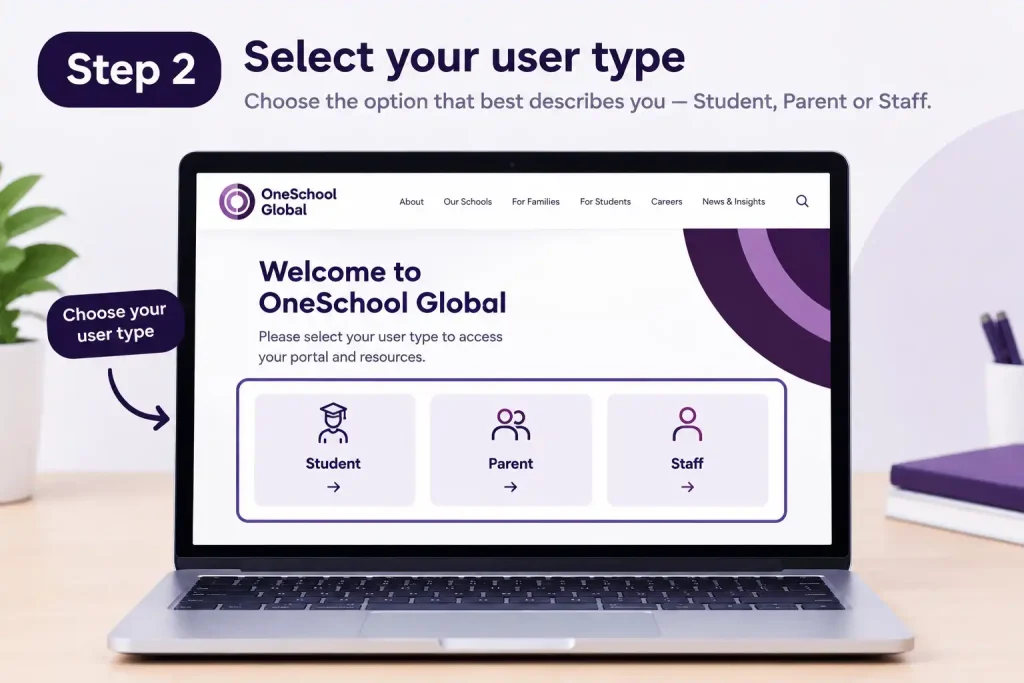
The Canvas sign-in page asks users to identify their role. Options include Student, Teacher / Staff / Volunteer, and different parent categories.
Selecting the correct option matters because the authentication route and available features can differ between users.
Step 3: Choose the appropriate sign-in method

Depending on the system and account, you may be directed to an institutional single sign-on process.
Use your school-provided account details when prompted. If your organisation has enabled Microsoft or another identity provider, follow the on-screen authentication instructions rather than attempting to create a separate personal account.
Step 4: Enter your school credentials
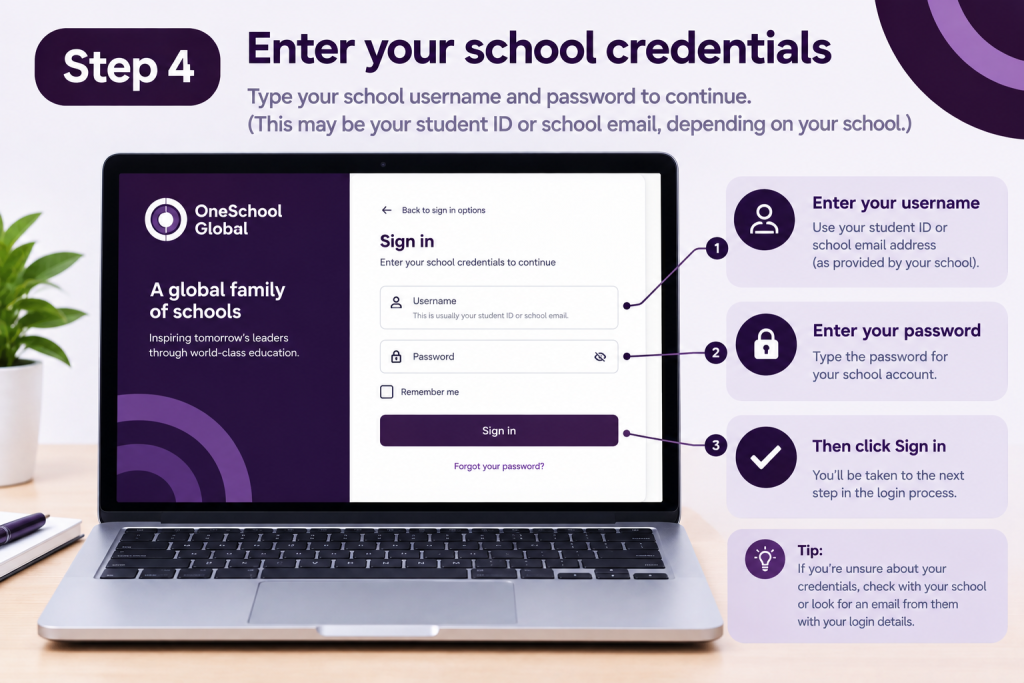
Type the email address and password associated with your One School Global account.
Check the spelling carefully before submitting. A personal Microsoft account can sometimes cause confusion if the browser is already signed into another service, so make sure the account shown during authentication is the one connected to your school.
Step 5: Complete additional verification
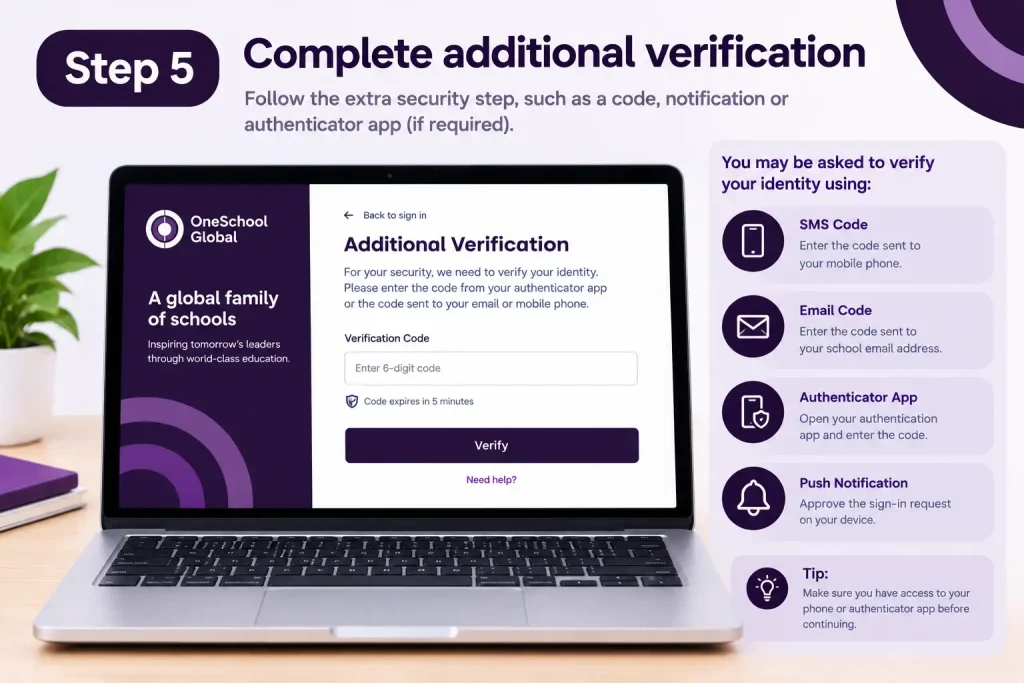
If your account requires multi-factor authentication, follow the verification request shown on screen.
Do not share your password, verification code or other sign-in credentials with another person. If you cannot complete authentication, your campus or designated IT support team is the appropriate place to request assistance.
OneSchool Global Canvas: What Students Can Do
Canvas is more than a basic login page. It functions as a key learning platform within the One School Global environment.
Students can use Canvas to access course information, learning materials and assignments. One School Global’s own information describes Canvas as the LMS through which students access content and information.
A typical student experience may include:
- Opening assigned courses
- Reviewing learning materials
- Checking assignment requirements
- Submitting work
- Viewing teacher feedback
- Following learning activities
- Using connected digital resources
One School Global also describes technology as part of everyday student learning, with Canvas used for assignments and Zoom used for lessons and tutorials.
This means a successful One School Global login can be the starting point for several parts of the school day rather than simply a way to check one page.
Fore More Information:
Visit Homepage.
Why Canvas access matters
The self-directed learning model places greater responsibility on students to manage their learning activities. Having reliable access to Canvas therefore matters because students need to see what work has been assigned and what learning resources are available.
At the same time, students are not expected to work without support. One School Global describes teachers as providing assistance and feedback, while its Learning Centres and digital tools support independent study.
Fore More Information:
Visit Homepage.
OneSchool Global OnePortal for Parents
Parents have a different online experience from students.
OnePortal was created as a central access point for parents to reach their child’s student information and connected systems. One School Global says parents can use it to access information including Canvas submission deadlines, recent feedback, timetables and campus calendars.
This makes OnePortal particularly useful for families who want a convenient overview without repeatedly moving between separate systems.
The portal does not simply mean that every existing school system disappears. One School Global’s published information explains that OnePortal connects parents with other systems, including Canvas and regional student information systems.
What parents can check
Depending on the region and systems available to the campus, OnePortal can provide access to information such as:
- Student details
- Class timetables
- Canvas-related information
- Recent feedback
- Upcoming submission deadlines
- Campus calendars
- Links to regional student information systems
- School communications and newsletters
The exact information available can change by region and as additional OnePortal features are introduced.
OnePortal first-time access
One School Global’s official guidance says first-time parents receive a welcome email containing instructions for setting up OnePortal access. Parents then visit their regional OnePortal website and sign in using the password established during setup.
This is important: if you are a new parent and cannot find the correct login information, creating a random new account may not solve the problem. Check the registered email address and contact your local campus if your onboarding information has not arrived.
A Useful Difference Between Canvas and OnePortal
It helps to think of the two systems as serving different purposes.
Canvas is primarily connected with learning and course activity. OnePortal is designed to give parents a central view of student information and access to connected school systems.
In other words:
Student: Canvas is likely to be the main learning environment.
Parent: OnePortal is likely to be the main information dashboard.
There can still be overlap, particularly because OnePortal can surface Canvas-related information.
OneSchool Global Login Problems: Common Fixes
A failed One School Global login does not always mean that your school account has been disabled. Login problems can come from an incorrect password, an expired browser session, a conflicting Microsoft account, or a delay in updating student information.
Before contacting support, try the following checks.
Fore More Information:
Visit Homepage.
“We Can’t Sign You In” or Error 401
If you receive a sign-in error, first confirm that you are using the email address connected to your One School Global account.
Then:
- Check that your password is correct.
- Make sure you are using your school-issued or registered account.
- Refresh the page and try again.
- Clear the browser cache if the problem continues.
- Check whether your multi-factor authentication request is being completed correctly.
- Try signing in through a private or incognito browser window.
Avoid repeatedly entering an incorrect password, particularly if your school’s identity system may temporarily lock an account after multiple failed attempts.
Canvas Keeps Redirecting You
A common source of confusion with school portals is having several Microsoft accounts active in the same browser.
For example, you might already be signed into a personal Microsoft 365 account while trying to access your school account. The browser can then attempt to authenticate you with the wrong identity.
Try this first: open an Incognito or Private Browsing window and visit the official One School Global Canvas portal again.
If the private window works, the issue may be related to the existing browser session rather than your One School Global account.
Your Course Is Missing
If you can sign in successfully but cannot see a course, don’t immediately assume that your account is broken.
Course and student information may depend on administrative systems and account-to-student mapping. During a new term or other administrative changes, information may take time to appear correctly.
Check that:
- You have selected the correct school account.
- You are looking at the correct Canvas dashboard.
- You have refreshed the page.
- You are using the current school-issued account.
- Your local campus has confirmed that your enrolment is active.
If the course is still missing, contact your campus administration or designated IT support team.
Your Parent Account Cannot Find a Child
Parents using OnePortal may encounter a similar issue if their account has not been correctly connected with the relevant student record.
OnePortal is designed to connect parents with student information and services, but access depends on the account information maintained by the school. One School Global’s official OnePortal information directs parents to contact their local Learning Centre if they experience access problems.
If a child does not appear after you have successfully signed in, ask the school to verify the parent account and student association.
Fore More Information:
Visit Homepage.
What to Do If You Forget Your Password
A forgotten password should be handled through the authentication system associated with your account.
Start by checking whether the sign-in page provides a Forgot Password option. Follow the instructions shown there rather than attempting to create a completely new school account.
If the reset process does not work, your local One School Global campus or IT coordinator is the appropriate contact.
Keep in mind that parents and students may use different account arrangements, so the correct recovery process can depend on your role.
Password and Account Safety
Your One School Global credentials should be treated like any other school account.
Never give your password or verification code to someone who contacts you unexpectedly. Likewise, avoid saving school passwords on shared computers where another person could access the account.
If you believe your account credentials have been exposed, contact the relevant school or IT support team promptly.
OneSchool Global Login for Staff and Teachers
Staff members do not necessarily use the same access route as students or parents.
Teacher and staff access can involve institutional identity management and Microsoft 365 services. The exact process depends on the campus, region and systems assigned to the staff member.
After authentication, staff may have access to systems used for teaching, administration, communication and collaboration.
Because staff accounts can have broader permissions than student accounts, login problems should normally be handled through the organisation’s designated internal IT or administrative support channel.
Student, Parent and Staff Access Compared
| Feature | Students | Parents | Staff |
|---|---|---|---|
| Canvas learning access | Yes | Parent access may be available | Yes, according to role |
| Student coursework | Yes | View relevant information | Teaching/management access |
| Student progress information | Personal learning information | Relevant child information | According to role |
| Timetables | Student timetable | Child’s timetable where available | Staff timetable/system |
| OnePortal | Not normally the primary parent dashboard | Primary parent-facing service | Depends on role |
| Microsoft/SSO authentication | May be used | May be used | Commonly used |
The exact services available can vary, so this table should be viewed as a general guide rather than a guarantee of every feature at every campus.
How OneSchool Global’s Digital Systems Fit Together
Understanding the relationship between the different platforms makes the One School Global login process much easier.
Think of the system as several connected layers rather than one website that does everything.
OneSchool Global Official Website
The main website is the public-facing starting point.
It provides information about the organisation, campuses, educational approach and other public resources.
Canvas
Canvas is the learning management system used within One School Global’s educational environment. It is particularly relevant to students and teachers.
OnePortal
OnePortal is designed primarily as a parent-facing hub. It can bring together information from services used by families, including Canvas-related deadlines and feedback, timetables and campus calendars.
Parents should use the regional OnePortal address associated with their One School Global campus.
Microsoft 365 and Single Sign-On
Authentication can also involve institutional Microsoft accounts or single sign-on. This is why a personal Microsoft account can sometimes interfere with access.
When prompted, always choose the account associated with your school rather than a personal account.
Fore More Information:
Visit Homepage.
A Better Way to Handle Login Issues
When something goes wrong, avoid changing several settings at once. A structured approach makes it easier to identify the actual problem.
First, identify the platform. Are you trying to enter Canvas, OnePortal or another school service?
Next, confirm your role. Student, parent and staff accounts can follow different authentication routes.
Then, check the account. Make sure the email address belongs to your One School Global account.
After that, test the browser. Private browsing is a useful way to determine whether an existing Microsoft session is interfering.
Finally, contact the campus. If the account or student record itself needs changing, only the appropriate school administration or IT team can normally resolve it.
Fore More Information:
Visit Homepage.
Quick Troubleshooting Checklist
Before contacting support, check:
- Correct One School Global portal
- Correct user role
- Correct school or parent email
- Correct password
- MFA completed
- Personal Microsoft accounts signed out
- Private browser window tested
- Browser page refreshed
- Course or student profile checked again
- Campus IT/support contacted if the issue remains
This approach can save time because it separates browser problems from account and enrolment problems.
What Parents Should Know About OnePortal
OnePortal is particularly useful for families because it is intended to reduce the need to move between multiple school systems.
One School Global describes the platform as a central location where parents can access student information and links to other services. The published information includes examples such as Canvas deadlines and feedback, timetables, campus calendars and regional student information systems.
For a parent, that means OnePortal can act as the first place to check when looking for routine school information.
It is still worth remembering that OnePortal is not necessarily identical across every region. One School Global operates across multiple countries, so the available portal and connected services can differ.
OneSchool Global Login: Important Things to Remember
The most important point is that One School Global login access depends on your role and region.
A student looking for coursework will generally be concerned with Canvas. A parent looking for information about a child may use OnePortal. Staff members can have separate internal authentication and permissions.
If you reach a sign-in page that looks unfamiliar, stop and verify that you are using an official One School Global address before entering your credentials.
Faqs
Best Practices for Using OneSchool Global Online Services
A few habits can make school portal access much smoother.
Keep your school account separate
If you use Microsoft 365 for both personal and school activities, keep track of which account is active in your browser. Signing into the wrong Microsoft identity is a common reason that a school portal can behave unexpectedly.
Bookmark official portals
Once you’ve confirmed the correct Canvas or OnePortal address for your region, bookmark it. This is safer and faster than relying on random search results each time you need to sign in.
Keep your recovery information current
If your school account or parent account requires recovery information or additional authentication, make sure the information is kept up to date according to your school’s requirements.
Contact the campus for account-level problems
Browser troubleshooting can solve many access problems, but it cannot fix an incorrect enrolment, missing student association or administrative account issue.
When the problem appears to be account-related, contact the appropriate One School Global campus or IT support team.
OneSchool Global Login: A Simple Reference Guide
| Situation | What to use | What to do |
|---|---|---|
| Student needs coursework | Canvas | Sign in through the official Canvas portal |
| Parent wants student information | OnePortal | Use the regional parent portal |
| Parent cannot find a child | OnePortal + campus support | Ask the school to verify account mapping |
| Canvas redirects repeatedly | Canvas + private browser | Check for conflicting Microsoft accounts |
| Password forgotten | Account recovery | Use the available recovery process |
| Course missing | Canvas | Confirm enrolment, then contact campus |
| Staff access problem | Institutional account/support | Contact the relevant internal IT team |
Final Takeaway
The key to a successful One School Global login is using the right service for your role. Students primarily need access to their learning environment, particularly Canvas, while parents can use their regional OnePortal to view student information and connected school services.
If you encounter a login problem, start with the basics: verify your account, check the correct portal, remove conflicting Microsoft sessions, and try a private browser window. For problems involving enrolment, student profiles, account permissions or missing information, your local One School Global campus or IT support team is the right point of contact.
Most importantly, use official One School Global websites when accessing school services and never provide your school password or authentication codes to an unauthorised person.
Read More:
CSU Student Portal: Complete Login and Student Guide 2026
Goodstart Intranet Login 2026: Employee Portal Guide
PrepL Queensland: Online Learner Licence Course & Login Guide 2026
NSW Planning Portal: Complete Login, Property Search & Development Application Guide 2026
Turnitin Login Australia: How to Log In, Submit Assignments and Check Similarity Reports
Births, Deaths and Marriages Victoria: Certificate Application Guide 2026