For students, teachers, and researchers in Australia, understanding how to use Turnitin login can make assignment submission and Similarity Report checking much easier. The exact login process can vary depending on how your university or institution has integrated Turnitin.
Some institutions provide Turnitin through learning management systems such as Canvas, Blackboard, or Moodle, while others may provide direct access through Turnitin.
The official Australian Turnitin website provides access to its login area, where users can select the appropriate Turnitin service.
This guide explains the main steps involved in Turnitin login, submitting an assignment, checking file requirements, keeping your digital receipt, and understanding what can affect the availability of a Similarity Report.
Turnitin Login: What You Need Before You Start
Before starting a Turnitin login, first check how your university or institution provides access. You may not need a separate Turnitin username and password if your institution has connected Turnitin to its existing learning management system.
The Australian Turnitin login page may ask you to select the Turnitin product you need. Depending on your institution and role, this can include services such as Feedback Studio, Similarity, or iThenticate.
If you are not sure which service applies to you, check your university’s instructions or contact your course administrator rather than selecting a product at random.
Option 1: Log In Directly to Turnitin
If your institution has provided you with direct Turnitin credentials, follow these general steps:
- Open the official Turnitin login page.
- Select the Turnitin product or service provided by your institution.
- Enter the email address and password linked to your Turnitin account.
- Select Log In.
- Once authenticated, open the appropriate assignment or Turnitin workspace.
The available options can differ depending on your institution. Your university may use Feedback Studio, Similarity, iThenticate, or another Turnitin service.
Option 2: Access Turnitin Through Your University LMS
Many Australian universities integrate Turnitin directly into their learning management system. In this situation, students generally access Turnitin through their existing university account rather than creating a separate login.
The process usually looks like this:
University Portal → LMS → Course → Assignment → Turnitin
Log in to your university’s Canvas, Blackboard, Moodle, or another supported LMS. Open the correct course or subject, find the relevant assignment, and select its submission link.
If the Turnitin page fails to load or you are redirected to an unexpected login screen, try signing out of the LMS and starting a new session. If the issue continues, your institution’s IT or course support team can confirm whether your account has been correctly configured.
What Happens After Turnitin Login?
After completing your Turnitin login, you should arrive at the relevant course or assignment area. Before uploading your work, carefully read the instructions provided by your lecturer or institution.
Assignment settings are not necessarily the same for every course. Your lecturer may control settings such as:
- Accepted file formats
- Submission deadlines
- Number of submission attempts
- Late submission availability
- Resubmission rules
- Repository storage
- Student access to Similarity Reports
For this reason, do not assume that the submission process will be identical across all Turnitin assignments.
Check Your Assignment Before Uploading
A few simple checks can help you avoid common submission problems:
- Make sure you have the correct and final version of your assignment.
- Check the required file format in the assessment instructions.
- Confirm the exact submission deadline and local time.
- Remove password protection from the document.
- Ensure a PDF contains selectable or highlightable text when required.
- Check that tables, references, images, and formatting appear correctly.
- Save a backup copy of your final assignment.
It is also a good idea to avoid making last-minute changes unless necessary. Keeping a clearly named final copy can help you identify exactly which document you submitted.
Turnitin File Requirements You Should Know
The file you upload is an important part of the submission process. A document that opens correctly on your computer may still be unsuitable for generating a Similarity Report if it does not meet Turnitin’s technical requirements.
For submissions configured to generate Similarity Reports, Turnitin supports several common formats, including Microsoft Word, PDF, HTML, plain text, RTF, OpenOffice, HWP/HWPX, and PowerPoint formats.
Turnitin currently lists a 100 MB maximum file size, an 800-page maximum, and a minimum of 20 words for files submitted for Similarity Reports.
Commonly supported extensions include:
.doc.docx.pdf.rtf.txt.html.odt.hwp.hwpx- Various PowerPoint formats
However, your university may configure an assignment to accept only certain formats. Therefore, the requirements displayed on your assignment page should always take priority.
Be Careful With Scanned PDFs
One common issue occurs with scanned documents.
A PDF created entirely from scanned images may not contain selectable or highlightable text. As a result, it may not be suitable for generating a Similarity Report.
If your institution accepts Microsoft Word files, saving your assignment as a properly formatted .docx file can be a practical option. However, always follow the file-format instructions supplied with your assessment.
Files That May Cause Submission Problems
Some files cannot generate Similarity Reports or may not be accepted by the assignment settings.
Examples can include:
- Password-protected documents
- Apple Pages files
- Unsupported document formats
- PDFs without highlightable text
- Files that exceed the permitted size or page limit
- Documents containing insufficient text
If you created your assignment using an unsupported application, export or save it into a compatible format before attempting your Turnitin login submission.
Do not simply change the file extension manually. Instead, use the application’s proper Save As or Export function so that the document is converted correctly.
How to Submit an Assignment After Turnitin Login
Once you have reached the correct Turnitin assignment page, the submission process is generally straightforward.
Step 1: Open the Correct Assignment
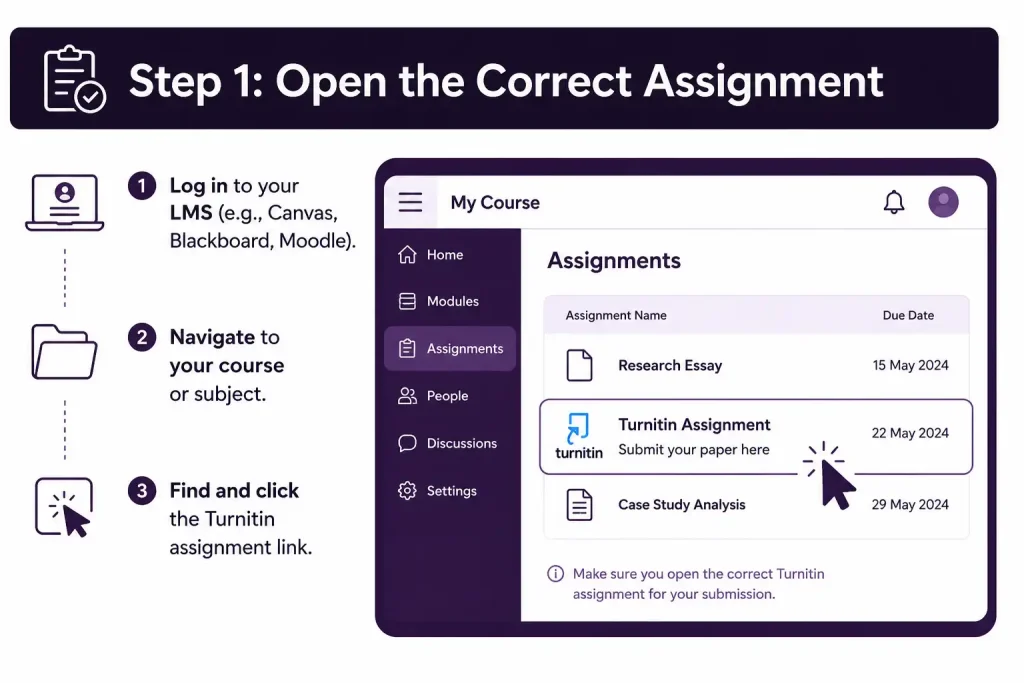
After your Turnitin login, open the appropriate course and locate the assignment. Carefully check the assignment title, especially if your course contains several assessment submission links.
Step 2: Select the Submission Option
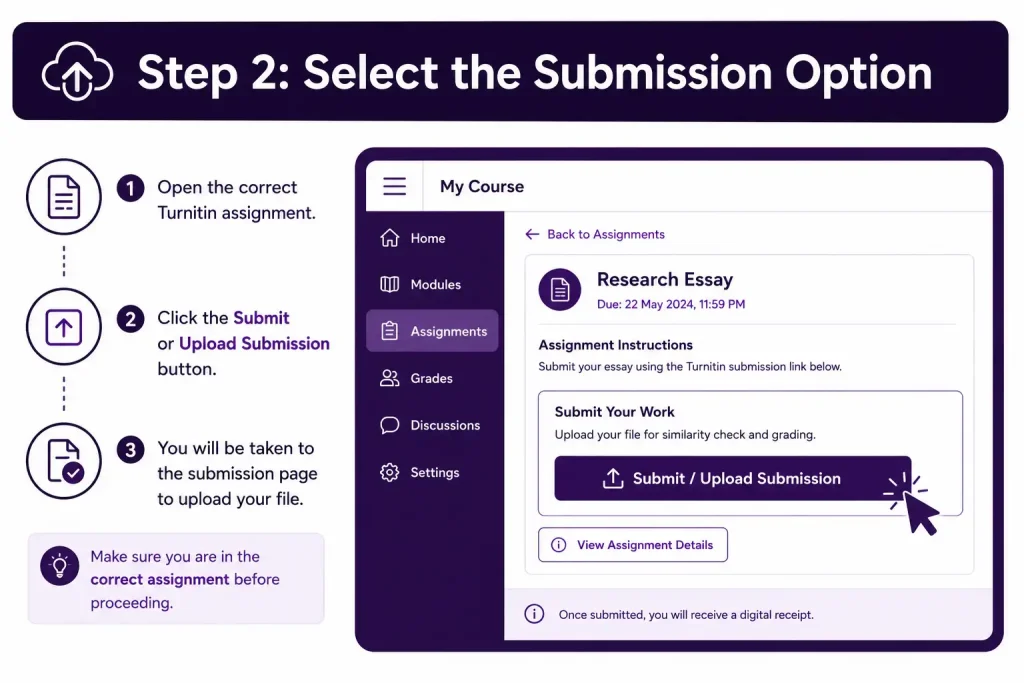
Choose the upload or submission option provided on the assignment page. Depending on your institution’s configuration, the interface and available options may vary.
Step 3: Upload Your Final File
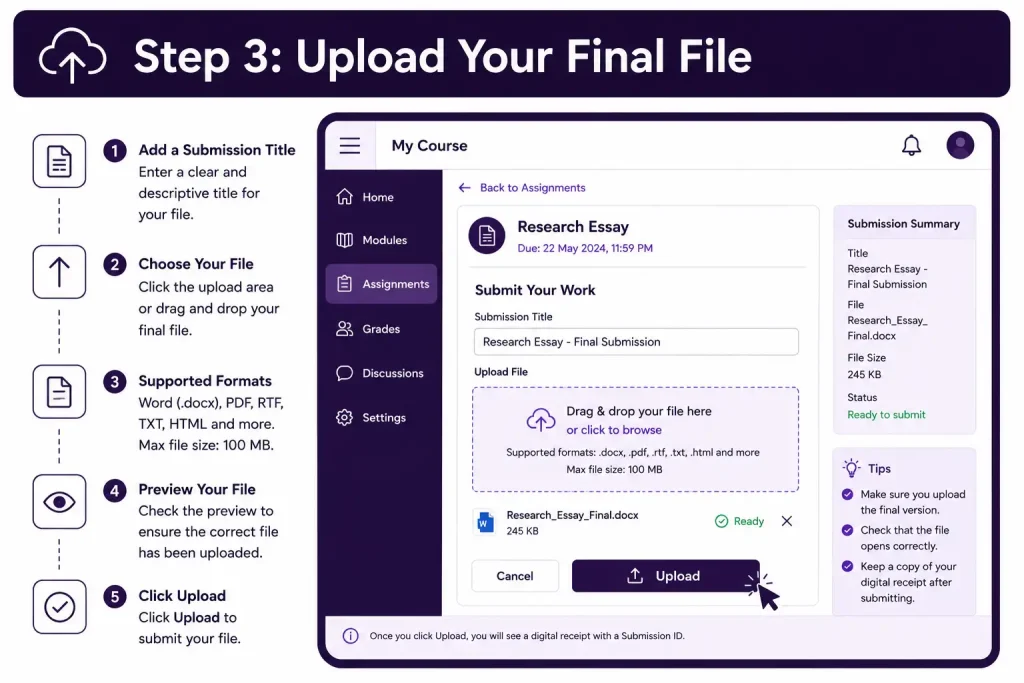
Select the correct assignment file from your computer or the available storage location.
Before continuing, check the filename and make sure you have selected the final version rather than an earlier draft.
Step 4: Review the Submission
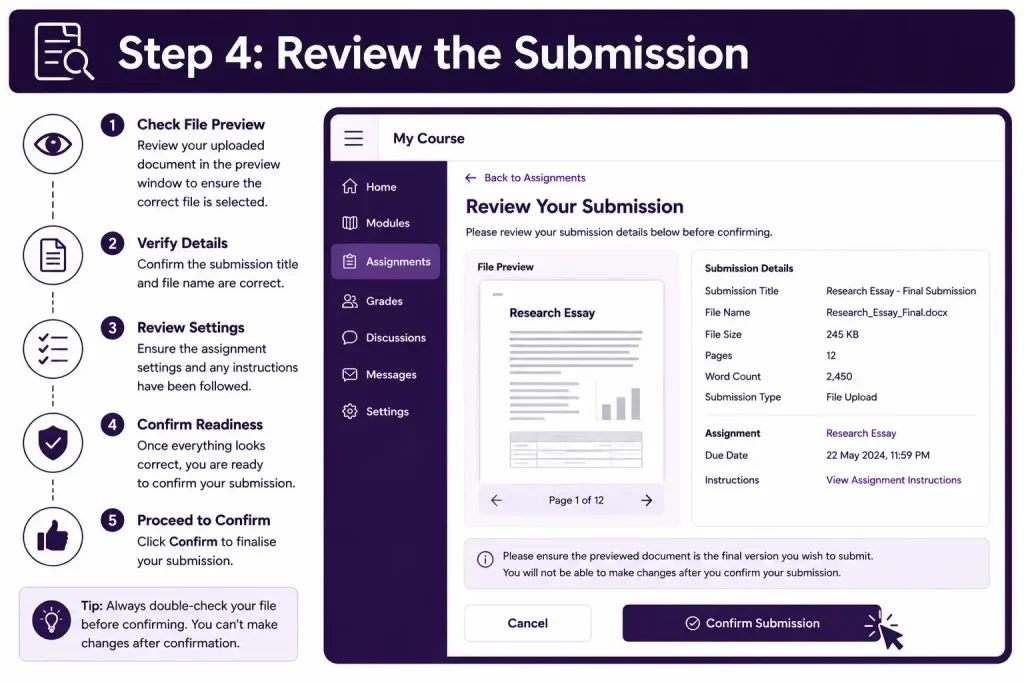
If a preview is available, inspect the document before completing the submission.
Look for issues such as:
- Missing pages
- Incorrect formatting
- Broken tables
- Strange spacing
- Missing references
- Incorrect images
- Incomplete sections
Fix any problems before finalising the submission if the assignment settings allow you to do so.
Step 5: Confirm the Submission
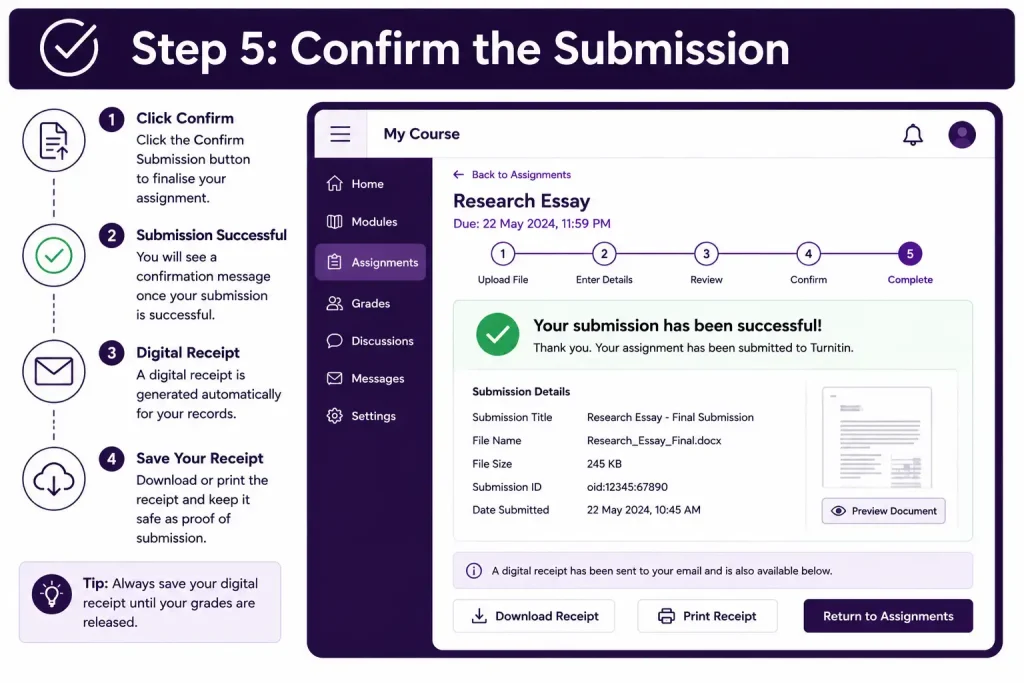
Complete the final submission step shown by Turnitin. Do not assume the upload is complete simply because the filename appears on the screen.
After successful submission, look for confirmation details such as a submission confirmation, Submission ID, or digital receipt.
Step 6: Save Your Digital Receipt
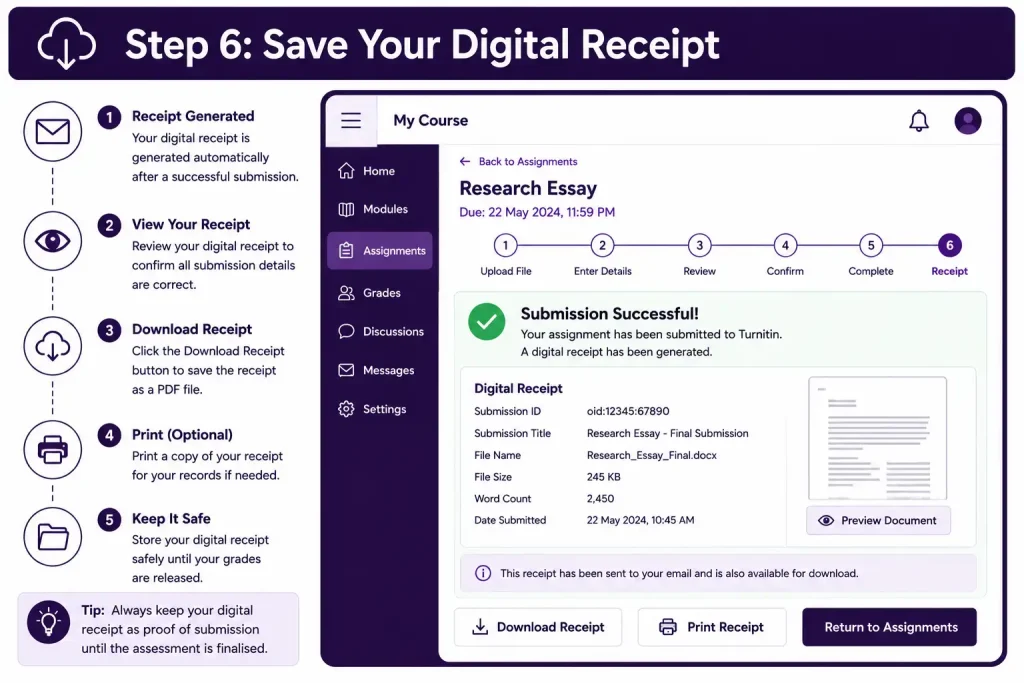
Keep your Turnitin digital receipt or other submission confirmation. This provides useful evidence that your assignment was submitted.
For assessments with strict deadlines, saving the receipt can be especially important if you later need to demonstrate when your assignment was submitted.
Quick Turnitin Submission Checklist
Before closing the assignment page, confirm each of the following:
- Correct course: You opened the right subject or course.
- Correct assignment: You selected the intended assessment.
- Final document: You uploaded the latest version.
- Supported format: The file meets the assignment requirements.
- Successful upload: The document finished uploading.
- Preview checked: You reviewed the submitted file where available.
- Submission confirmed: Turnitin displayed confirmation.
- Receipt saved: You saved the digital receipt or Submission ID.
Taking a few minutes to complete this checklist can prevent unnecessary problems later. If your lecturer asks when an assignment was submitted, your confirmation details can help demonstrate that the submission was completed.
For More Information:
Visit Homepage
Understanding Your Turnitin Similarity Report
After completing a successful submission, many students want to know what their Turnitin Similarity Report means and how they should interpret it. The report compares text from your submitted assignment with material available in Turnitin’s searchable databases and highlights passages that match other sources.
It is important to understand that a Similarity Report is a review tool, not an automatic plagiarism verdict. A similarity percentage only shows how much of your submission corresponds with material identified by Turnitin. Each match needs to be reviewed in context.
What Does the Turnitin Similarity Percentage Mean?
The Similarity Score is displayed as a percentage. It represents the amount of text in your submission that matches content found in the sources searched by Turnitin.
For instance, an assignment containing properly cited quotations, references, standard terminology, or commonly used academic phrases can produce matching text. This does not necessarily mean that the work contains plagiarism.
There is therefore no single Turnitin score that automatically means an assignment is acceptable or unacceptable. Your university, lecturer, faculty, and academic-integrity policies determine how a Similarity Report should be assessed.
The colour displayed with the Similarity Score provides a quick visual indication of the amount of matching text. However, Turnitin itself does not treat the percentage as a final determination of academic misconduct.
How to Review Matching Sources
Rather than focusing only on the percentage at the top of the report, open the highlighted sections and examine the individual matches.
Consider questions such as:
- Which parts of the assignment have been highlighted?
- Are the matching sections correctly quoted?
- Have the original sources been cited?
- Are bibliography or reference-list entries contributing to the matches?
- Does one source account for a large section of matching text?
- Have paraphrased sections been expressed in your own words?
- Are numerous small matches contributing to the overall score?
Reviewing the individual matches provides much more useful information than simply looking at the overall percentage.
Does a High Similarity Score Mean Plagiarism?
Not necessarily.
For example, an assignment with a 35% Similarity Score might contain properly cited quotations, a reference list, assignment terminology, and several small matches from different sources. Another assignment with a much lower score could contain one significant passage that has not been properly acknowledged.
The key issue is therefore why the text matches, rather than simply how high the percentage is.
Key point: Turnitin identifies textual similarities. Academic staff are responsible for interpreting those similarities within the context of the assignment and institutional academic-integrity requirements.
How to Address Unwanted Similarity Matches
If you receive a Similarity Report while working on a draft, use it as an opportunity to review your academic writing.
For example, if a paragraph follows the wording of a source too closely, consider rewriting the explanation in your own words and adding the appropriate citation. If you intentionally reproduce a source word-for-word, use quotation formatting and referencing according to the academic style required by your institution.
You should not attempt to manipulate Turnitin simply to achieve a lower percentage. Removing legitimate citations, replacing words mechanically, or using unusual formatting does not address the underlying academic-writing issue.
Instead, focus on proper research practices, accurate citations, genuine paraphrasing, appropriate quotations, and correct referencing.
Why Is My Turnitin Similarity Report Taking So Long?
A Similarity Report may not always appear immediately after an assignment is submitted. Processing time can depend on the assignment configuration, the submitted file, system conditions, and whether the submission is a resubmission.
Turnitin also applies specific processing rules to repeated submissions. A new Similarity Report may not become available immediately after every resubmission, and in some situations you may need to wait before another report is generated.
If your assignment is still processing, avoid repeatedly submitting the same document unless your lecturer or assignment instructions specifically allow or require another submission.
When there is an unusual delay, check the assignment instructions first and contact your institution if the report remains unavailable beyond the expected timeframe.
Turnitin Login Problems: What to Try
A failed Turnitin login does not always indicate that your username or password is incorrect. Problems can also result from your university’s LMS integration, an expired browser session, stored browser data, or the particular access method used by your institution.
Try the following troubleshooting steps.
1. Confirm Your Turnitin Login Route
First, determine how your university expects you to access Turnitin.
If your institution normally provides Turnitin through Canvas, Blackboard, Moodle, or another LMS, start from your university’s learning platform instead of attempting to create a separate Turnitin account.
If your institution has provided direct credentials, use the official Australian Turnitin login page:
2. Verify Your Account Details
Check that you are using the correct institutional email address and login credentials.
If your university manages authentication centrally, you may need to use your normal university login rather than a separate Turnitin password.
If you recently changed your university password, check whether that change also affects the authentication method used to access your course.
3. Start a Fresh Browser Session
If Turnitin repeatedly redirects you, sends you back to the login page, or fails to load the assignment, sign out of your university portal.
Close the relevant browser tabs and start a new browser session. Then log in to your university portal and open the assignment again.
4. Clear Browser Data if the Problem Continues
Stored cookies, cached files, or an expired authentication session can sometimes interfere with web applications.
If restarting your session does not help, clear the relevant browser cache and cookies and try accessing the assignment again.
You can also test the assignment using another supported browser to determine whether the issue is browser-specific.
5. Check Your University’s LMS
If the official Turnitin website works but the Turnitin assignment link inside your university’s LMS does not, the issue may be related to the institution’s integration.
In this situation, contact your university IT help desk, lecturer, or course administrator. Explain exactly where the process stops and include any error message displayed by the system.
Common Turnitin Submission Errors
| Problem | What May Be Happening | What to Check |
|---|---|---|
| Unsupported file | The assignment format is not accepted | Export the document to an accepted format |
| Password-protected document | Turnitin cannot process the protected file | Remove password protection before submitting |
| Scanned PDF | The PDF may contain images instead of selectable text | Use a PDF containing actual text |
| Submission still processing | The Similarity Report has not finished generating | Allow additional processing time |
| LMS link not working | The university integration or login session may have failed | Sign out and start a fresh session |
| Wrong assignment | Multiple submission links may be available | Confirm the course and assessment title |
| File too large | The document exceeds the applicable file limit | Check the assignment’s file requirements |
| Incomplete submission | The upload may not have been fully confirmed | Look for the submission confirmation or receipt |
Turnitin’s technical requirements should always be checked alongside your university’s assignment instructions. Institutions and instructors can configure individual assignments with additional restrictions.
What Teachers and Instructors Can Do in Turnitin
Turnitin is used by more than just students. Educators can use Turnitin tools to organise assignments, review submitted work, provide feedback, and support grading workflows.
The features available to an instructor depend on the Turnitin product and how the institution has configured its account.
Setting Up an Assignment
An instructor can create or manage an assignment through the institution’s Turnitin environment or through an LMS integration.
Assignment settings may control:
- Submission dates
- Late submissions
- Resubmissions
- Feedback availability
- Similarity Report settings
- Repository options
- Exclusions used when reviewing similarity
- Grading and assessment features
Instructors can also determine when students can access feedback or grades, depending on the assignment configuration.
Reviewing Student Submissions
After a student submits an assignment, the instructor can access the submission through the relevant assignment inbox and, where available, use Feedback Studio.
The instructor can review the submitted document alongside similarity information and available feedback tools. This allows academic staff to evaluate the complete assignment rather than relying solely on the Similarity Score.
Feedback Studio and Grading
Feedback Studio provides tools that can help educators review student assignments and provide structured feedback.
Depending on the features enabled by the institution, instructors may have access to:
- Inline comments
- General feedback
- Voice comments
- QuickMarks
- Rubrics
- Numerical grades
- Similarity information
QuickMarks
QuickMarks can save instructors time when they regularly provide similar types of feedback. A lecturer can create reusable comments and apply them to relevant areas of student work instead of repeatedly typing the same feedback.
Rubrics
Rubrics can help instructors organise assessment criteria and communicate how different parts of an assignment are evaluated.
Together, these tools can create a workflow that combines submission review, similarity checking, feedback, and grading within the same environment.
Turnitin for Students vs Instructors
The Turnitin experience varies depending on the user’s role.
| Students | Instructors |
|---|---|
| Access assigned assessments | Create or manage assignments |
| Upload coursework | Review student submissions |
| Receive submission confirmation | Provide assessment feedback |
| May access a Similarity Report | Review similarity information |
| Check submission status | Manage grading workflows |
| Follow institutional submission requirements | Configure assignment settings |
This difference is particularly important when troubleshooting. Students generally cannot change assignment settings that are controlled by their lecturer, institution, or LMS administrator.
When Should You Contact Your University?
If you have followed the standard troubleshooting steps and still cannot submit your assignment, contact your university as soon as possible rather than waiting until the deadline has passed.
You should consider contacting your lecturer, course coordinator, or university IT support if:
- The Turnitin assignment link is missing.
- Your university credentials no longer work.
- Turnitin repeatedly redirects you to the login page.
- A file that meets the stated requirements cannot be uploaded.
- Your submission appears incomplete.
- You submitted the assignment but cannot find confirmation.
- Your Similarity Report remains unavailable for an unusually long period.
- A technical problem could prevent you from meeting the deadline.
When contacting support, provide relevant information such as your course name, assignment name, approximate time of the attempted submission, and the error message displayed on screen.
Avoid including unnecessary personal or account information in support requests.
A Better Way to Manage the Turnitin Process
The best approach is to treat Turnitin as a normal part of your academic submission process rather than something to deal with moments before a deadline.
Prepare your assignment early, check the required file format, confirm the deadline, and access the correct submission area through your university LMS or approved Turnitin login route.
After uploading your assignment, verify that the submission was successfully completed and save your digital receipt or Submission ID.
If a Similarity Report is available before the final deadline, use it to review your citations, quotations, paraphrasing, and source use. The purpose should not be to chase a particular similarity percentage. Instead, use the report to make sure your academic work properly acknowledges its sources and follows your institution’s academic-integrity requirements.
By following a careful submission process and understanding how Similarity Reports work, students can use Turnitin more confidently and avoid many common login and submission problems.
Turnitin Login Australia: Frequently Asked Questions
How to Use Turnitin Responsibly
Completing your Turnitin login is only one part of the academic submission process. Turnitin is most useful when combined with good research, writing, and referencing practices.
Before submitting an assignment, check that your sources are properly referenced and that direct quotations follow the citation style required by your institution.
When paraphrasing, focus on understanding the source’s meaning and explaining the idea independently. Simply replacing a few words while keeping the original sentence structure may not constitute effective paraphrasing.
Once your Similarity Report becomes available, review the actual matches rather than concentrating solely on the percentage.
Practical Turnitin Final Review
Use the following checklist before submitting an important assessment.
Before Turnitin Login
- Confirm your university’s normal Turnitin access method.
- Read the assignment instructions.
- Make sure you are using the correct university account.
- Check the submission deadline.
Before Uploading Your Assignment
- Open and review the final document.
- Confirm the required file format.
- Make sure the document contains selectable text where required.
- Remove password protection.
- Review quotations and citations.
- Check your reference list.
- Save a backup copy of your final file.
After Uploading
- Confirm that you selected the correct course.
- Check that you opened the correct assignment.
- Review the submission preview when available.
- Confirm that the upload has completed.
- Save your digital receipt, Submission ID, or other confirmation details.
After the Similarity Report Appears
- Review the overall Similarity Score.
- Examine individual highlighted matches.
- Check quotations and citations.
- Investigate unexpectedly large matches.
- Review your paraphrasing where necessary.
- Follow your institution’s academic-integrity requirements.
How to Download a Turnitin Similarity Report
In supported Turnitin environments, users may be able to download a Similarity Report as a PDF.
Depending on the report experience and account configuration, the downloaded PDF may contain information about the submission, the Similarity overview, highlighted matching text, and source information.
Keeping a copy can be useful for your own records or for reviewing the report outside the Turnitin interface.
The exact download option can vary between Turnitin products and institutional configurations. Turnitin currently provides several report experiences, including Feedback Studio, Similarity/SimCheck, and the Enhanced Similarity Report.
If you cannot see a download option, check the assignment settings or contact your institution for guidance.
Final Takeaway
Completing Turnitin login is generally straightforward once you know whether your university provides direct Turnitin access or connects the service through its learning management system.
The more important part is what happens after logging in. Select the correct assignment, upload a supported file, verify that the submission was completed, save your confirmation, and review the Similarity Report when it is available.
Most importantly, remember that a Turnitin Similarity Score is not automatically a plagiarism verdict. Turnitin identifies matching text, while students and academic staff must consider the context, citations, quotations, paraphrasing, and institutional academic-integrity requirements.
For Australian students, the safest approach is to use the official Turnitin Australia login when direct access is required, follow your university’s LMS instructions when Turnitin is integrated into your course, keep proof of successful submission, and review your Similarity Report before the assessment deadline whenever it is available.
Read More:
Births, Deaths and Marriages Victoria: Certificate Application Guide 2026
Tax Agent Portal Login 2026: ATO Online Services for Agents Guide
Tax Agent Portal Login 2026: ATO Online Services for Agents Guide
ATO Tax Guide 2026: Website, Tax Return, Rates, Login & Deductions
DET Portal Login 2026: NSW Department of Education Student & Staff Guide
MyUNSW Login & Student Portal Guide 2026: Enrolment, Timetable, Results & zPass
Department of Transport and Main Roads (TMR) Queensland: Complete Online Services Guide 2026