The CSU Student Portal serves as the main online hub for students at Charles Sturt University. From one place, students can access study-related information, university messages, enrolment services and a range of student support resources. The portal is available through the official Charles Sturt login page: CSU Student Portal.
For new and returning students, understanding how the CSU Student Portal works can make everyday university tasks much easier. Whether you need to sign in for the first time, view your timetable, check your subjects or troubleshoot an account issue, knowing where to find the right services can help you manage your studies more efficiently.
CSU Student Portal: Key Features
The CSU Student Portal brings many of the services students use regularly into one convenient place. From checking study information to managing enrolment and keeping up with university messages, the portal provides a central starting point for everyday student tasks.
| Portal Feature | What It Helps You Do |
|---|---|
| CSU Student Portal Login | Sign in and access your university dashboard |
| My Studies | View subjects, learning sites and study resources |
| Enrolment and Fees | Manage enrolment details and check fee information |
| Timetable | View class times, exams and other scheduled activities |
| University Communication | Read important university notices and access student email |
| Student Support | Locate academic, technical and wellbeing support services |
| Account Management | Update credentials and manage personal information |
Rather than visiting different university services separately, students can use the CSU Student Portal as a central access point for many common tasks. This makes it easier to find the information and services needed throughout the study journey.
How to Log In to the CSU Student Portal
Students need their university account details to access the CSU Student Portal. Have your CSU username and password ready before you begin, as you may also be asked to complete an additional security check.
1. Go to the official CSU portal
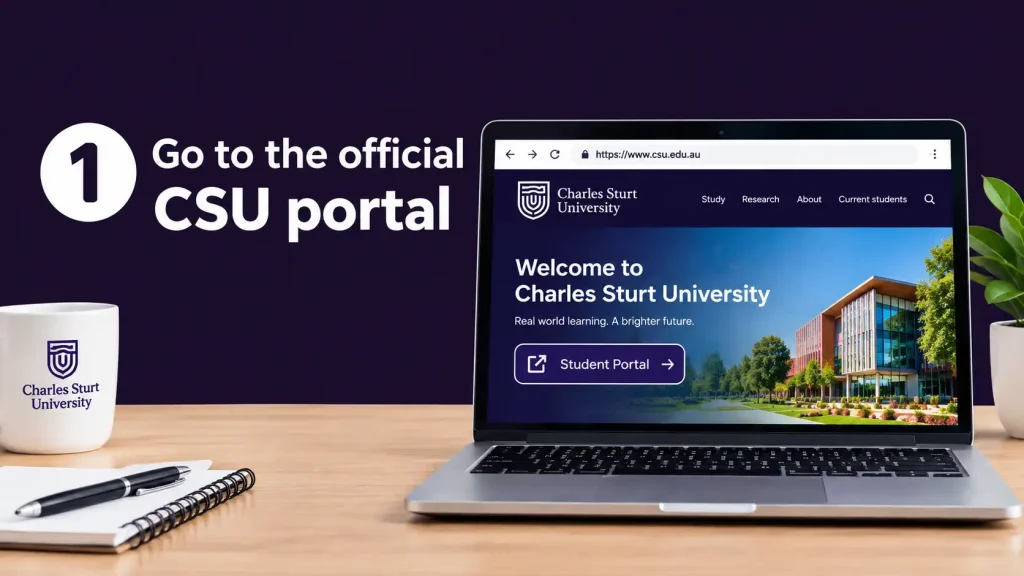
Open the CSU Student Portal using the official web address. This takes you to the university’s student login area.
Offical :CSU Student Portal
2. Choose the login option
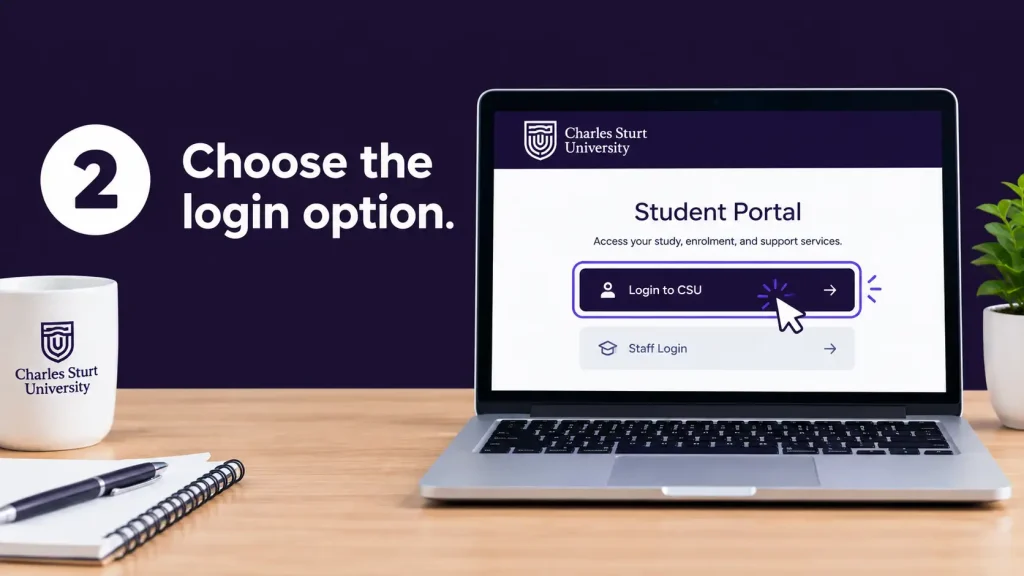
Once the portal page loads, select Login to open the sign-in screen.
3. Provide your CSU username
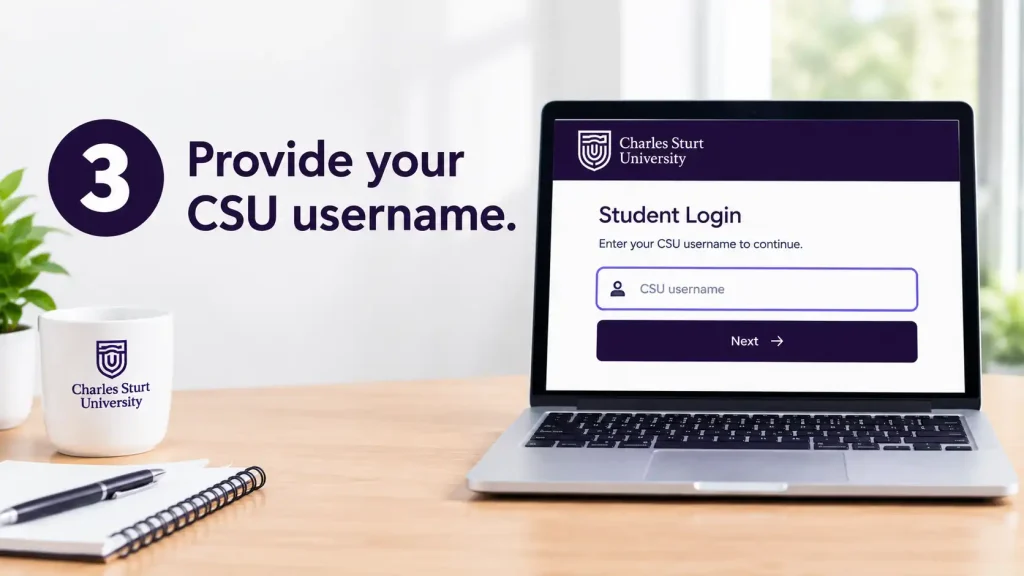
Enter the username connected to your Charles Sturt student account. Depending on your account configuration, this could be your student ID or university email alias.
4. Enter your password

Type your CSU account password carefully. Remember that passwords can be case-sensitive, so check capital letters, numbers and special characters if you’re having trouble signing in.
5. Complete MFA if requested
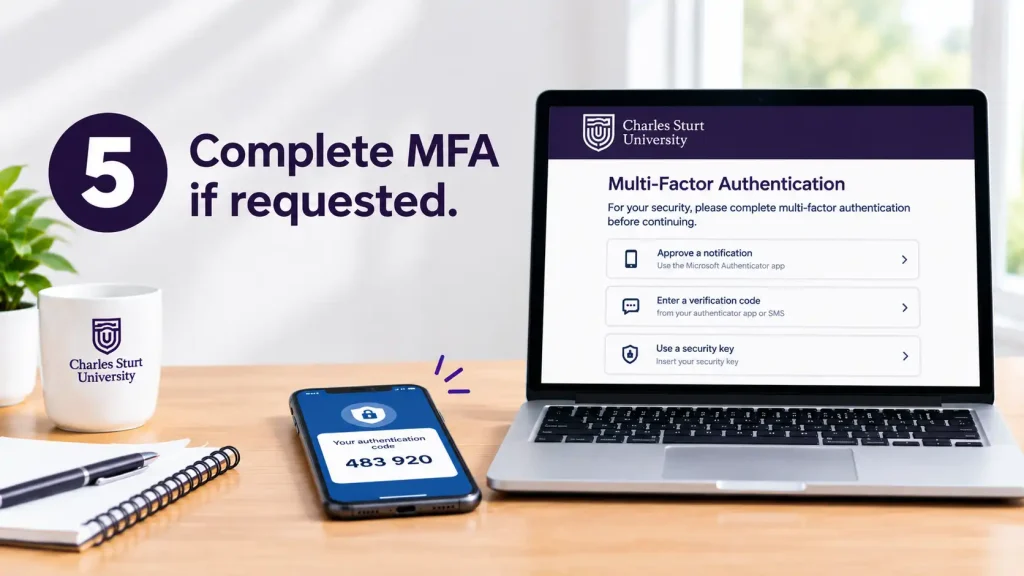
Some accounts require multi-factor authentication (MFA). If you’re prompted for an additional verification step, follow the instructions displayed on screen.
6. Access your student dashboard

After your username, password and any required security verification have been accepted, select Sign In. You should then be directed to your student dashboard.
CSU Login Checklist
If you’re unable to sign in, run through these basic checks first:
- Confirm you’re using the official CSU Student Portal address.
- Make sure your username has been entered correctly.
- Re-enter your password carefully.
- Check that Caps Lock isn’t switched on accidentally.
- Have your MFA verification method available if your account requires it.
- Make sure your device has a working internet connection.
Taking a moment to check these details can help identify simple login problems before you move on to further troubleshooting
Fore More Information:
Visit Homepage.
Getting Your CSU Student Account Ready
Before accessing the full range of services within the student portal csu, new students may first need to activate their university account. The initial activation establishes the login details you’ll use for future access.
Use the account activation information supplied by the university and follow the instructions on the official setup page.
First-Time Activation Process
If you’re setting up your account for the first time, the process generally involves these steps:
- Check the personal email address you registered with the university for your activation details.
- Open the account activation link provided in the university’s message.
- Work through the instructions displayed on the official account setup page.
- Set a secure university password when asked.
- Complete any additional verification required during activation.
- Store your CSU username and password securely so they’re available when you need to access the student portal.
Keep Your Login Details Secure
Your university password should remain private and must not be given to anyone else. If you suspect that another person has obtained your login details, use the relevant CSU password-management or account-recovery process to protect your account.
Fore More Information:
Visit Homepage
What Services Are Available in the CSU Student Portal?
After signing in, the student portal csu acts as a central hub for managing many parts of your university experience. The dashboard brings together areas related to study, enrolment, fees, timetables and student communications.
The options you see may vary depending on your course and student status, so your portal may not look exactly the same as another student’s.
Study Information at a Glance
The My Studies section is where you can find information relating to your current subjects. It may also include links to Interact learning sites along with lecture resources and other study materials.
If you’re taking multiple subjects, this can be a useful place to keep track of the academic information you need throughout your studies.
Enrolment, Course Progress and Fees
Student services within the portal can give you access to both enrolment and financial information. Depending on what is available for your account, you may be able to:
- Review your course progress
- Manage subject enrolments
- Check fee details
- Access fee statements
- Make tuition payments
The services displayed can differ between students, so use the information and options available within your own account as the reference point.
Fore More Information:
Visit Homepage
Keep Track of Your Timetable
The Timetable area helps you stay aware of scheduled university activities. Depending on the information available to you, this may cover your personalised class timetable, examination details and relevant campus events.
It’s worth checking this section regularly, especially when a new teaching period begins and you need to organise your study schedule around classes and other commitments.
University Messages and Email
The portal is also a place to access important communications from the university. Some notices may require you to take action, making regular checks a useful habit.
Your student communication services may also provide access to your university email account through your @student.csu.edu.au address.
Making the CSU Student Portal Part of Your Study Routine
The student portal csu can serve as a convenient hub for your regular university activities, not just somewhere to visit when you need to sign in. Using it regularly can make it easier to keep track of information connected to your studies.
You could start by reviewing recent university notices before opening My Studies to check your subject details. When needed, the same portal can also help you access your timetable and review enrolment or fee information.
It’s worth checking the portal whenever CSU sends you an important notification. Making this part of your routine can help you stay aware of timetable changes, administrative updates and other study-related tasks before they become easy to overlook.
Getting Help Through the CSU Student Portal
The student portal csu is useful for more than viewing course information. When university life brings a technical issue, study-related question or need for personal or administrative assistance, the portal can provide a starting point for finding the right support service.
Where to Get Technical Help
Problems with your university account, internet access or software can interrupt your studies. CSU’s IT support services provide a route to assistance when you’re dealing with technology-related difficulties.
You may need technical support for issues such as:
- Trouble accessing your student account
- Password or account-related difficulties
- Problems connecting to university Wi-Fi
- Issues accessing required software
- Other technology problems affecting your university services
If the issue is specifically preventing you from logging in, check the available account recovery options before seeking further assistance when appropriate.
Academic Support for Students
Academic support can also help you manage the practical side of university study. Depending on the services available to you, you may be able to access study guidance and resources covering areas such as:
- Appointments with a study adviser
- Library materials and resources
- Writing support
- Referencing assistance
- Other learning and academic resources
It’s often worth seeking help before a small study problem becomes a bigger one. For example, if you’re uncertain about an assignment or unfamiliar with university study requirements, using the available academic support early can make the process easier to manage.
Fore More Information:
Visit Homepage
Keeping Your CSU Account Information Up to Date
Your personal details are an important part of your student portal csu account. When your circumstances change, it’s worth reviewing the information stored in your account and updating anything that needs attention.
Depending on the account settings available to you, you may be able to manage details such as your contact information, preferred name and emergency contacts. Keeping these records accurate can make it easier for the university to reach you and helps ensure your student information remains up to date.
Forgot Your CSU Password?
If you can’t remember your CSU password, you don’t need to create another student account. Instead, use the password recovery or account reset option available from the official CSU sign-in page.
Look for a link such as “Can’t access your account?” or another password recovery option. Follow the on-screen verification steps and, where available, use the recovery method linked to your account, such as your mobile number or recovery email.
If you’re unable to reset the password through the standard recovery process, contact the relevant university support service for assistance. Avoid repeatedly entering guessed passwords, as this won’t resolve the underlying access problem.
Fore More Information:
Visit Homepage
Common Issues When Accessing the CSU Student Portal
A login problem doesn’t always mean the student portal csu is unavailable. In many cases, the cause is something local to your account, browser, or authentication setup. Checking each possibility one at a time can help identify the issue.
Your Login Details Are Not Working
Start by checking the username and password you entered. Look for typing errors and confirm that Caps Lock isn’t switched on.
If your credentials still aren’t accepted, use the university’s official password recovery process rather than repeatedly trying different passwords.
The Portal Isn’t Loading Correctly
Browser data can sometimes affect how a sign-in page works. If the portal behaves unexpectedly, try a few basic browser checks:
- Clear the relevant cache and cookies.
- Open the portal in a private or incognito window.
- Switch to a current, supported browser.
- Close the browser completely and open it again.
These steps can help determine whether the problem is related to stored browser information.
Fore More Information:
Visit Homepage
You’re Not Receiving the MFA Verification
If multi-factor authentication (MFA) is required and the verification request doesn’t arrive, check that your registered device has a working internet or mobile connection.
Still unable to complete verification? Contact the appropriate CSU university account-support service for further assistance.
Your Saved Portal Link Is Outdated
Old bookmarks can sometimes point to an outdated page or incorrect address. For the most reliable access, enter the official student portal csu address directly:
Using the current portal address can help avoid problems caused by obsolete saved links.
Managing Enrolment, Classes and University Information
Once you’re signed in to the student portal csu the dashboard can serve as a central place for many regular university tasks. It’s worth becoming familiar with where your study information, enrolment options, timetable and university communications are displayed.
The services shown in your account can vary depending on your course and student account. Always work from the options available in your own portal rather than assuming another student’s menu will look the same.
Keep Your Subject Information Up to Date
During a teaching period, the My Studies area can be particularly useful. Depending on your account, it may provide access to current subjects, Interact learning sites and related study resources.
When beginning a new study period, compare the subjects listed in your account with the subjects you expect to take. If anything looks wrong or incomplete, contact the appropriate university administration or support service instead of trying to resolve the issue through the portal alone.
Check Your Enrolment Before Making Changes
Your student account can also give you access to course-progress and subject-enrolment information. Reviewing these details regularly can help you understand what is currently recorded against your course.
Take care before changing your enrolment. If you’re uncertain whether a subject fits your course requirements, seek academic advice rather than relying only on the information displayed in the portal.
Stay Aware of Fees and Payments
The Enrolment & Fees area can provide access to financial information associated with your studies. Depending on the services available to your account, this may include fee statements and tuition payment options.
It’s a good idea to check this area when the university sends a fee or enrolment notification. That makes it easier to spot anything that needs your attention.
Check Your Timetable Regularly
Your timetable provides a central view of scheduled study activities and other timetable information linked to your course.
Information shown may include:
- Scheduled classes
- Examination information
- Campus-related events
- Other timetable details connected with your studies
Don’t rely on a single timetable check at the beginning of the study period. Review it again if the university notifies you about a possible change.
A practical portal routine
A short regular check can cover most of the areas that are likely to need your attention:
Sign in → check notices → review subjects → check your timetable → look for enrolment or fee tasks.
Doing this regularly can help you notice changes before they become urgent.
Keep an Eye on University Messages
University communication is another part of your student account that shouldn’t be overlooked. Notices may appear through the student dashboard and related communication services.
Where available, students can also access their university email using their @student.csu.edu.au address.
Pay particular attention to messages when:
- A new teaching period is about to start
- Your timetable has been changed
- You’re waiting for an administrative response
- The university asks you to complete an action
- An examination or another important academic date is approaching
If an email asks you to sign in, avoid using an unfamiliar login link. Instead, go through the official CSU service to access your account.
Student Administration You May Need
The student portal csu can also provide access routes to student administration services. These may be useful when you need official university documents or have to complete an administrative process.
Academic transcripts
Depending on the service available through your account, you may be able to request an official academic record or transcript.
Proof of enrolment
If you need confirmation of your current enrolment, look for the relevant proof-of-enrolment service provided through your university account.
Graduation
Students nearing the end of their course may find relevant graduation processes through the student administration area, where available.
Requirements and eligibility can vary, so check the official Charles Sturt information provided to you before starting an administrative process.
Learning and Library Resources
Using the student portal isn’t only about subjects, fees and administration. Charles Sturt also provides resources that can support learning, research, writing and study skills.
Depending on the links available through your portal, you may be able to access:
- Library services
- Study advisers
- Writing support and guidance
- Referencing resources
- Academic learning support
If you’re unsure about referencing, structuring an assignment or improving your study approach, use these university resources early rather than waiting until an assessment deadline is close.
Health, Wellbeing and Accessibility Support
Student services can cover areas beyond academic study. The supplied portal information identifies health and wellbeing services, accessibility support and financial hardship assistance as areas of support available to students.
These services can help students deal with circumstances that may affect their university experience.
If you need assistance, check the relevant information provided by Charles Sturt rather than relying on unofficial sources. University support teams can explain which service is suitable for your circumstances.
CSU Student Portal Troubleshooting: What to Check
When access doesn’t work as expected, first identify the part of the login process causing the problem. Knowing whether the issue involves your credentials, browser, MFA or account can help you choose the right solution.
| Problem | What to check |
|---|---|
| Username rejected | Confirm your CSU username and check for typing errors |
| Password rejected | Check Caps Lock and use password recovery if required |
| Login page behaves unexpectedly | Open the portal in a private browser window |
| An old page appears | Access the official portal address directly |
| MFA verification doesn’t arrive | Check the internet or mobile connection on your registered device |
| Access still isn’t working | Contact the appropriate university IT or support service |
1. Check Your Login Details
If the portal reports that your credentials are invalid, carefully review the username and password you’ve entered.
Make sure the username is correct, then enter the password again and check the use of uppercase and lowercase characters. If you’ve forgotten the password, use the available account-recovery process rather than repeatedly guessing it.
2. Test the Browser
Saved browser data can sometimes contribute to unexpected portal behaviour.
A useful first test is to open the student portal csu in an Incognito or Private browser window. If the portal works there, clearing the relevant cache and cookies in your normal browser may help resolve the problem.
3. Check MFA Verification
Multi-factor authentication, or MFA, adds another verification step when it is required for your account.
If the expected verification request isn’t appearing, check your registered device and confirm that it has a working internet or mobile connection. If you still can’t complete verification, contact CSU support for account-specific help.
4. Replace Old Portal Bookmarks
University systems can change over time, which means an old bookmark may no longer lead to the correct page.
For reliable access, start from the current official student portal csu address rather than depending on an old saved link.
Protect Your CSU Account
Your student account provides access to academic and administrative information, so basic security practices are important.
Keep these habits in place:
- Never share your password.
- Don’t use another student’s login details.
- Treat unexpected login emails with caution.
- Confirm that you’re on the official CSU website before entering credentials.
- Keep your registered recovery information current.
- Complete MFA when prompted by the legitimate university login system.
- Sign out after using a shared computer.
Be cautious with unofficial login pages
A search engine may return many websites that discuss university portals, but these pages aren’t substitutes for the official Charles Sturt login service.
When you need to access your account or enter your password, use the official CSU portal. This is particularly important when you’re completing a security or account-verification step.
If the Portal Still Won’t Let You In
When basic troubleshooting hasn’t fixed the problem, avoid repeatedly attempting the same login action.
Instead, work out whether the issue is caused by your credentials, browser, MFA or the account itself. From there, use the Charles Sturt support pathway that matches the problem.
For example, recovering a forgotten password is different from dealing with a wider technical problem, so the appropriate support route may not be the same.
When contacting support, provide useful details such as:
- The service you’re trying to open
- What happens after you select Login
- Any error message displayed
- Whether you’ve already tried password recovery
- Whether the issue also occurs in another browser
Clear information gives technical staff a better starting point when investigating the issue.
Good Habits for Using the CSU Student Portal
The portal is easier to manage when checking it becomes part of your normal study routine.
Check it regularly. Don’t wait until you urgently need a document, class detail or enrolment update.
Use official services. Start with the official CSU website whenever you need to access your student account.
Protect your credentials. Keep your username and password private and complete legitimate MFA requests when required.
Read university notices. Messages may contain information about changes or actions you need to take.
Deal with access issues early. If your account stops working, resolve the problem before an important academic deadline.
Know where to seek help. Technical support, academic assistance, administration and wellbeing services handle different types of student needs.
Building these habits can make the student portal csu a more useful part of your routine throughout your time at Charles Sturt.
CSU Student Portal FAQs
Common Portal Problems and What to Try
What should I do if the CSU Student Portal will not load?
First, check your internet connection. If the connection is working, refresh the page and try opening the portal in a Private or Incognito window.
It can also help to use a current, supported browser when accessing the official portal.
Could clearing my browser data fix the problem?
It can help when stored browser data is interfering with the portal. Try clearing the relevant cache and cookies, then reopen the portal.
Testing the login in a Private or Incognito window is another useful way to check whether the problem is browser-related.
Why am I not receiving my MFA code or notification?
Check that the device registered for MFA has an active internet or cellular connection. If the verification request still does not arrive, contact the appropriate CSU support service.
Can an old bookmark stop me from logging in?
Yes. A saved bookmark may lead to an outdated page or an incorrect address. For reliable access, it is better to begin from the current official student portal csu rather than an old saved link.
CSU Student Portal Quick Reference
| Need | Where to start |
|---|---|
| Portal access | Official CSU Student Portal |
| Subjects | My Studies |
| Learning materials | Interact / subject resources |
| Enrolment | Enrolment services |
| Fees | Enrolment & Fees |
| Classes | Timetable |
| Notices | Communication |
| Student email | University communication services |
| Technical problem | IT support |
| Academic assistance | Study and academic support |
| University documents | Student administration |
| Graduation | Student administration |
Make the Portal Part of Your Study Routine
You don’t have to wait for a problem before checking the student portal csu. Regular visits can help you keep track of important study and administration information.
A practical routine is to review your announcements, subjects, timetable and outstanding tasks from time to time. This is particularly useful at the start of a new study period or when the university sends an important notice.
Account security also matters. Keep your password private and take care when opening unexpected messages that ask you to enter your university login details.
Before You Contact CSU Support
If you are unable to access the portal, check the basics first and note what happens when you try to sign in.
Check your login details: Make sure your username and password are correct and that Caps Lock is not enabled.
Try another browser: Open the portal using another supported browser or a Private/Incognito window.
Review MFA: Confirm that your registered verification device can receive the required code or notification.
Use account recovery: If you cannot remember your password, follow the official password-recovery process.
Save the error message: If the portal displays a specific error, record its wording so you can provide accurate information to support staff.
These checks can help narrow down whether the issue is related to your credentials, browser, MFA or account access.
CSU Student Portal Session Checklist
Before you finish using the portal, check the items that matter for your current study period:
- ✓ Current subjects
- ✓ Learning resources
- ✓ Timetable
- ✓ University notices
- ✓ Student email
- ✓ Enrolment details
- ✓ Fee information
- ✓ Outstanding administration tasks
- ✓ Available support services
When you need to sign in again, return to the official student portal csu rather than using an unfamiliar login page or an outdated bookmark.
Final Takeaway
The student portal csu gives Charles Sturt University students one central starting point for many routine study and administration tasks. You can use it to check subjects and learning resources, review timetables, manage available enrolment services, view fee information and keep up with university communications.
Making the portal part of your regular study routine can help you stay aware of important information. If you run into an access problem, check your credentials, browser, MFA and password-recovery options before seeking further support.
For secure access, use the official student portal csu and avoid relying on third-party login pages or old saved links.
Read More:
Goodstart Intranet Login 2026: Employee Portal Guide
PrepL Queensland: Online Learner Licence Course & Login Guide 2026
NSW Planning Portal: Complete Login, Property Search & Development Application Guide 2026
Turnitin Login Australia: How to Log In, Submit Assignments and Check Similarity Reports
Births, Deaths and Marriages Victoria: Certificate Application Guide 2026
Tax Agent Portal Login 2026: ATO Online Services for Agents Guide