For Australian secondary school students, teachers, and educational staff, OnGuard v3 provides an online environment for safety learning, assessments, and competency tracking. It is used in educational settings where students need to understand workshop safety before undertaking practical Design and Technology activities.
The OnGuarf v3 platform brings safety information and assessment tasks into one online system. Depending on the school or institution, students may use it for modules covering workshop hazards, personal protective equipment (PPE), machinery awareness, tools, risk assessment, and safe working procedures.
The platform is accessed through an institution rather than as a general public account. This means your school, teacher, or supervising staff member normally provides the account details and tells you which training modules you need to complete.
Fore More Information:
Visit Homepage.
What Is OnGuard v3?
OnGuarf v3 is an online safety training and assessment platform used by educational institutions in Australia. Its main purpose is to help students learn the safety information associated with practical subjects before they take part in relevant school activities.
Rather than relying only on classroom explanations, the platform presents safety topics through online learning modules and then checks understanding through assessments. This creates a record of training that can be monitored by students and teaching staff.
Typical learning areas can include:
- Workshop and general safety
- Machinery safety awareness
- Hand and power tool safety
- Personal protective equipment
- Identifying workplace hazards
- Basic risk assessment
- Safe operating procedures
- Competency assessments
- Training and completion records
The exact modules available to a student can vary according to the school’s programme and the training assigned by its teachers.
Who Uses the OnGuard Platform?
The system is particularly relevant to people involved in school-based Design and Technology, Technology and Applied Studies (TAS), and related practical learning environments.
Students use assigned modules and assessments to demonstrate that they have understood the required safety information.
Teachers and educational staff can use training records and progress information to monitor which students have completed required learning activities.
This approach can make it easier for a school to keep track of safety training before students move into practical learning.
Before You Try to Log In
Your first step should be to confirm that your school has provided access to OnGuarf. Unlike a normal public website where anyone can create an account, access information is generally connected with the educational institution using the system.
Before opening the portal, have the following information available:
| Information | Where it normally comes from |
|---|---|
| School or organisation | Your educational institution |
| Suburb/school selection | OnGuard school directory |
| Username | School or supervising teacher |
| Password | School or supervising teacher |
| Assigned training | Your teacher or institution |
| Assessment requirements | Your course or school |
If you have not received login details, do not guess credentials or attempt to create an unrelated account. Ask your Design and Technology, TAS, or supervising teacher for the correct access information.
Important: OnGuarf access arrangements can be controlled by the individual school or organisation. If your credentials do not work, the school administrator or teacher is the appropriate person to contact.
How to Access the OnGuard v3 Portal
Getting to the correct portal is the starting point for your online training. Use the official website supplied by your school rather than relying on an unfamiliar third-party login page.
Step 1: Open the Official Website
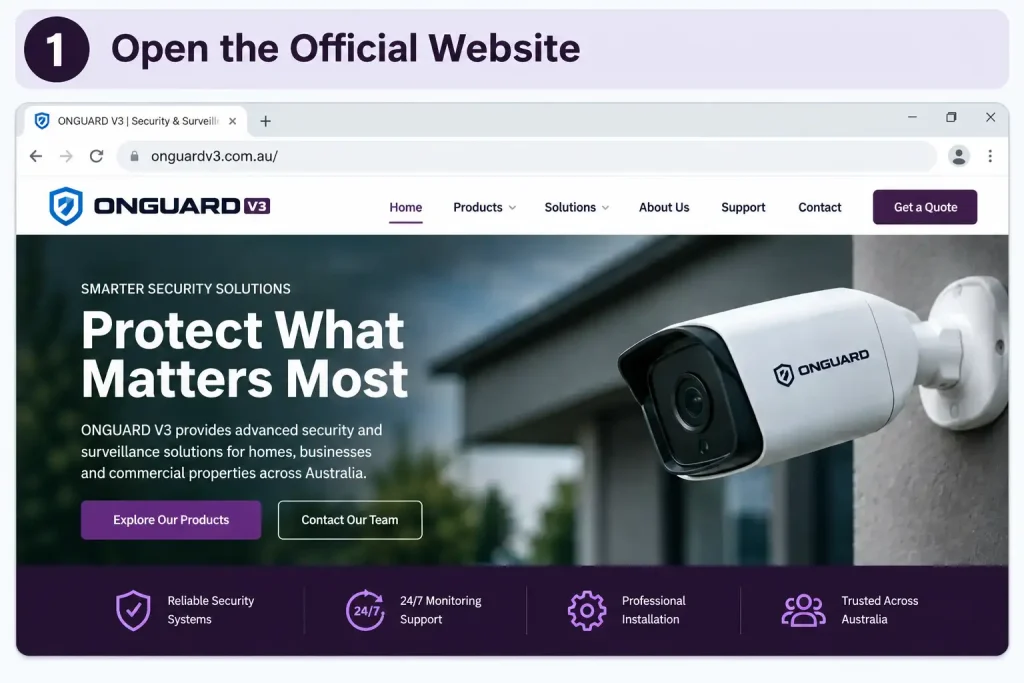
Open a current web browser and visit the official OnGuarf v3 portal:
The current website identifies itself as Education Portal | OnGuarf v3 NeXT GeN. The web application requires JavaScript to display its interactive interface.
Step 2: Locate Your School or Organisation

Depending on the access setup used by your institution, you may need to identify your school or organisation.
The information supplied by your school may include a suburb and school name. Check the details carefully before continuing, particularly if several institutions have similar names.
If your teacher has given you a direct institutional login method, follow the instructions supplied by the school.
Step 3: Enter Your Assigned Credentials
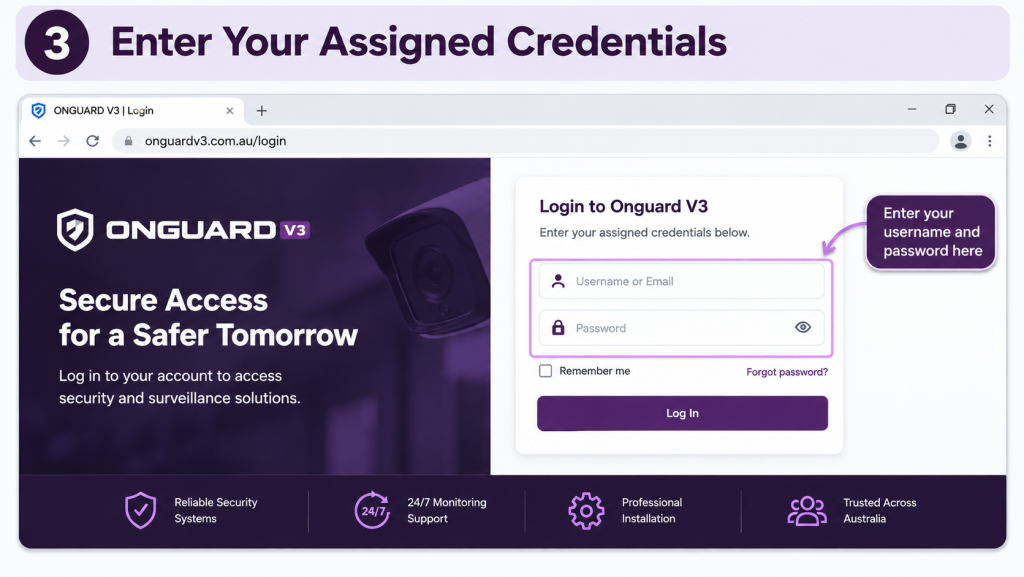
Enter the username and password provided by your school or supervising teacher.
Take care when typing your credentials. A small error in the username or password can prevent access even when the account itself is active.
If the credentials are rejected repeatedly, stop trying random passwords and contact your teacher or school administrator.
Step 4: Check Your Student Dashboard
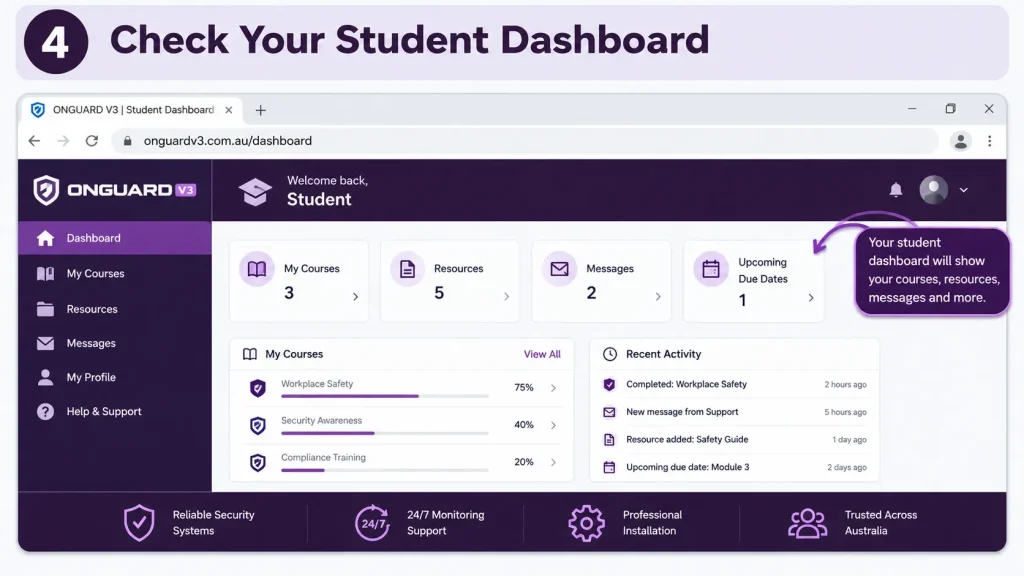
After successful authentication, you should be taken to the area associated with your student account.
Depending on the school’s configuration, the dashboard may show information such as:
- Training modules that have been assigned
- Assessments waiting to be completed
- Previously completed learning
- Assessment or competency status
- Training records
- Other school-specific information
The exact appearance and available functions may differ between institutions.
Fore More Information:
Visit Homepage.
What Happens After You Log In?
Logging in is only the beginning. The main purpose of the platform is to complete the safety learning and assessments assigned to you.
A typical learning sequence involves reviewing the relevant educational material, understanding the safety information presented, and then completing the associated assessment.
The training content can cover subjects such as identifying hazards, recognising appropriate PPE, understanding safety procedures, and learning why risk controls matter in a practical school environment.
For students, the important point is simple: read the assigned learning material carefully before attempting the assessment. Safety assessments are intended to confirm that you understand the required information, not simply that you can reach the next screen.
Fore More Information:
Visit Homepage.
OnGuard Training at a Glance
| Stage | What you do |
|---|---|
| Access | Open the official OnGuard portal |
| Sign in | Use your school-provided credentials |
| Review | Open the assigned safety module |
| Learn | Work through the training material |
| Assess | Complete the relevant online test |
| Check | Confirm that your result has been recorded |
| Continue | Follow your teacher’s instructions for the next module |
Your teacher may also provide additional classroom instruction or practical safety requirements. Online training should be treated as part of the school’s wider safety process rather than as a replacement for direct teacher supervision.
Understanding OnGuard Safety Modules
One of the central parts of OnGuarf v3 is its collection of online training modules. These modules are designed to introduce students to safety concepts relevant to their educational activities.
The content may include information about equipment, hazards, PPE, safe procedures, and risk management. Students should work through the material in the order provided by their school.
Interactive Learning
Online modules can use different forms of educational content to explain safety concepts. The aim is to help students recognise hazards and understand the precautions expected in a school workshop or practical learning environment.
Do not rush through the module simply to reach the test. Important information may appear throughout the lesson, and the assessment can depend on understanding that material.
Safety Assessments
After a learning module, students may be required to complete an online assessment.
The source information supplied for this guide indicates that assessments generally require a 100% pass rate or the threshold set by the institution. Your teacher’s instructions should take priority if your school’s requirements differ.
If you do not achieve the required result, review the relevant training material and speak with your instructor about the next attempt. Retake arrangements can depend on how your school has configured the platform.
Why Training Records Matter
A major benefit of an online training system is that learning progress can be recorded rather than relying entirely on paper records.
For students, this can make it easier to see which training activities remain outstanding. For teachers, digital records can provide a clearer view of student progress and completed competencies.
The platform may therefore support several stages of the school’s safety process:
Learning → Assessment → Result → Record → Further Training
This is particularly useful when several students are completing different modules at different times.
A Simple Student Checklist
Before leaving your OnGuarf session, check that you have:
- Reviewed the assigned module
- Read the safety information carefully
- Completed the required assessment
- Submitted the assessment properly
- Checked whether the result was recorded
- Followed any instructions from your teacher
- Confirmed what training comes next
A completed screen does not always mean that every requirement for practical work has been satisfied. Follow the instructions given by your teacher or school.
A Note About Practical Safety
OnGuarf is an online training platform, but practical safety cannot be reduced to passing an online test.
When students later participate in practical activities, they should follow the school’s safety rules and the instructions of the responsible teacher or supervisor. Do not attempt to operate unfamiliar equipment based only on information from an online module.
The purpose of safety training is to build understanding before practical work begins. Your teacher remains responsible for giving the instructions and supervision required in your particular learning environment.
OnGuard Training, Tests and Progress Tracking
Once you have accessed the platform, the next stage is to work through the safety training assigned by your school. The exact sequence can vary, but the basic process is designed to connect online learning with safety competency before practical activities.
What You Learn in OnGuard v3
The OnGuarf v3 training environment can cover a range of safety topics relevant to school workshops and practical subjects. Depending on your assigned course, you may encounter material related to machinery, tools, hazards, PPE and safe operating procedures.
Rather than treating each lesson as a box to tick, pay attention to the reasons behind each safety rule. Understanding why a particular procedure is required can help you apply the same thinking when you encounter a new piece of equipment.
Common Training Areas
| Training area | What students may learn |
|---|---|
| Machinery safety | Recognising hazards associated with workshop machinery |
| Tools | Safe use and handling of relevant tools |
| PPE | Identifying protective equipment required for different activities |
| Hazard awareness | Spotting conditions that could cause harm |
| Risk assessment | Considering hazards and appropriate controls |
| Operating procedures | Understanding safe methods of working |
| Competency testing | Demonstrating knowledge through online assessments |
The modules assigned to you should be treated as the authoritative training for your course. If you are unsure whether you have completed the correct lesson, check with your teacher.
How to Work Through an OnGuard Module
A good approach is to set aside enough time to read the training material without distractions. Safety information is often easier to understand when you consider how it applies to an actual workshop situation.
1. Open the Assigned Lesson
From your student area, locate the module assigned by your teacher. Check its name before beginning so that you do not accidentally work on an unrelated training activity.
2. Read the Safety Information
Work through the material carefully. Look for information about:
- Potential hazards
- Machine or tool components
- Required PPE
- Safe operating practices
- Things that should never be done
- Risk controls
- Emergency or supervisory requirements
Don’t assume that a familiar tool is automatically safe. School workshop equipment can have risks that need to be understood before use.
3. Pay Attention to Assessment Information
Some training material is followed by questions designed to check whether you understand the information presented.
If you are unsure about an answer, return to the relevant training section rather than guessing. Your teacher can also clarify information that you do not understand.
4. Complete the Assessment
When you are ready, proceed to the relevant test or competency assessment.
The supplied information indicates that a 100% result or the school’s required threshold may be necessary. Because requirements can be configured by the institution, follow the instructions provided by your teacher.
5. Confirm Your Result
After submitting the assessment, check that your result or completion status has been recorded.
This final check matters. If you simply close the browser before the submission process finishes, your progress may not appear as expected.
What If You Fail an OnGuard Test?
Not passing an assessment does not mean you should immediately keep guessing answers. The safer approach is to return to the training material and identify which areas you need to understand better.
Your school may control how retakes are handled. The information supplied for this guide indicates that students who fail should review the module and consult their instructor about unlocking another attempt.
A sensible retake process is:
Review → Identify the problem → Ask for clarification → Reattempt when authorised
The objective is to demonstrate genuine understanding of the safety material.
Safety reminder: Never treat an assessment as a memory game. If you do not understand a safety instruction, ask your teacher before moving on to practical work.
OnGuard Progress and Competency Records
Another important part of the platform is progress tracking. Instead of keeping track of every training activity yourself, the system can provide a digital record of completed and outstanding training.
For students, this can answer questions such as:
- Which module have I completed?
- What training is still pending?
- Have I passed the required assessment?
- Has my completion been recorded?
- What should I do next?
Teachers can use similar information to monitor student progress across their classes.
Digital Certification
The supplied platform information describes digital certification as a feature that can record completed competencies and provide printable certificates or digital records for teachers.
The exact certificate or record available to you depends on the configuration used by your educational institution.
If your teacher asks you to provide evidence of completion, check your OnGuarf record and follow the school’s instructions for submitting or displaying it.
Understanding Risk Assessment in OnGuard
Risk assessment is an important concept in practical education because it encourages students to think about hazards before beginning an activity.
A basic risk assessment involves considering what could go wrong, who could be affected, and what measures can reduce the risk.
For example, before working in a workshop, a student might need to consider the equipment being used, the surrounding environment, appropriate PPE and the safe procedure required for the task.
OnGuarf modules can help introduce these ideas in an online learning format.
Fore More Information:
Visit Homepage.
Hazard vs Risk
These two terms are sometimes confused.
A hazard is something that has the potential to cause harm.
A risk relates to the possibility of that harm occurring and the consequences associated with it.
Understanding this distinction helps students think beyond simply identifying equipment. The same piece of machinery can present different risks depending on how, where and by whom it is being used.
Personal Protective Equipment and Safe Working
PPE is another area commonly covered by workshop safety training. Depending on the task, protective equipment may form part of the required safety controls.
Students should not decide PPE requirements based solely on personal preference. Follow the instructions given in the relevant training module and by your teacher or supervisor.
Examples of safety considerations can include:
- Wearing the required protective equipment
- Following the correct operating procedure
- Keeping the work area suitable for the activity
- Understanding the hazards associated with equipment
- Following teacher or supervisor instructions
- Avoiding unsafe shortcuts
The correct safety approach is always the one established by your school and the responsible staff member for the activity.
OnGuard v3 Features at a Glance
The main functions described in the supplied information can be grouped into four areas:
Machine Safety Tests
Training can include competency assessments associated with equipment such as saws, lathes, drills, welding units and hand tools.
The exact equipment available depends on the programme and modules assigned to students.
Digital Records
Completed competencies can be recorded digitally, allowing schools and teachers to keep track of training progress.
Risk Assessment Learning
Students can learn how to identify hazards and consider appropriate risk controls before starting practical projects.
Progress Monitoring
Students and teachers can use progress information to identify training that has been completed and activities that remain outstanding.
Common OnGuard v3 Problems and Solutions
Even when your username and password are correct, you may occasionally experience a problem with the platform. Many issues can be narrowed down by checking whether the problem is related to your account, browser or completion process.
Forgotten Username or Password
If you cannot remember your login details, contact your Design and Technology or TAS teacher.
Because OnGuarf accounts are managed through the school or organisation, your teacher or local administrator is generally the appropriate person to help with account access.
Avoid repeatedly entering random credentials, as this may make the situation more difficult if the account becomes locked.
The Page Is Frozen
If the OnGuarf page stops responding, first check your internet connection and browser.
You can also try:
- Refreshing the page.
- Closing unnecessary browser tabs.
- Opening the portal again.
- Using an up-to-date version of your browser.
- Clearing browser cache if the problem continues.
The supplied information identifies Chrome, Safari and Edge as browsers that can be used for troubleshooting.
If the problem happens only on a school computer, tell your teacher or technical support staff rather than changing settings you are not authorised to modify.
Videos or Media Are Not Loading
Training modules may rely on online media. If a video or other content does not load correctly, check that your browser is updated and that your connection is working normally.
Browser settings or extensions can sometimes interfere with web content. The supplied information specifically recommends checking strict ad-blocking settings if media elements fail to load.
If you are using a managed school device, however, speak to the relevant staff member before changing security or browser policies.
What to Do When Your Certificate or Result Does Not Appear
One common issue is completing an assessment but not seeing the expected result or completion status.
First, check whether you actually submitted the assessment. Reaching the final question is not necessarily the same as submitting the test.
Make sure you have selected the final Submit or Finish action where required. After doing so, allow the page to process the result before closing the browser.
If the dashboard still does not show the expected status, try logging out and signing back in. This can refresh the information displayed by the system.
If your record remains incorrect, contact your teacher or school administrator so they can check the training record.
Quick Troubleshooting Table
| Problem | What to check first |
|---|---|
| Cannot log in | Username, password and school details |
| Forgot password | Contact your teacher or school administrator |
| Page freezes | Browser, connection and cache |
| Video will not play | Browser version and media settings |
| Test result missing | Confirm Submit/Finish was selected |
| Dashboard not updated | Log out and sign in again |
| Retake unavailable | Ask your instructor about retake access |
| Certificate missing | Confirm the assessment was properly submitted |
Before You Start Practical Work
Completing an OnGuarf module is one part of preparing for practical learning. Students should still follow all instructions given by their teacher or supervisor when they enter a workshop.
Before using equipment, make sure you understand:
- What equipment you are authorised to use
- Which safety procedure applies
- What PPE is required
- What hazards you need to recognise
- What instructions your teacher has given
- Whether you have completed the required competency training
If you are unsure, stop and ask. It is better to clarify a safety instruction before beginning practical work than to make an assumption.
OnGuard v3 for Teachers and Educational Staff
Teachers have an important role in the OnGuard process because student access, assigned training and competency requirements can be managed at the institutional level.
The platform’s progress-tracking functions can help staff identify students who have completed required training and those who still have outstanding assessments.
Digital records can also make it easier to maintain evidence of completed competencies.
However, the supplied information does not provide detailed administrative setup instructions for teachers, so administrators should rely on their institution’s own OnGuard procedures and support arrangements for account configuration or management questions.
Faqs
OnGuard v3 Login Checklist
If you are accessing the platform for the first time, use this checklist:
Account Access
- Confirm that your school uses OnGuard.
- Obtain your username and password from the appropriate teacher.
- Identify the correct school or organisation.
- Open the official OnGuard v3 website.
Training
- Find the module assigned to you.
- Read the learning material carefully.
- Pay attention to hazards and safety procedures.
- Understand the PPE requirements presented.
- Review risk assessment information where applicable.
Assessment
- Make sure you are ready before starting the test.
- Read each question carefully.
- Review the module if something is unclear.
- Submit the assessment correctly.
- Check that your result has been recorded.
After Completion
- Confirm the module is marked as completed.
- Check whether another training activity is pending.
- Follow your teacher’s instructions.
- Keep any required certificate or completion record.
Practical Tips for Students Using OnGuard
A few habits can make the training process easier.
Use a reliable connection. If your internet connection frequently drops, completing an interactive module may become frustrating.
Don’t rush the learning material. The purpose of the training is to understand safety information, not simply to reach the assessment.
Keep your login details private. Your account represents your own training progress, so don’t share your school credentials with other students.
Ask questions early. If a machine, procedure or safety rule is unclear, speak with your teacher before practical work begins.
Check your status before finishing. Make sure the assessment has actually been submitted and the expected completion information appears on your account.
OnGuard v3: Student vs Teacher Use
| Area | Students | Teachers / Staff |
|---|---|---|
| Account access | Use institution-provided credentials | Manage or support institutional access |
| Training | Complete assigned modules | Assign or monitor required training |
| Assessments | Complete competency tests | Review student progress |
| Progress | Check personal completion status | Monitor class or student records |
| Certification | View required completion evidence | Maintain training records |
| Support | Contact teacher for account issues | Provide local account assistance |
The exact tools available to staff depend on the organisation’s implementation of the platform.
Recommended OnGuard Page Structure for Students
When using the platform, it can help to think of your work in three stages:
Learn
Understand the safety information before attempting the assessment. Pay attention to hazards, PPE and safe procedures.
Prove
Complete the required assessment and meet the pass requirement set by your school.
Confirm
Check that your result has been recorded and follow your teacher’s instructions before moving into practical work.
This simple process helps prevent a common mistake: assuming that finishing a lesson automatically means the entire training requirement has been completed.
OnGuard v3 Troubleshooting: When to Contact Your School
Some problems can be solved through basic browser checks, while others require school-level support.
Contact your teacher or administrator when:
- Your credentials are not working.
- You need a password reset.
- A required retake is unavailable.
- Your completion record is incorrect.
- A required certificate is missing.
- Your assigned module is not visible.
- A school-specific instruction is unclear.
For technical problems on a managed school device, it is also sensible to involve the school’s technical support team rather than changing security settings yourself.
Final Thoughts
The OnGuard v3 portal is designed to bring safety learning, assessment and training records together in an online environment used by educational institutions. Students should approach each module as preparation for responsible practical learning rather than simply as another online test.
If you are ready to begin, start with the official portal, use the credentials supplied by your school, complete the training assigned to you, and verify that your assessment result has been recorded.
Most importantly, online completion does not replace practical supervision. Always follow your teacher’s instructions and the safety requirements of your school before using workshop machinery, tools or equipment.
Read More:
QLeave: Registration, Eligibility, Claims and Payments Guide 2026
OneSchool Global Login: Student, Parent and Canvas Access Guide
CSU Student Portal: Complete Login and Student Guide 2026
Goodstart Intranet Login 2026: Employee Portal Guide
PrepL Queensland: Online Learner Licence Course & Login Guide 2026