For tax and BAS professionals, the ATO Tax Agent Portal is an essential digital channel for handling client-related work with the Australian Taxation Office (ATO). Although people still commonly use the term “Tax Agent Portal”, the current ATO platform is called Online services for agents.
The service provides authorised practitioners and staff with access to a range of client and practice functions. Depending on your role and permissions, these can include managing activity statements, reviewing client accounts, accessing tax information, handling payment arrangements, sending secure communications and working with eligible files.
ATO Online Services for Agents at a Glance
Online services for agents is the ATO’s secure online environment for registered tax and BAS agents and authorised members of their practices. Access is based on a combination of personal identity verification, business authorisation and user permissions.
The modern sign-in process is built around three key services:
| Access component | What it does |
|---|---|
| myID | Verifies your personal digital identity |
| RAM | Links your identity with the business or practice you represent |
| Access Manager | Determines which services and functions you can use |
Understanding the difference between these services can make login problems much easier to diagnose. Having a working myID does not automatically provide unrestricted access to client information.
Who Is Eligible to Use the ATO Tax Agent Portal?
Online services for agents is primarily intended for professionals and authorised staff who need to perform tax-related work for clients.
This includes:
- Registered tax agents
- Registered BAS agents
- Employees or authorised staff of tax and BAS practices
- Other users who have been given appropriate authority to act for the practice
The functions available after signing in can differ between users. Your role, Access Manager permissions and the services applicable to a particular client can all affect what appears in your account.
If you need to check whether a practitioner is registered, the Tax Practitioners Board (TPB) public register provides a way to search registered tax and BAS practitioners.
What Can You Do Through Online Services for Agents?
The portal brings many routine ATO tasks into one online environment. The exact features available depend on your role and permissions, but common areas include client accounts, activity statements, payments and secure communication.
| Service area | Examples of available tasks |
|---|---|
| Activity statements | Prepare, lodge, revise and view activity statements |
| Income tax | Access pre-fill information and lodge relevant returns or information |
| Client details | View and update eligible client registration information |
| Accounts | Review transactions, account details and payment arrangements |
| Payments | Check payment information, options and arrangements |
| Secure communication | Communicate with the ATO through secure practice mail |
| File services | Test, lodge or download certain files |
| Superannuation | Access relevant client superannuation information |
The ATO’s online services are designed to provide access to current client information while bringing several professional functions together in one secure system.
What Should You Have Ready Before Logging In?
A successful login depends on more than having an ATO account. Before attempting to access Online services for agents, make sure the identity and authorisation arrangements for your practice are in place.
1. Check Your Practitioner Registration
If your work requires tax or BAS agent registration, your registration with the Tax Practitioners Board should be appropriate for the services you provide.
Tax agents and BAS agents have different areas of permitted practice, so maintaining the correct registration is an important part of working with client tax matters.
2. Create Your Personal myID
myID is the Australian Government’s Digital ID application used to establish your personal identity when accessing participating government services.
Your myID belongs to you personally. It should not be shared with another employee or practitioner.
For relevant government online services, your identity may need to meet the required Standard or Strong identity strength. The verification process depends on the identity documents and options available to you.
A useful rule for practices is simple: one person, one myID.
3. Connect Your Practice Through RAM
After setting up your personal Digital ID, you need the appropriate business relationship.
Relationship Authorisation Manager (RAM) is used to establish the connection between your myID and the business or practice you are authorised to represent.
This distinction is important. Creating a myID proves who you are, but it does not automatically give you permission to access a practice’s ATO services or client records.
4. Confirm Your Access Manager Permissions
The final part of the access process is checking what you are actually authorised to do.
Access Manager allows appropriate administrators to control permissions for users. As a result, two people working for the same practice may see different functions after signing in.
If a feature is missing, don’t immediately assume the portal is malfunctioning. The issue may be related to your assigned permissions.
How to Log In to the ATO Tax Agent Portal
Once your Digital ID, RAM relationship and permissions are ready, accessing Online services for agents is relatively straightforward.
Step 1: Start With the Official ATO Service

Use the official ATO website to reach Online services for agents.
Avoid entering your details into unfamiliar websites that claim to provide an ATO agent login. Starting from the official ATO service helps reduce the risk of using an incorrect or misleading login page.
Step 2: Select the Agent Login Option

Choose the option to access Online services for agents.
The current authentication process uses Australia’s Digital ID framework rather than relying on the older style of portal credentials.
Step 3: Authenticate With myID

Enter the email address associated with your myID when requested.
Your smart device and myID app are then used to verify your identity. Follow the prompts shown on screen and approve the authentication request as instructed.
Depending on the authentication process presented to you, you may need to confirm a code or approve the sign-in through your app.
Step 4: Choose the Correct Business Relationship
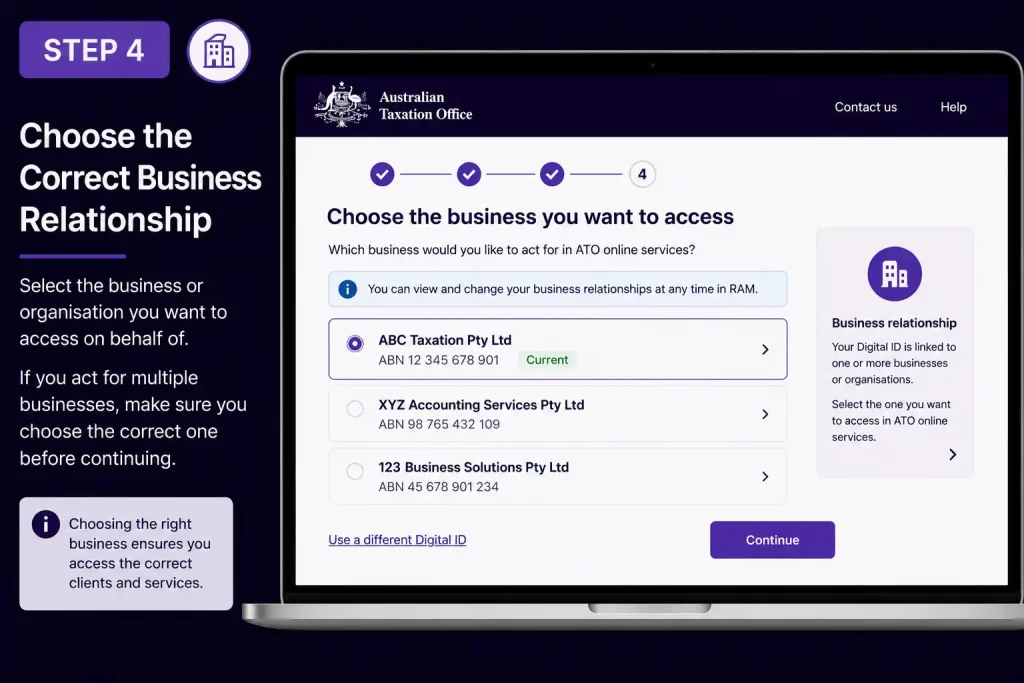
If your myID is connected with more than one business or practice, make sure you select the correct relationship.
This is particularly relevant for professionals who work with multiple practices or business structures. Choosing the wrong relationship can affect which client records and services are displayed.
Step 5: Open the Agent Home Page

After your identity and authorisation have been successfully confirmed, you can reach the Agent Home Page.
This is the central starting point for many activities within Online services for agents. The available options depend on your role and permissions, and the ATO allows users to customise the home page with relevant features and shortcuts.
Offical Website
How myID, RAM and Access Manager Work Together
One of the easiest ways to understand the modern ATO Tax Agent Portal is to think of access as three separate layers.
myID answers: “Who are you?”
RAM answers: “Which business or practice are you authorised to represent?”
Access Manager answers: “What are you allowed to do?”
That separation provides a useful troubleshooting framework. If you can authenticate successfully but cannot access a particular client function, the problem may be with business authorisation or permissions rather than your Digital ID.
Quick Login Check
Before contacting support about an unsuccessful login, review these points:
- Your relevant practitioner registration is current.
- Your personal myID has been created.
- Your myID has the required identity strength.
- Your myID is connected to the correct business through RAM.
- Your practice administrator has assigned the necessary permissions.
- You have selected the correct business relationship during login.
If all six checks are satisfied and access still fails, you have a clearer starting point for troubleshooting.
What You See After Signing In
The Agent Home Page acts as the main workspace once authentication is complete.
The ATO’s guidance identifies features such as Home, Search, Practice and notifications, although the exact options available to an individual user can depend on their permissions and role.
From the home page, practitioners can move between practice-related activities and individual client work without having to treat every ATO task as a separate sign-in process.
For staff in larger practices, this permission-based structure is particularly useful because access can be tailored to the responsibilities of different team members.
ATO Tax Agent Portal: Key Points to Remember
The name ATO Tax Agent Portal is still widely used when people search for the service, but the current ATO terminology is Online services for agents.
The most important part of the modern access process is understanding that authentication and authorisation are separate:
- myID establishes your personal identity.
- RAM establishes your relationship with the relevant business or practice.
- Access Manager determines your available permissions.
- Online services for agents provides the ATO environment where authorised professional work is carried out.
Working With Client Records
Client management sits at the centre of many tasks performed through Online services for agents. Once you have the appropriate authority, you can locate clients connected with your practice and access the services available for their records.
A typical workflow can be thought of as:
Practice → Client list → Client record → Available services → Lodgments or accounts
The information and actions available at each stage depend on the permissions assigned to your user account.
How to Find a Client
For practices managing many taxpayers or businesses, the search function is generally more practical than scrolling through a long client list.
Depending on the information available, you may be able to identify a client using:
- Tax File Number (TFN)
- Australian Business Number (ABN)
- Client or entity name
- Other identifying details available within the service
Once the correct record has been selected, you can access the client services permitted for your account.
Keep in mind: having access to the practice does not necessarily give every employee the same client permissions. A restricted staff account may have considerably fewer options than a principal authority or administrator.
For More Information:
Visit Homepage
Adding a Client to the Practice
Adding a client is more than entering their details into your practice records. The appropriate authorisation or nomination must also be in place before the practice can act for the client through the relevant ATO services.
A general process may involve:
- Open the My practice section.
- Go to the Client list.
- Select the option to add or manage a client.
- Provide the requested identifying information, such as a TFN or ABN.
- Choose the relevant authorisation or service relationship.
- Check the information entered.
- Complete the required nomination or authorisation process.
The exact process can vary depending on the client and service involved, so practitioners should follow the current ATO requirements rather than relying on instructions from an older version of the portal.
Why Client Authorisation Matters
Before attempting to establish a client relationship, confirm that the required agent nomination has been completed through the applicable ATO process.
This is particularly important when a practice is taking on a new client. Having a person’s details in your internal records is not, by itself, evidence that your practice has the necessary authority to access all of that person’s ATO information.
Practice tip: Keep client authorisations organised and review them when staff responsibilities change. Access to a practice and authority to access a particular client are separate considerations.
Removing or Transferring Client Relationships
Client administration does not stop when a client leaves the practice. Changes may also be necessary when clients move between offices, teams or practice locations.
Where your permissions allow it, Online services for agents can be used to maintain the appropriate relationship between the practice and its clients. Before removing a client, verify that the change is intended and that any required professional or administrative steps have been completed.
For transfers, use the relevant client-transfer process where available rather than attempting to rebuild the relationship manually. This can be especially important for larger firms where several teams or offices share responsibility for client records.
Tax Returns, BAS and Other Lodgment Work
After selecting a client, one of the main areas of Online services for agents is the handling of tax obligations and lodgments.
Registered tax and BAS agents can use the service for relevant transactions, including preparing and lodging activity statements and, where applicable, revising them. The functions available to an individual practitioner depend on their authorisation and Access Manager permissions.
Income Tax Return Tasks
For eligible clients, the online environment can support tax-return work such as reviewing available information, checking lodgment details and submitting relevant transactions.
One useful source of information is pre-fill data, which may contain information already reported to the ATO by employers, financial institutions, government agencies and other organisations.
However, pre-fill should be treated as a starting point for review, not as a guarantee that a return contains everything that needs to be reported.
A Practical Pre-Lodgment Review
Before submitting an income tax return, a practitioner should consider whether:
- The correct client record has been selected.
- Available pre-fill information has been reviewed.
- Income and deduction details have been checked.
- Any missing or unusual information has been investigated.
- Necessary adjustments have been made.
- The completed return has been reviewed.
- Declaration requirements have been addressed.
- The return is being lodged through the appropriate service.
A client may have information that has not yet appeared in pre-fill data. Checking the client’s own records remains an important part of preparing an accurate return.
BAS and Activity Statements
Business Activity Statements (BAS) are another major part of the tax-agent workflow. Depending on the business and reporting circumstances, a BAS can include information connected with GST, PAYG withholding and other relevant obligations.
The figures should be checked against the practice’s supporting records before the statement is submitted.
A Practical BAS Lodgment Process
1. Open the client record
Select the business or taxpayer whose activity statement requires attention.
2. Go to Activity statements
Open the area used for activity statements, or the equivalent option displayed in the current version of the service.
3. Select the relevant reporting period
Choose the outstanding BAS or activity statement that needs to be prepared.
4. Check the displayed information
Review any information already populated and compare it with the records held by the practice.
5. Complete outstanding fields
Enter the required figures and make legitimate adjustments where necessary.
6. Review before submission
Check the reporting period, client details and figures carefully.
7. Lodge the statement
Complete the required declaration and submit the BAS.
The ATO’s online services support BAS agents in preparing, lodging and revising activity statements and other reports.
Important: Online services can make the lodgment process more efficient, but they do not replace professional review. Always check the underlying records before submitting a BAS.
Correcting an Activity Statement
If an activity statement contains an error, an authorised BAS agent may be able to revise it through the applicable ATO online service.
Before making a revision, identify precisely what was incorrect and determine what needs to be changed. Supporting documentation should also be retained as appropriate for the practice’s records.
The ATO confirms that BAS agents can prepare, lodge and revise activity statements and other reports through its secure online services.
Understanding ATO Pre-Fill Data
Pre-fill information can save time by reducing manual entry, but it should never be treated as a complete substitute for checking a client’s records.
Information available may include reported items such as:
- PAYG information
- Interest
- Dividends
- Government payments
- Other information reported to the ATO
The information can change as additional data reaches the ATO, and some items may not be represented in the available pre-fill information.
Why Agents Should Check Pre-Fill Carefully
Imagine a client’s employment income appears in pre-fill, but another relevant income source has not yet been reported. If the return is prepared solely from the information already displayed, that additional income could be missed.
For this reason, pre-fill should support the tax preparation process rather than replace professional judgement and client record checks.
Single Touch Payroll Information for Practitioners
The ATO’s digital environment can also provide authorised practitioners with information relevant to Single Touch Payroll (STP).
This may assist when reviewing an employer’s payroll reporting position or checking information associated with payroll obligations. Even when STP information is available, it should be considered alongside the employer’s own payroll records.
If something appears inconsistent, investigate the underlying payroll information before deciding what corrective action is appropriate.
Superannuation Information and Client Services
Depending on the client’s circumstances and the permissions assigned to the practitioner, ATO digital services may also provide access to information associated with superannuation obligations.
For example, an authorised practitioner may need to consider employer-related obligations or other superannuation information while managing a client’s broader tax affairs.
The exact options available are not identical for every user. They depend on the particular service, the client’s circumstances and the permissions attached to the practitioner’s account.
Main ATO Agent Services at a Glance
| Service area | Typical use |
|---|---|
| Income tax | Review available information, prepare relevant returns and manage lodgment matters |
| Activity statements | Prepare, lodge and revise BAS and other applicable activity statements |
| Pre-fill data | Review information already reported to the ATO |
| Single Touch Payroll | Check available employer payroll-reporting information |
| Superannuation | Access relevant information where authorised |
| Client records | Find and manage authorised client relationships |
This table is a practical overview rather than a list of guaranteed features for every account. The ATO’s permission structure means available functions can vary between users.
Why Your ATO Portal Menu May Be Different
One common source of confusion is expecting every employee in a practice to see exactly the same menu.
That is not how the permission system is designed.
Access Manager allows practices to control what authorised users can access within Online services for agents. Depending on the responsibilities assigned to a user, one person may have viewing access while another can prepare, lodge or revise transactions.
The ATO’s Access Manager documentation identifies transaction levels such as:
- View
- Prepare
- Lodge
- Revise
The precise permissions available depend on the practice’s arrangements and the particular service.
Example of Different User Access
| User type | Example of possible access |
|---|---|
| Principal authority | Broad practice and administrative authority |
| Practice administrator | User and permission management |
| Tax professional | Client and tax functions based on authorisation |
| BAS agent | Relevant BAS and activity-statement functions |
| Restricted staff member | Only assigned clients and functions |
These examples illustrate how access can differ. They should not be interpreted as a fixed permission structure for every practice.
What to Check When an ATO Function Is Missing
Successfully signing in does not necessarily mean every feature will be available. If a menu option or client function is missing, check the access arrangements before assuming there is a technical problem.
1. Review Access Manager
Your permissions determine many of the functions available to you. Ask the relevant practice administrator to confirm that the required access has been assigned.
2. Check the RAM Relationship
Make sure your myID is connected through RAM to the correct business or practice.
A wrong or incomplete business relationship can affect what appears after authentication.
3. Confirm the Client Relationship
Check that the client is correctly connected to the practice and that you have permission to access the relevant client information.
4. Consider the Service and Client Type
Not every service is available to every practitioner. Some functions depend on the practitioner’s registration, the client and the specific circumstances of the transaction.
5. Refresh Your Session
If the service behaves unexpectedly, sign out and start a new session from the official ATO website. Avoid entering Digital ID credentials on websites that are not part of the official government service.
Payment Plans and Outstanding ATO Liabilities
Clients may occasionally have an ATO debt that they cannot pay immediately. In these situations, practitioners may need to review the client’s account and discuss available payment options.
Where the relevant function is available, authorised agents can access payment-related information and options through Online services for agents.
Before discussing an arrangement with a client, review:
- The current outstanding amount
- Relevant payment due dates
- Recent payments
- Existing arrangements
- Recent account transactions
- Available payment options
The options shown can vary according to the client’s circumstances and your access permissions.
Checking Payment Details
The ATO Tax Agent Portal may also provide payment information for eligible client accounts.
Depending on the circumstances, this can include:
- BPAY information
- Electronic payment details
- Payment reference information
- Payment slips
- Other available payment instructions
Always rely on payment details displayed through the official ATO environment. If information supplied by a client or another source differs from the ATO record, verify it before making a payment.
Managing Staff Access in a Tax Practice
Tax practices often have several employees who need access to ATO services. However, giving every staff member unrestricted access is generally unnecessary.
The ATO’s access structure separates identity, business authorisation and user permissions.
What Is RAM?
Relationship Authorisation Manager (RAM) establishes that an individual is authorised to act on behalf of a business or entity.
For a tax practice, this business relationship is an important part of gaining access to relevant government online services.
RAM connects a person’s Digital ID with the business they are authorised to represent.
What Does Access Manager Do?
While RAM establishes the business relationship, Access Manager helps determine what a particular user can actually do.
For example, a person may be correctly connected to a practice but still be unable to lodge or revise a transaction because the required permission has not been assigned.
The ATO uses Access Manager to manage user access and permissions for applicable online services.
Setting the Right Permissions for Staff
A good practice-management approach is to give employees the access required for their responsibilities without providing unnecessary permissions.
| Staff requirement | Suitable access approach |
|---|---|
| View client information | Provide relevant viewing access |
| Prepare transactions | Allow preparation functions where required |
| Lodge transactions | Provide lodgment rights only when necessary |
| Work with selected client groups | Restrict access where supported |
| Manage users | Reserve administrative permissions for authorised staff |
The ATO’s Access Manager documentation identifies permission levels such as View, Prepare, Lodge and Revise for applicable services.
This permission-based approach can also make it easier for a practice to understand who is responsible for different types of work.
ATO Tax Agent Portal Login Problems and Solutions
A failed login does not necessarily mean the ATO Tax Agent Portal is unavailable. Problems can occur at different points in the authentication and authorisation process.
The most effective approach is to identify which part of the access chain is causing the problem.
Problem 1: myID Cannot Verify Your Identity
If myID cannot complete authentication, check your Digital ID before investigating the ATO portal itself.
Make sure:
- You are using your own myID.
- Your identity strength meets the relevant requirement.
- Your myID app is working correctly.
- You are following the verification instructions shown during sign-in.
The official myID service provides current instructions for setting up and strengthening your Digital ID.
Problem 2: You Can Log In but Cannot See Your Practice
If authentication succeeds but your practice does not appear, the issue may involve your business authorisation.
Check that your myID is correctly connected to the relevant business through RAM.
If you work with multiple practices, also confirm that you selected the correct business relationship during sign-in.
Problem 3: A Client Does Not Appear
If you cannot find a particular client, several explanations are possible.
Check whether:
- The client is correctly connected to the practice.
- The client relationship has changed.
- Your account has the required client permissions.
- You entered the correct search information.
- The service is available for your role.
A missing client in your search does not automatically mean that the client’s ATO record has disappeared.
Problem 4: A Portal Feature Is Missing
If you can sign in but cannot see a particular menu option, check your Access Manager permissions.
Your practice administrator can review whether you have the permission required for that particular function. The ATO confirms that user permissions influence which functions are available through Online services for agents.
Problem 5: The Portal Is Not Working Correctly
Sometimes authentication succeeds but the website does not load or behave normally.
Try this basic troubleshooting sequence:
- Sign out of the ATO service.
- Close the browser.
- Reopen the browser.
- Return through the official ATO website.
- Sign in again.
- Check whether the problem has been resolved.
If the issue continues, use the ATO’s official support resources instead of relying on third-party websites offering account assistance.
ATO Tax Agent Portal Security Best Practices
The portal can provide access to confidential client information, so security should be treated as part of everyday practice management.
Keep Your myID Personal
Your myID belongs to you. Never give your Digital ID credentials, authentication codes or app access to another person.
If another employee needs access, they should use their own authorised Digital ID and practice permissions.
Always Start From the Official ATO Website
When accessing Online services for agents, start from the official ATO website rather than an unfamiliar login page.
Be cautious with:
- Search advertisements
- Unexpected emails
- Unfamiliar websites
- Messages containing login links
- Requests for Digital ID information
Review Staff Permissions Regularly
When an employee changes responsibilities or leaves a practice, review their access.
Permissions that are no longer required should be removed or adjusted promptly.
Confirm the Correct Client Before Acting
Before lodging a return, revising an activity statement or making an account-related change, double-check that you have selected the intended client.
This simple step can prevent avoidable errors when working with multiple client records.
Investigate Unusual Activity
If you notice activity that does not match normal practice operations, investigate it promptly and use official ATO support channels when necessary.
ATO Tax Agent Portal vs Other ATO Online Services
Several Australian Government digital services work together, but they are not the same thing.
| Service | Main purpose |
|---|---|
| Online services for agents | Professional tax and BAS work involving authorised client matters |
| myID | Personal Digital ID used to verify identity |
| RAM | Establishes business authorisation relationships |
| Access Manager | Controls user permissions for applicable ATO services |
| ATO Online services for business | Allows businesses to manage their own tax and super obligations |
| myGov | Allows individuals to access linked government services |
The distinction is important. myID is an identity service, while Online services for agents is the professional ATO environment used by authorised practitioners for client-related work.
FAQs
Final Thoughts
The ATO Tax Agent Portal, officially called Online services for agents, is an important digital workspace for authorised tax and BAS professionals. Its usefulness extends beyond tax lodgments to include client accounts, payment information, practice administration and permission management.
The key is understanding how myID, RAM, client relationships and Access Manager work together. Once these components are correctly configured, practitioners can use the available ATO services more efficiently while maintaining appropriate control over sensitive client information.
Read More:
Student Portal 2026 Unlocked: Login, Features & Student Services
Australian Passport 2026: Complete Application, Renewal & Fees Guide
ATO Portal 2026: Complete Login, Access & Online Services Guide
Storypark Login 2026: Complete Guide to Secure Account Access
Passport Application 2026: From Online Form to Final Lodgement
ATO Business Portal 2026: Complete Login & Online Services Guide
Minecraft Education 2026: The Complete Guide to Creative & Interactive Learning