The NSW Student Portal forms part of the NSW Department of Education’s digital environment for students. It provides a central route to online tools used for schoolwork, communication and other education-related activities.
What appears after signing in depends on the student’s school and the services it uses. Available resources may include Google Classroom, Microsoft 365, Microsoft Teams, OneDrive, school email, library services and links to other learning platforms.
Not every student will see exactly the same dashboard. Schools can use different learning management systems and digital resources, so the services attached to an account may vary.
Who Gets Access to the NSW Student Portal?
The portal is primarily intended for students enrolled in NSW public schools. International and overseas students may also receive Department-related credentials through their school or applicable international education arrangements.
| Student account | How access is provided | Main login details |
|---|---|---|
| NSW public school student | Credentials issued following school enrolment | Department User ID |
| International or foreign student | Provided through the relevant school or DE International arrangements | User ID and supplied credentials |
A student account isn’t generally created by completing an open public registration form. If you’ve recently enrolled and haven’t received your login information, contact your school for assistance.
Get Your Login Details Ready First
Before attempting to access the portal, make sure you know the Department User ID issued to you and have the current password.
If you’re using a school library computer, family computer or another shared device, check whether another person is still signed in. Sign them out before entering your own credentials.
Visit Homepage
You may need:
- Your NSW Department of Education User ID
- Your current or temporary password
- A supported, up-to-date browser
- Your school’s contact details if you need account assistance
A User ID may resemble a format such as firstname.lastname1, but the exact identifier depends on the account issued by the Department or school. Don’t try to create your own username if you’re unsure.
Activating a New Student Account
Students receiving Department credentials for the first time may have to complete an initial activation process. The school normally supplies the information needed to begin.
Offical Website
Start with Your School
If you haven’t received your User ID or temporary password, speak with your school’s administration, teacher or another authorised staff member.
Keep the credentials private. Your password shouldn’t be shared with classmates or anyone else.
Use the Official NSW Education Website
Access the NSW Department of Education website and look for the relevant Log in option. If your school has given you a specific login address, follow that official route instead.
Enter the Credentials Provided to You
Use the User ID and temporary password supplied by your school. Check each character carefully before submitting the details.
If you don’t know which password is current, avoid repeatedly entering guesses. Ask the school for help instead.
Complete Security Setup
During the first-time setup, you may be asked to establish security questions and answers.
Choose information you can remember but that other students are unlikely to guess. These details may be useful if you later need to recover access to your account.
Review the Acceptable Use Requirements
Account activation may also involve accepting the Department’s Student Acceptable Use Agreement.
Read the agreement carefully before accepting it. It sets out expectations for appropriate and responsible use of Department technology and online services.
Signing In to the NSW Student Portal
Once your account is active, accessing your student services normally involves a few basic steps.
1. Open the NSW Education Login Area
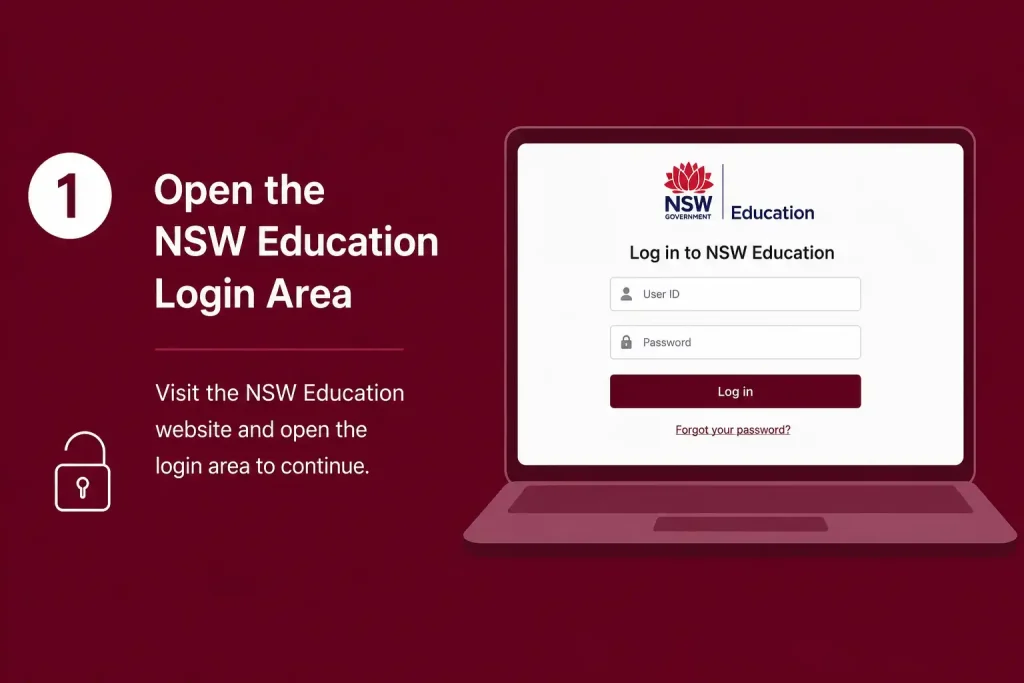
Go to the official NSW Department of Education website and select the appropriate Log in option.
If your school has supplied a direct
service nsw address, that official link can be used instead.
2. Choose the Relevant Student Service
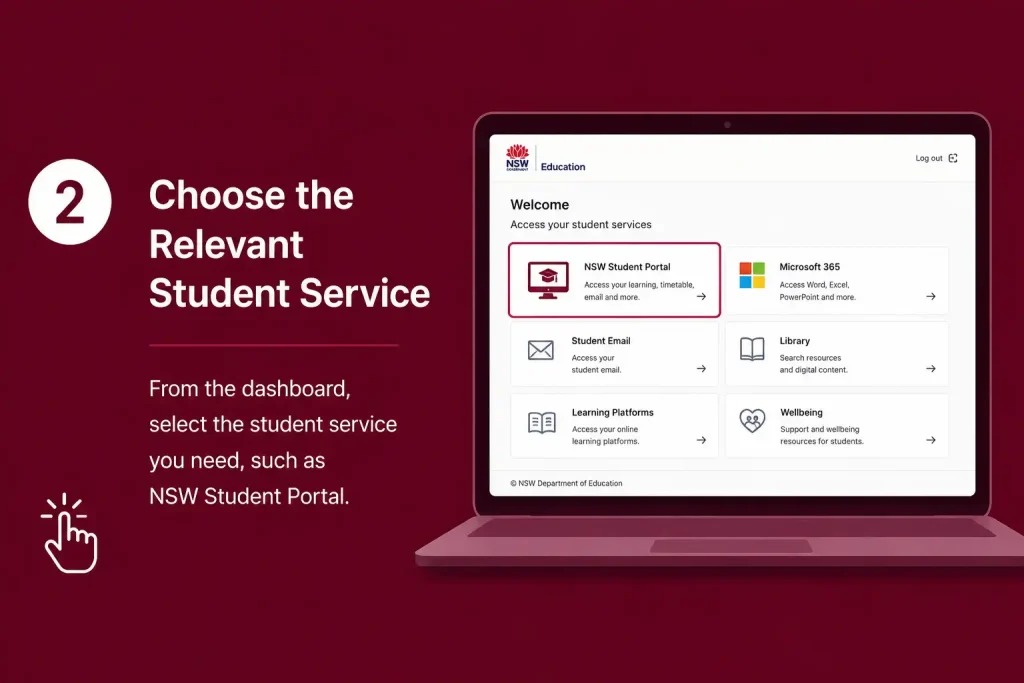
Select the student service that matches your account.
This matters because NSW schools can use several digital platforms. Make sure you’re using the service associated with the credentials provided to you.
3. Enter Your Department User ID
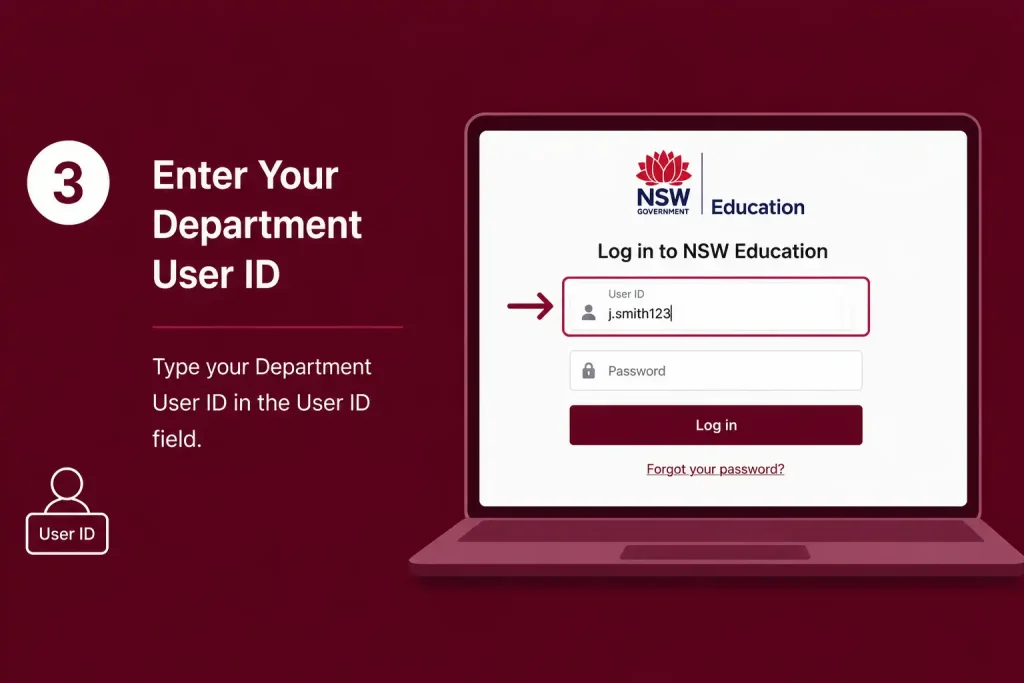
Type your User ID into the username field.
Check the spelling, punctuation and any numbers before continuing. Even a minor typing mistake can cause a valid account to appear as though it isn’t working.
4. Enter the Password
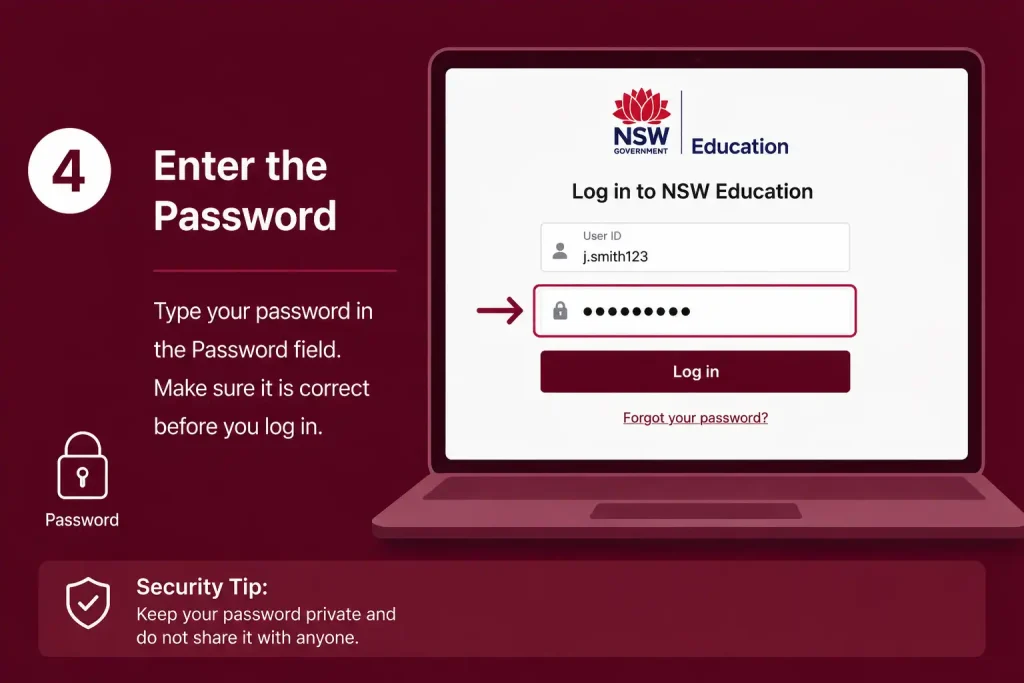
Enter your current password exactly as provided or set during activation.
Remember that passwords are case-sensitive. If the password doesn’t work, check whether Caps Lock is enabled before trying again.
5. Sign In
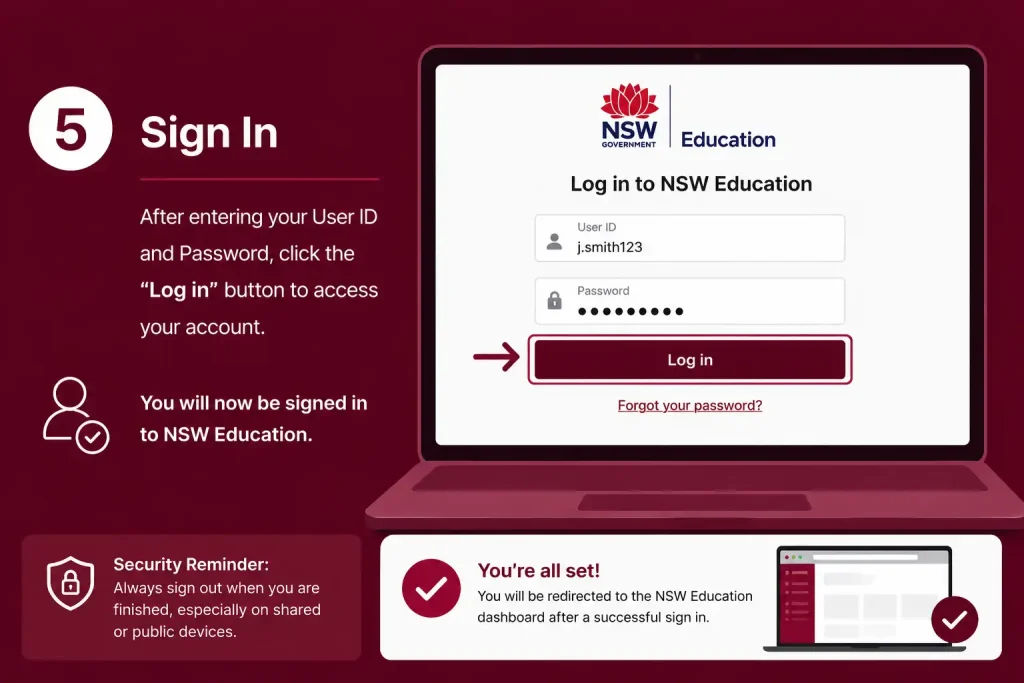
Select Sign in to submit your details.
When authentication succeeds, you’ll be taken to the relevant student environment. The applications, resources and links available there depend on your school’s configuration.
What Services Are Available After Login?
The NSW service nsw can provide access to a wider collection of digital education services rather than acting as just a single login page.
Depending on your school, you may find:
- Google Classroom for coursework, assignments and class activities
- Microsoft Teams for communication and collaboration
- Microsoft 365 applications, including Word
- OneDrive for storing and accessing files online
- Department email for official communication
- Oliver Library and other digital library resources
- School announcements and useful links
- Timetables and learning materials
- Learning platforms such as Canvas or Moodle where the school uses them
- Account and security options
The exact list can differ between schools, so don’t assume that another student’s portal will contain the same applications as yours.
Student Email and School Communication
Where a Department email account is available, students can use it for official school communication.
It’s worth checking the account regularly because teachers and schools may send notices, learning information and other important updates digitally.
Online Learning Tools
Digital learning platforms can support assignments, online lessons and collaboration with classmates. A school might, for example, use Google Classroom for coursework while relying on Microsoft Teams for communication.
Library and Research Resources
Students may also have access to digital library services such as Oliver. These resources can make it easier to search for books and other educational material, although the catalogue and available services depend on the school.
Forgot Your NSW Student Portal Password?
If you’ve forgotten your password, you may be able to recover access using the security information created when the account was activated.
When self-service recovery isn’t available, or you can’t provide the required security answers, your school can assist with resetting the account.
Reset the Password Online
If the password recovery service is available for your account, use this process:
- Open the official student login page.
Visit the NSW Department of Education website and select the appropriate student login service. - Find the password recovery option.
Look for options such as Forgot your password? or Reset Password. - Enter your User ID.
Use the Department-issued User ID connected to your student account. - Verify your identity.
Answer the security questions that were established during account activation. - Choose a new password.
Follow the password rules displayed on the service. Select something memorable that other people are unlikely to guess. - Save the change and sign in again.
Once the reset has been completed, return to the login screen and use your new password.
Security reminder: Never give your password or security answers to friends or classmates. These details can be used to access your student account.
Can’t Complete the Password Reset?
Self-service recovery may not work if you’ve forgotten both your password and the security information needed to verify the account.
In that situation, contact someone at your school who can help with account access. This may include:
- Your classroom teacher
- School librarian
- School IT support
- An authorised school administrator
Tell them that you’re unable to access your NSW service nsw account and need help recovering the password.
A school administrator may be able to arrange a temporary reset. Once your access has been restored, follow the school’s instructions for creating or setting a new password.
Don’t Register Another Account
Creating a second student account usually isn’t the answer to an existing login problem. Standard NSW public school student accounts are provided through the enrolment process.
If your existing credentials aren’t working, ask the school to confirm which account and login details you should be using.
What You’ll Find in the NSW Student Dashboard
After a successful NSW service nsw login, students may be able to reach several school-related digital services from their student environment.
The exact dashboard depends on the school and the technology platforms it uses. This means two students may have different applications, links or resources available after signing in.
| Digital area | Examples | Typical use |
|---|---|---|
| Learning tools | Google Classroom, Microsoft Teams, Microsoft 365 | Lessons, assignments and collaboration |
| Cloud storage | OneDrive | Saving and accessing school files |
| NSW Department of Education email | School communication | |
| Library | Oliver and digital resources | Books and research material |
| School resources | Timetables, announcements and learning platforms | Daily school information |
| Account settings | Password and security options | Managing account access |
Learning and Collaboration Tools
Online learning applications can be an important part of the student environment.
Depending on the school’s setup, students may use Google Classroom or Microsoft Teams to view class information, receive assignments, communicate with teachers and work with classmates.
Microsoft 365 can also support everyday schoolwork. Applications such as Word and OneDrive may be available for creating documents and storing files online.
NSW Student Email
Where a Department email account is provided, it can serve as an official communication channel.
Check the inbox regularly rather than waiting for a specific message. Teachers and schools may use email to distribute notices, learning information and other school-related updates.
If your school provides an email address using the @education.nsw.gov.au domain, access it through the official service supplied by the Department or your school.
Digital Library Access
Some students may also have access to their school’s digital library resources.
Oliver, where available, can help students search library catalogues and locate books or other resources. This can be useful for school assignments, research and general learning.
NSW Student Portal Login Problems and Solutions
Most access difficulties can be narrowed down to a few common causes. Before contacting technical support, check the basics first.
Wrong User ID or Password
If your credentials aren’t being accepted, check the following:
- Make sure the User ID is spelled correctly.
- Check the capitalisation of your password.
- Confirm that you’re not accidentally using someone else’s credentials.
- Think about whether your password was recently changed.
- Make sure you’re using the account issued by your school.
Avoid repeatedly entering passwords at random. Multiple unsuccessful attempts can result in temporary access restrictions.
You’ve Forgotten Your Password
Use the available password recovery service if you can complete the required security verification.
If you can’t answer the security questions or the recovery option isn’t available, contact your school for assistance rather than continuing to guess the password.
Browser-Related Problems
An outdated browser can sometimes cause login pages or other web services to behave incorrectly.
Keep your browser updated. Common current browsers include:
- Google Chrome
- Microsoft Edge
- Mozilla Firefox
If a page isn’t displaying correctly, clearing cached browser data may also resolve a temporary browser or session issue.
The Portal Page Won’t Open
If the NSW service nsw or its login page isn’t loading properly, work through these checks:
- Refresh the page.
- Check your internet connection.
- Close and reopen your browser.
- Try an up-to-date browser.
- Clear cached browser information if needed.
- Wait and try again if the service appears to be temporarily unavailable.
- Contact your school if the problem continues.
These checks can help determine whether the problem is related to your device or browser rather than your student account.
What Happens If Your Student Account Is Locked?
Repeated failed login attempts can lead to temporary restrictions. The information supplied for this guide indicates that an account may be temporarily locked after five consecutive unsuccessful login attempts, with an indicated waiting period of approximately 15 minutes before trying again.
If you suspect that your password is incorrect, don’t keep testing different combinations during the lockout period.
Instead, use this approach:
Wait → confirm your credentials → try again carefully.
If you still can’t access the account after the waiting period, contact your school’s administrator or IT support team.
Using the NSW Student Portal on a Shared Device
Students often access school accounts from classrooms, libraries or other shared computers. These devices require extra care because another person may use the computer after you.
When you’ve finished using the NSW Student Portal:
- Sign out of your account.
- Close browser tabs containing student information.
- Don’t save your password in the browser.
- Don’t leave an active session available for another person.
- Confirm that you’ve actually been signed out before leaving the computer.
This is especially important on public or school computers. Leaving an account open can allow the next person to access information that belongs to you.
Protecting Your NSW Student Account
Your Department credentials can provide access to several school services, so treat them as private information.
Keep Your Password to Yourself
Don’t casually give your password to friends or classmates. If you need help with an account problem, use an appropriate teacher, administrator or school support contact.
Always Use Your Own Account
Sign in with the Department account issued to you. Using another student’s credentials can create privacy and security risks.
Be Careful When Saving Login Details
Saving a password can be convenient on a personal device, but it isn’t suitable for a shared school, library or public computer.
Sign Out After Schoolwork
Logging out when you’re finished is a simple way to reduce the chance of someone else accessing your student account.
NSW Student Portal Troubleshooting Checklist
Before asking your school for technical assistance, run through this quick checklist:
- I’m using the correct Department User ID.
- I’ve entered my current password correctly.
- Caps Lock isn’t affecting the password.
- I’m using an up-to-date browser.
- My internet connection is working.
- I haven’t repeatedly entered incorrect credentials.
- I’ve tried the available password recovery option.
- I know how to contact my school’s IT or administration team.
If you’ve checked everything above and still can’t sign in, contacting your school is the appropriate next step.
Local and International Student Account Access
The general login process can be similar, but account arrangements aren’t necessarily identical for every student.
NSW Public School Students
Students enrolled in NSW public schools generally receive their Department account through the enrolment process. The school provides the required credentials and can assist when an account problem occurs.
International and Foreign Students
International or foreign students should use the credentials supplied through their enrolment, school or relevant Department service.
If the User ID format or login route looks different from what you expected, don’t create or substitute another account. Confirm the correct details with your school or the relevant support contact.
This can be particularly useful for students who are new to NSW education services and aren’t familiar with Department account formats.
What the NSW Student Portal Doesn’t Do
The NSW service nsw isn’t a general registration website where anyone can create a student profile.
For standard public school students, access is connected to enrolment and the provision of a Department account. If you aren’t enrolled or haven’t received your credentials, your school is the appropriate place to begin.
It’s also important to remember that the portal doesn’t mean every NSW school uses exactly the same collection of digital platforms. Schools can provide different applications, links and learning resources according to their own technology arrangements.
Key Takeaway
Most NSW service nsw problems can be narrowed down by checking the User ID, password, browser and internet connection first. If password recovery doesn’t work or the account remains inaccessible, school support is the safest next step.
Keep your credentials private, avoid repeated password guesses and always sign out when using a shared computer.
Login Mistakes Students Should Avoid
1. Don’t Guess Your User ID
Student usernames aren’t necessarily identical. Use the exact Department User ID provided by your school.
2. Avoid Repeated Password Attempts
Entering the wrong password repeatedly can result in temporary account restrictions. If you aren’t sure of your password, use recovery or ask school support for assistance.
3. Don’t Create a Replacement Account
A standard NSW public school student account is connected with enrolment. If the existing account isn’t working, the school should help identify and resolve the problem rather than you creating another account.
4. Don’t Leave Your Account Open
If you’re using a shared computer, sign out when you’ve finished. This protects your email, learning resources and other account information.
5. Avoid Unofficial Login Pages
Start from the official NSW Department of Education website or use a direct login address supplied by your school. This reduces the risk of entering your credentials on an unsuitable website.
NSW Student Portal Login Checklist
Use this quick routine whenever you’re signing in.
Before opening the portal
- Confirm your Department User ID.
- Make sure you know your current password.
- Use an updated browser.
- Check that your internet connection is working.
- Open the official NSW Department of Education login route.
While signing in
- Enter your User ID carefully.
- Type your password exactly.
- Check capital letters and spelling.
- Select Sign in once you’re confident the details are correct.
Once you’re logged in
- Open the learning service you need.
- Check school messages and announcements.
- Access your required files or assignments.
- Sign out if you’re using a shared computer.
FAQs
Final Thoughts
The NSW Student Portal can bring several school-related digital services together, but getting the most from it depends on keeping your account secure and knowing where to get help when something goes wrong.
If you can’t sign in, start with the basics: verify your User ID, check the password, make sure the browser is current and confirm that your internet connection is working. For password recovery problems, account restrictions or missing credentials, your school remains the appropriate support point.
Read More:
Australian Passport 2026: Complete Application, Renewal & Fees Guide
ATO Portal 2026: Complete Login, Access & Online Services Guide
Storypark Login 2026: Complete Guide to Secure Account Access
Passport Application 2026: From Online Form to Final Lodgement
ATO Business Portal 2026: Complete Login & Online Services Guide
Minecraft Education 2026: The Complete Guide to Creative & Interactive Learning